Smart Home / Window Automation
User Manual for Finder 1Y.GU.005.1 Gateway
Quick guide for the Finder 1Y.GU.005.1 Gateway. Learn how to install, configure, understand LED status, adjust brightness, and reset your device.
Quick answers from the manual
Quick answer
- The Finder 1Y.GU.005.1 Gateway is configured via the YESLY APP (for YESLY systems) or the FINDER BLISS application (for Smart Bliss2). Installation requires a 5V-1A power supply via Micro USB. p. 1
Key actions
- Configure Gateway (YESLY) p. 1
- Configure Gateway (Bliss2) p. 1
First start
- Connect power p. 1
Problems and fixes
No connection to Cloud
Check LED status: 2 flashes means connected to Wi-Fi but no Cloud/Internet.
p. 1
No connection to Wi-Fi
Check LED status: 3 flashes means no connection to Wi-Fi or Cloud.
p. 1Maintenance and reset
- Factory Reset p. 1
Technical specifications
| Parameter | Value | Meaning | Pages |
|---|---|---|---|
| Wi-Fi | 2.4 GHz | Wireless network frequency | p. 1 |
| Radio | 868 MHz | Radio frequency | p. 1 |
Where to find it in the PDF
- Installation and Configuration p. 1
Table of contents
Manual images
Click an image to enlargeQuick guide from the manual
The Finder 1Y.GU.005.1 Gateway (2nd Generation) is a connectivity device operating on Wi-Fi 2.4 GHz and Radio 868 MHz. It requires a 5V-1A power supply. Configuration is managed through the YESLY APP or the FINDER BLISS application depending on your system setup.
Installation
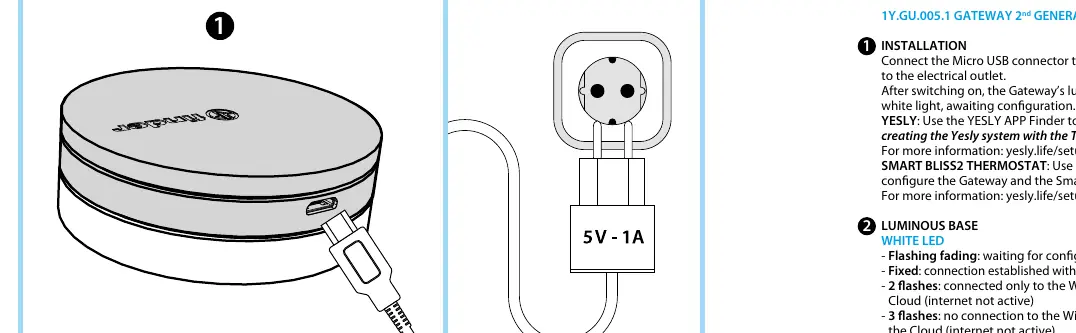
Connect the Micro USB connector to the Gateway and plug the power supply into an electrical outlet. Once powered, the luminous base will flash with a fading white light, indicating it is awaiting configuration.
Configuration
YESLY System: You must first create the system using the TOOLBOX PLUS App Finder. After that, use the YESLY APP Finder to configure the Gateway. For more details, visit yesly.life/setup-gateway.
SMART BLISS2 Thermostat: Use the FINDER BLISS application to configure both the Gateway and the Smart Bliss2 Thermostat. For more details, visit yesly.life/setup-bliss2.
Luminous Base LED status
The luminous base provides visual feedback on the device status:
- White LED (Flashing fading): Waiting for configuration.
- White LED (Fixed): Connection established with both Wi-Fi and Cloud.
- White LED (2 flashes): Connected to Wi-Fi only (no Cloud/Internet).
- White LED (3 flashes): No connection to Wi-Fi or Cloud.
- Blue LED (Flashing): Sending Bluetooth commands to devices.
- Red LED (Flashing): Commands are being sent to the Smart Bliss2 thermostat.
Gateway Settings
You can adjust the light intensity of the Gateway base by pressing the button:
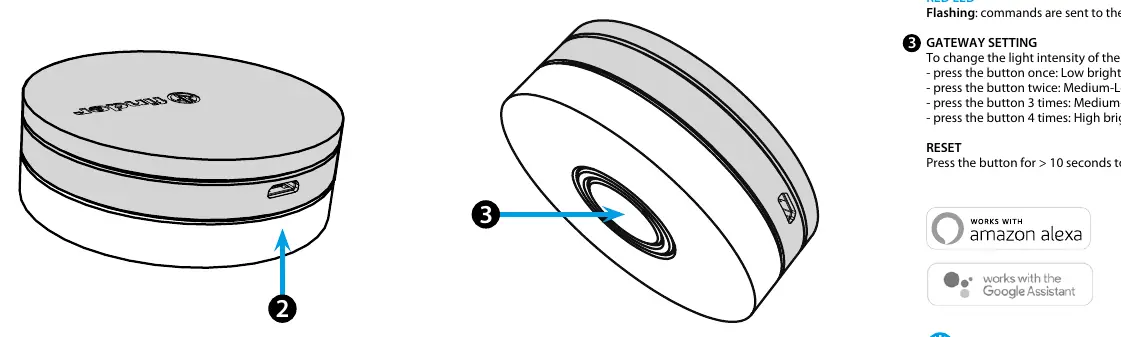
- 1 press: Low brightness
- 2 presses: Medium-Low brightness
- 3 presses: Medium-High brightness
- 4 presses: High brightness
Reset
To reset the settings to factory defaults, press and hold the button for more than 10 seconds.
Official resources from the manual
Manufacturer information
Finder S.p.A.
Practical help
Common problems
Gateway not connecting to Cloud
Check if the LED flashes 2 times (Wi-Fi only) or 3 times (no Wi-Fi). Ensure your internet connection is active.
Gateway not connecting to Wi-Fi
Ensure the LED is not flashing 3 times, which indicates no connection to the Wi-Fi network.
Before use
- Ensure you have a 5V-1A power supply.
- Download the YESLY APP or FINDER BLISS application.
- For YESLY systems, ensure you have created the system using the TOOLBOX PLUS App first.
Images and diagrams
- The installation diagram shows the Micro USB connection to the Gateway and the power adapter.
- The button location diagram indicates where to press for settings and factory reset.
Model compatibility
- Compatible with YESLY system (requires TOOLBOX PLUS App).
- Compatible with Smart Bliss2 Thermostat (requires FINDER BLISS App).

Manual page author
David Miller
Documentation analyst
Organizes user manual content into clear summaries, with attention to model details, product context, and everyday usability.