Electronics / Networking
Fortinet FortiAP 231F QuickStart Guide
QuickStart guide for the Fortinet FortiAP 231F wireless access point. Includes installation steps, interface descriptions, LED indicator meanings, and setup instructions for cloud or local deployment.
Quick answers from the manual
Quick answer
- The FortiAP 231F is a wireless access point. This guide covers installation, interface connections, LED status, and setup via FortiAP Cloud or a FortiGate controller. p. 1, 5, 6
Key actions
- Ceiling Installation p. 7
- Device Setup p. 9, 10
First start
- Connect to network via PoE or DC adapter, then authorize via FortiGate or FortiAP Cloud. p. 8, 9, 10
Show 4 more answers Show less
Problems and fixes
FortiGate not on same network
Log in to AP (192.168.1.2), use 'cfg -a AC_IPADDR_1=0.0.0.0' to set controller IP.
p. 11Maintenance and reset
- Use the Reset button on the interface panel. p. 5
Technical specifications
| Parameter | Value | Meaning | Pages |
|---|---|---|---|
| Power | 12V DC 2.5A or 802.3at PoE | Power requirements | p. 5, 7 |
| Operating Temperature | 0°C to 45°C | Ambient operating temperature | p. 7 |
Where to find it in the PDF
- Package Contents & Interfaces p. 5
- LED Indicators & Installation p. 6, 7
Table of contents
Manual images
Click an image to enlargeQuick Guide
This guide provides essential information for setting up your FortiAP 231F. Before beginning, it is recommended to register your device at http://support.fortinet.com to access cloud management, firmware updates, and technical support.
Package Contents
- FortiAP 231F Device
- QuickStart Guide
- 8 x Mounting Screws with 8 x Anchors
- 9/16" Ceiling Mounting Bracket
- 15/16" Ceiling Mounting Bracket
Interfaces
The device features the following interfaces:
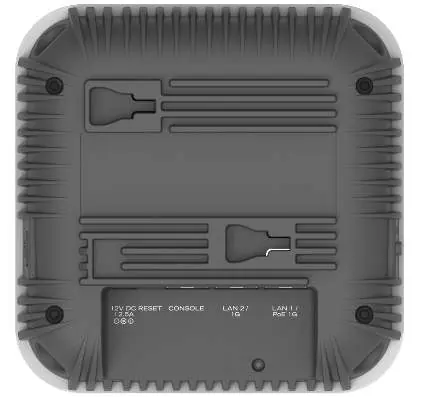
- 1. Optional Power: 12V DC 2.5A adapter input.
- 2. Reset: Resets the device.
- 3. Console (RJ-45): CLI management computer interface.
- 4. LAN2 GE (RJ-45): 1 Gbps Ethernet interface.
- 5. LAN1/POE GE (RJ-45): 1 Gbps 802.3at PoE Ethernet interface.
- 6. USB 3.0 (Type A): Software enabled power through the GPIO, 9A/5V.
LED Indicators
The LED indicators provide status information:
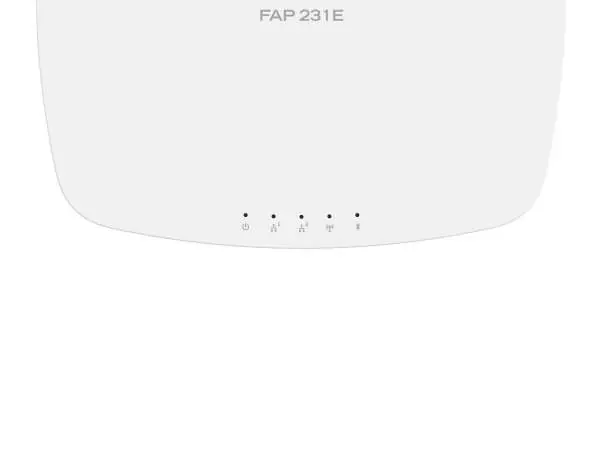
- Power: Off (device off), Green (on), Blinking Green (booting), Orange (reserved).
- LAN 1 & 2: Off (link off), Green (link on), Blinking Green (1Gbps), Blinking Orange (100Mbps).
- WiFi (5GHz & 2.4GHz): Indicates radio activity (Blue/Orange/Green).
- Bluetooth Low Energy (BLE) & WiFi: Indicates BLE and Radio 3 activity.
Ceiling Installation
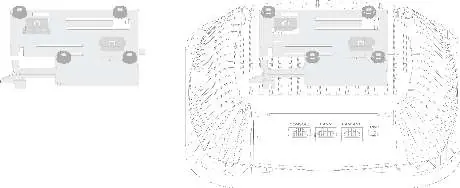
- Select the appropriate bracket for your T-rail size: 1.43cm (9/16in) or 2.38cm (15/16in).
- With the ports facing you, slide the bracket onto the device from left to right.
- Hold the device against the ceiling T-rail and push until it snaps into place.
Basic Connections
Connect the FortiAP to a FortiGate controller or an Internet connection using the LAN/PoE port. Ensure the PoE cable is connected to an IEEE 802.3at compliant injector or switch. If not using PoE, connect an optional 12V 2.5A power adapter.
Device Setup
You can configure the device using two primary methods:
- FortiAP Cloud: Log in to fortiapcloud.com, click Inventory, and import the AP Key found on the device sticker.
- FortiGate Deployment: Preauthorize the device via your FortiGate controller or authorize it after connection. If the FortiGate is on a different network, log in to the AP directly (default IP 192.168.1.2, username admin, no password) to specify the controller IP address.
Safety and Environment
This device is for indoor use only. Operating temperature is 0°C to 45°C. Ensure a minimum distance of 21cm (FCC) or 24cm (ISED) between the radiator and your body during operation.
Official resources from the manual
Manufacturer information
Fortinet, Inc.
Practical help
Common problems
Device not powering on
Ensure you are using an IEEE 802.3at compliant PoE injector or a 12V DC 2.5A power adapter.
Device not connecting to FortiGate
If not on the same network, log in to the AP directly (192.168.1.2) and use the 'cfg -a AC_IPADDR_1=0.0.0.0' command to set the controller IP.
Before use
- Verify all package contents are present.
- Register the device at support.fortinet.com.
- Ensure the PoE source is IEEE 802.3at compliant.
- Identify the correct ceiling T-rail bracket size (9/16" or 15/16").
Show more Show less
Specs in practice
- Operating Temperature
- 0°C to 45°C.
Images and diagrams
- The interface panel shows the power jack, reset button, console port, and two LAN ports.
- LED indicators are located on the front of the device to show power, link, and radio status.
Model compatibility
- Indoor use only.
- Requires IEEE 802.3at compliant PoE.

Manual page author
David Miller
Documentation analyst