Electronics / Cameras
Fujifilm GFX 100RF Firmware Update 1.10 Guide
Essential information regarding firmware update version 1.10 for the Fujifilm GFX 100RF, including removed features and updated smartphone pairing procedures.
Table of contents
Manual images
Jump to the sectionOverview of Firmware Update 1.10
This document outlines the significant changes, additions, and removals introduced in firmware version 1.10 for the Fujifilm GFX 100RF digital camera. Users are advised that features modified or removed by firmware updates may no longer align with the original documentation provided with the product. It is recommended to visit the official Fujifilm support website for the most current manuals and firmware information.
Removed Features and Functionality
Firmware version 1.10 introduces several changes to the camera's wireless and printing capabilities. Specifically, the Wireless Communication feature has been removed from the Shooting Menu, Movie Menu, and Playback Menu. Additionally, the option to print to Instax printers has been removed from the Playback Menu, and the Instax SHARE printer (SP-1/SP-2/SP-3) accessories are no longer supported by the camera. The Wireless Communication function has also been removed from the function button assignments and the Fn1 button settings. Users should note that performing a firmware update may reset the Connection Mode setting in the Network/USB menu to its default state if Wireless Tether Shooting was previously selected; please reconfigure these settings based on your external device requirements.
Smartphone Connection Procedure
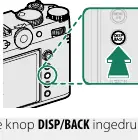
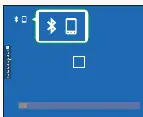
The procedure for pairing the camera with a smartphone via Bluetooth has been updated in this version. To initiate the connection, ensure the shooting information is displayed on the camera screen, then press the DISP/BACK button. Alternatively, you can hold the DISP/BACK button during playback to jump directly to the pairing menu. Within the Bluetooth settings, select Pairing and confirm the connection. Once the app is launched on your smartphone, a code will appear on both devices; verify that these codes match to complete the pairing process. A smartphone icon and a white Bluetooth icon will appear on the camera screen once a successful connection is established. For optimal performance, it is recommended to disable Bluetooth when the camera is not actively connected to a smartphone to conserve battery life. Once paired, the smartphone will automatically reconnect to the camera whenever the application is launched.
Manufacturer information
Fujifilm Corporation
Practical help
Common problems
Connection Mode reset after firmware update
The setting may revert to default if Wireless Tether Shooting was active. Reconfigure the settings in the Network/USB menu to match your external device.
Battery drains quickly
Disable Bluetooth when the camera is not actively connected to a smartphone to extend battery life.
Before use
- Check the official Fujifilm website for the latest firmware version.
- Ensure the camera battery is sufficiently charged before starting the update.
- Verify that the smartphone app is updated to the latest version.
- Confirm that Bluetooth is enabled on both the camera and the smartphone.
Images and diagrams
- The DISP/BACK button is used to access the connection menu.
- The camera screen displays a smartphone icon and a white Bluetooth icon when successfully connected.
- The Bluetooth menu allows for toggling the connection and initiating the pairing process.
Model compatibility
- Instax SHARE printers (SP-1, SP-2, SP-3) are no longer supported.
- Wireless communication features have been removed from various menus.

Manual page author
Emily Carter
User documentation editor
Prepares concise manual descriptions and highlights the most useful setup, operation, and maintenance information for readers.