Electronics / Monitors
Fusion Pro Wireless Controller for PlayStation 4 User Guide
Quick start guide and user manual for the Fusion Pro Wireless Controller for PlayStation 4. Learn how to set up wired and wireless modes, map Pro Pack paddles, adjust trigger locks, and replace thumbsticks.
Table of contents
Manual images
Click an image to enlargeQuick Guide from the Manual
The Fusion Pro Wireless Controller for PlayStation 4 is designed for customizable gaming. Before first use, ensure the controller is charged. If the Light Bar LED flashes red, connect the included USB cable to charge the internal 1000 mAh battery. The controller features a mode switch on the back to toggle between PS4 USB (wired), PS4 BT (wireless), and PC USB modes.
Device Overview
The controller features a standard layout with additional customization options:
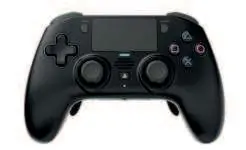
- Front: Includes standard PS4 buttons (Share, Options, PS, Directional, L1/R1, L3/R3), Touch Pad, and Light Bar LED.
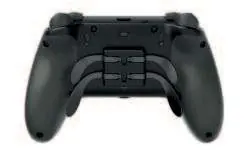
- Back: Features the USB port, Mode Switch, Program Button, 3-Way Trigger Locks, and the Mappable Pro Pack.
Setup and Connection
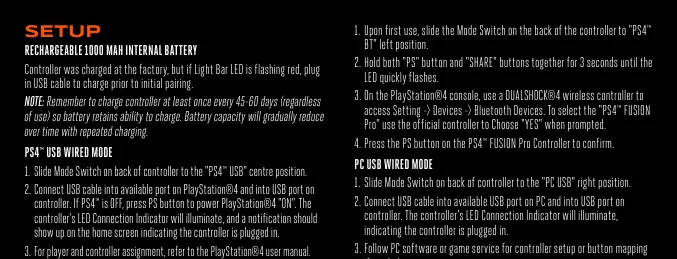
PS4 Wired Mode
- Slide the Mode Switch on the back to the center position labeled PS4 USB.
- Connect the USB cable to the PlayStation 4 and the controller.
- If the console is off, press the PS button to power it on. The LED Connection Indicator will illuminate.
PS4 Bluetooth Wireless Mode
- Slide the Mode Switch on the back to the left position labeled PS4 BT.
- Hold the PS and Share buttons simultaneously for 3 seconds until the LED flashes quickly.
- On the PS4 console, navigate to Settings, then Devices, then Bluetooth Devices.
- Select PS4 FUSION Pro and confirm with the official controller when prompted.
- Press the PS button on the Fusion Pro controller to confirm.
PC USB Wired Mode
- Slide the Mode Switch on the back to the right position labeled PC USB.
- Connect the USB cable to the PC and the controller. The LED Connection Indicator will illuminate.
Pro Pack Mapping
You can map buttons to the Pro Pack paddles on the back of the controller:
- Press and hold the Program Button on the back of the controller for 2-3 seconds. The Pro Pack Program LED will flash.
- Press the button you wish to map (e.g., X, O, Square, Triangle, L1, R1, etc.).
- Press the specific Pro Pack paddle you want to assign that button to.
- Repeat for remaining paddles. Assignments remain in memory even after disconnection.
Customization
3-Way Trigger Lock Adjustment
The controller features 3-way trigger locks on the back. Adjust these to change the trigger travel distance, allowing for faster response times in games.
Thumbstick Replacement
The thumbsticks are removable. Pull the existing thumbstick off the controller and press the replacement stick onto the shaft until it clicks into place.
Troubleshooting
- Controller will not connect: For wired mode, ensure the cable is properly connected to the console and the inline release is secure. For wireless mode, ensure the switch is set to BT Mode and the controller is paired in the PS4 Bluetooth settings.
- Pro Pack paddles not working: Ensure the Pro Pack is securely attached to the controller and the paddles are properly installed. Re-map the paddles if necessary.
Safety and Maintenance
Do not attempt to replace the internal battery yourself. If the battery emits an odor, generates heat, or appears abnormal, stop use immediately. Keep the controller away from extreme heat, direct sunlight, and static electricity. Dispose of batteries according to local environmental laws.
Practical help
Common problems
Controller will not connect to the console
For wired mode, check cable connections. For wireless mode, ensure the switch is set to 'BT Mode' and the controller is paired in PS4 Bluetooth settings.
Pro Pack paddles are not functioning
Ensure the Pro Pack is securely installed on the controller and re-map the paddles following the instructions in the manual.
Before use
- Charge the controller before initial use if the LED flashes red.
- Set the Mode Switch on the back to the correct position (PS4 USB, PS4 BT, or PC USB).
- Ensure the Pro Pack is securely attached if you intend to use the back paddles.
- If using wireless mode, ensure the controller is paired with the PS4 console.
Specs in practice
- 1000 mAh Battery
- Internal rechargeable battery; charge every 45-60 days to maintain capacity.
- 3-Way Trigger Lock
- Adjustable trigger travel distance for faster response times.
Images and diagrams
- Front view identifies standard buttons, touch pad, and light bar.
- Back view identifies USB port, mode switch, trigger locks, and Pro Pack attachment.
Model compatibility
- Compatible with PlayStation 4 and PC.

Manual page author
Emily Carter
User documentation editor
Prepares concise manual descriptions and highlights the most useful setup, operation, and maintenance information for readers.