Industrial / Access Equipment
User Manual for Genie Access Manager
Quick guide for the Genie Access Manager keypad. Learn how to operate the system, use RFID cards, enter codes, and understand LED status indicators for machine authorization.
Table of contents
Quick guide from the manual
The Genie Access Manager is an equipment-mounted keypad designed to work with the Genie Lift Connect system. It restricts machine operation to authorized personnel only. An administrator must assign operator codes via the Lift Connect portal before the machine can be used.
System Overview
The system locks out the machine until a valid operator code is entered or an RFID card is scanned. Operators must check out when the machine is not in use to prevent unauthorized operation.
Operating Instructions
RFID Card Scanning: Touch your RFID card to the front face of the keypad to check in or check out.
Key Code Entry: Enter your assigned code using the numbered keys and press the green check button to confirm.
Checked In/Out Status: When an operator is successfully checked in, the Green LED turns on, and time on the machine is logged. When checking out, the Green LED turns off, and logging stops.
LED Indicators
The keypad features three LED indicators at the top:
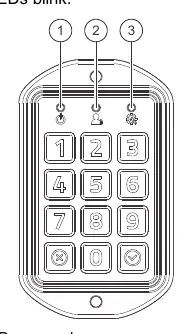
- Power (Amber): Indicates the keypad is awake. It is off when the keypad is sleeping.
- Person Access (Green): Indicates check-in/check-out status. It is on when an operator is checked in, and blinks during key presses or user validation.
- Maintenance / Error (Red): Indicates system errors or invalid inputs.
Troubleshooting and Error Codes
The Maintenance/Error (Red) LED provides feedback through blinking patterns:
- 1 Blink: Occurs when the Red X button is pressed or when an invalid user attempts to log in.
- 2 Blinks: Indicates a communication failure with the M7 module.
- 3 Blinks: Occurs if the user enters a code that is too long (17th digit).
- All 3 LEDs blink: Indicates an OTA (Over-the-Air) software update is in progress.
Manufacturer information
Genie
Practical help
Common problems
Red LED blinks once
Indicates an invalid user or that the Red X button was pressed.
Red LED blinks 2 times
The keypad cannot communicate with the M7 module.
Red LED blinks 3 times
The entered code is too long (maximum length exceeded).
Machine locked out
Ensure an administrator has assigned an operator code to the machine via the Lift Connect portal.
Before use
- Ensure the machine is powered up.
- Verify you have an assigned operator code or authorized RFID card.
- Check that the keypad is awake (Amber LED should be on).
- Always check out when finished to prevent unauthorized use.
Specs in practice
- Power (Amber LED)
- Indicates the keypad is awake and ready for input.
- Person Access (Green LED)
- Confirms successful check-in or check-out status.
- Maintenance/Error (Red LED)
- Signals system errors, communication issues, or invalid inputs.
Images and diagrams
- The keypad includes numbered keys 0-9, a green check button for confirmation, and a red X button for cancellation.
- LED indicators are located at the top of the unit, numbered 1 (Power), 2 (Person Access), and 3 (Maintenance).
Model compatibility
- Requires Genie Lift Connect portal for administrator code assignment.
- Works with RFID cards and manual keypad code entry.

Manual page author
David Miller
Documentation analyst
Organizes user manual content into clear summaries, with attention to model details, product context, and everyday usability.