Electronics / Networking
User Manual for StarTech.com Gigabit Ethernet to SC Fiber Media Converter MCMGBSCSM10
Quick start guide for the StarTech.com MCMGBSCSM10 media converter. Includes installation steps, LED indicator explanations, and LFP feature configuration.
Table of contents
Quick guide from the manual
This document provides essential setup and configuration instructions for the StarTech.com MCMGBSCSM10 Gigabit Ethernet to SC Fiber Media Converter. Key features include Link Fault Pass-through (LFP) and triple-speed auto-negotiation. Ensure you follow the installation sequence carefully to avoid connection errors.
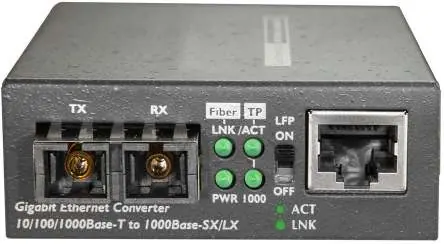
Package contents
- 1 x Media converter
- 1 x Universal power adapter (NA/JP, UK, EU, ANZ)
- 1 x Quick start guide
Installation
- Power off the device you intend to connect to the media converter.
- Connect a fiber optic cable to your device and the SC fiber port on the media converter. Ensure you swap the TX and RX cables between the device and the converter.
- Connect an Ethernet cable to your device and the RJ45 Ethernet port on the media converter.
- Connect the universal power adapter to the power port on the converter and plug it into a wall outlet. Verify that the PWR LED is illuminated.
- Power on the connected device and check that the FX and TP-Link LEDs are lit.
LED Indicators
The media converter features several LEDs to indicate status:
- PWR: Solid green indicates power is on; off indicates no power.
- Fiber LNK/ACT: Solid green indicates a fiber connection is detected; blinking green indicates data is being sent or received; off indicates no fiber connection.
- TP LNK/ACT: Solid green indicates an Ethernet connection is detected; blinking green indicates data is being sent or received; off indicates no Ethernet connection.
- TP 1000: Solid green indicates 1000Mbps connection; off indicates 10/100Mbps connection.
Link Fault Pass-through (LFP)
The LFP function allows the converter to notify network administrators of connection errors by interrupting the link on the remote side if a link failure occurs on the local side. This feature is enabled by default.
Disabling LFP
- Disconnect the power adapter from the media converter.
- Set the Link Fault Pass-through switch to the OFF position.
- Reconnect the power adapter to the media converter.
Triple Speed Support
The RJ45 port supports auto-negotiation for 10/100/1000 BASE-T. The converter automatically detects the connection speed of the connected device and adjusts accordingly.
Official resources from the manual
Practical help
Common problems
Fiber connection not detected
Ensure the fiber cables are connected correctly and verify that the TX and RX cables are swapped between the device and the converter.
LFP feature causing network issues
If the LFP feature is not desired, it can be disabled by setting the Link Fault Pass-through switch to the OFF position after power cycling the unit.
No power indicator
Verify that the power adapter is securely connected to both the media converter and a functional wall outlet.
Before use
- Power off all devices before making physical connections.
- Ensure you have the correct fiber optic cable type for your network.
- Verify that the TX and RX fiber cables are swapped correctly.
- Check that the power adapter matches your regional outlet type.
Specs in practice
- 10/100/1000 BASE-T
- The RJ45 port supports auto-negotiation for three different Ethernet speeds.
- LFP (Link Fault Pass-through)
- A feature that propagates link failures across the media converter to notify administrators of connection issues.
Images and diagrams
- The front panel contains the SC fiber ports (TX/RX), LED indicators, the LFP switch, and the RJ45 Ethernet port.
- The back panel contains the 5V DC power adapter input.
Model compatibility
- Requires an Ethernet network (10/100/1000) and a Gigabit (1000Mbps) fiber network.

Manual page author
David Miller
Documentation analyst
Organizes user manual content into clear summaries, with attention to model details, product context, and everyday usability.