Electronics / AV Splitters
User Manual for Gofanco 1x4 HDMI CAT Splitter/Extender 4K30 - 70M
Quick guide for the Gofanco 1x4 HDMI CAT Splitter/Extender (HD14Ext-4P). Includes installation steps, wiring diagrams, RS232 control, and troubleshooting tips.
Quick answers from the manual
Quick answer
- The Gofanco 1x4 HDMI CAT Splitter/Extender distributes one HDMI source to four remote displays via CAT6/7 cables, with an additional local HDMI loopout. It supports resolutions up to 4K @30Hz and distances up to 70m (1080p) or 40m (4K). p. 3
Key actions
- Install the system by connecting the source to the Transmitter, CAT cables to Receivers, and displays to Receivers. p. 8
- Configure RS232 control with 9600 Baud Rate, 8 Data Bits, 1 Stop Bit, and No Parity. p. 11
First start
- Power off all devices, connect all cables, plug in power adapters, and then power on the source and displays. p. 8
Problems and fixes
No signal on remote displays
Press the reset button on both the Transmitter and the Receiver.
p. 12
Snowy or fuzzy screen
Use higher quality HDMI cables under 5 meters and check CAT cable length.
p. 12Maintenance and reset
- Press the Reset button on the Transmitter or Receiver to restart the unit. p. 5, 6
Technical specifications
| Parameter | Value | Meaning | Pages |
|---|---|---|---|
| Max Resolution | 4K @30Hz | Supports up to 4K @30Hz YUV 4:4:4 | p. 3, 13 |
| Transmission Distance | 70m (1080p) / 40m (4K) | Maximum distance for HDMI transmission | p. 3 |
Where to find it in the PDF
- Product Layout p. 5, 6, 7
- Hardware Installation p. 8
- Specifications p. 13
Table of contents
Quick guide from the manual
The Gofanco 1x4 HDMI CAT Splitter/Extender allows you to distribute an HDMI signal from one source to four remote displays using CAT6/7 cables, with an additional local HDMI loopout. This device supports resolutions up to 4K @30Hz and includes features like bi-directional IR and RS232 control.
Package Contents
- 1x 1x4 HDMI CAT Transmitter
- 4x CAT6/7 Receivers
- 1x IR Emitter cable
- 4x IR Receiver cables
- 1x TX power adapter (5V/2A)
- 4x RX power adapters (5V/500mA)
- Surface mount accessories
- 1x Terminal block (RS232)
Hardware Installation
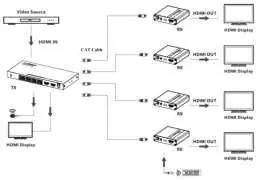
- Power off all devices, including the HDMI source and displays.
- Connect your HDMI source device to the Transmitter's HDMI In port.
- Connect CAT6/7 cables between the Transmitter's CAT6/7 Out ports and the Receivers' CAT6/7 In ports.
- Connect an HDMI display to the Transmitter's HDMI Out port (optional, for local monitoring).
- Connect HDMI displays to each Receiver's HDMI Out port.
- Connect IR Emitter/Receiver cables if remote control is required.
- Connect the included power adapters to the Transmitter and all Receivers.
- Power on the HDMI source and displays.
CAT Cable Wiring
For optimal performance and compatibility, both RJ-45 connectors must be wired identically using the T568B wiring standard. It is recommended to use 100% copper 23AWG CAT cables and avoid using CCA type cables.
IR Control
The system supports bi-directional IR control, allowing you to control the source device from the remote location or control the displays from the source location. Ensure the IR eye is pointed in line with the device's IR window.
RS232 Control
The Transmitter includes an RS232 port for control. Use the following settings for the COM port: Baud Rate: 9600, Data Bits: 8, Stop Bits: 1, Parity: None.
Troubleshooting
- Poor video quality or no signal: Check HDMI cable connections and ensure the display resolution is compatible with the splitter.
- No HDMI signal on remote displays: Press the reset button on both the Transmitter and the affected Receiver.
- Snowy or fuzzy screen: Ensure HDMI cables are high quality and under 5 meters in length. Verify the CAT cable length is within the specified range.
Practical help
Common problems
Poor video quality or no video signal
Check that HDMI cables are connected properly and are in good working condition. Ensure the display resolution is compatible with the splitter.
No HDMI signal output from CAT6/7 connectors
Press the reset button on both the Transmitter and the Receiver, then reconnect.
Snowy or fuzzy screen
Replace HDMI cables with higher quality ones and ensure they are 5 meters or shorter. Verify the CAT cable length is within the specified range.
Before use
- Power off all devices before installation
- Use T568B wiring standard for CAT cables
- Ensure HDMI cables are under 5 meters for best quality
- Connect power adapters to both Transmitter and all Receivers
- Verify CAT6/7 cable quality (100% copper 23AWG recommended)
Specs in practice
- Transmission Distance
- Up to 70m at 1080p and 40m at 4K30Hz.
- Power Supply (TX)
- 5V/2A power adapter required.
- Power Supply (RX)
- 5V/500mA power adapter required.
- Compatibility
- HDCP 1.4 compliant; supports 4K @30Hz YUV 4:4:4.
Images and diagrams
- Figure 1: Transmitter layout showing Reset, CAT Out, HDMI In/Out, IR, and RS232 ports.
- Figure 2: Receiver layout showing Reset, CAT In, IR, and HDMI Out ports.
- Figure 4: Application diagram illustrating the connection between source, transmitter, receivers, and displays.
Model compatibility
- Requires CAT6/7 cables (not included).
- HDMI cables not included.
- Supports 2ch PCM audio and Stereo audio extraction.

Manual page author
David Miller
Documentation analyst
Organizes user manual content into clear summaries, with attention to model details, product context, and everyday usability.