Electronics / AV Splitters
Gofanco 1x4 HDMI 1.4 Splitter/Extender HDExt4P-HD14
Quick guide for the Gofanco 1x4 HDMI 1.4 Splitter/Extender (HDExt4P-HD14). Learn how to install, connect, and troubleshoot your HDMI signal distribution system.
Quick answers from the manual
Quick answer
- The Gofanco 1x4 HDMI 1.4 Splitter/Extender distributes one HDMI source signal to four remote displays via CAT6/7 cables, plus one local HDMI loopout. p. 3
Key actions
- Installation p. 7
- IR Control Setup p. 9, 10, 11
First start
- Connect all cables (HDMI, CAT6/7, IR) while devices are powered off, then plug in the power adapter and power on the source and displays. p. 7
Problems and fixes
Poor video quality or no video signal
Check HDMI cable connections and integrity. Ensure display resolution is compatible.
p. 12
Splash screen on displays
Replace with higher quality HDMI cables.
p. 12Technical specifications
| Parameter | Value | Meaning | Pages |
|---|---|---|---|
| HDMI Standard | HDMI 1.4 with HDCP 1.4 | Compliance standard | p. 14 |
| Transmission Distance | 1080p <= 70m, 4K <= 50m | Max cable length | p. 14 |
Where to find it in the PDF
- Front Panel Layout p. 4
- Rear Panel Layout p. 5
- Receiver Layout p. 6
- Hardware Installation p. 7
- Specifications p. 13, 14
Table of contents
Manual images
Click an image to enlargeQuick guide from the manual
The Gofanco 1x4 HDMI 1.4 Splitter/Extender allows you to distribute an HDMI signal from a single source to four remote displays via CAT6/7 cables, while also providing a local HDMI loopout. It supports resolutions up to 4K@30Hz, bi-directional IR control, and Power over Cable (PoC) technology, which powers the receivers through the CAT cables.
Package Contents
- 1x 1x4 HDMI 1.4 Splitter/Extender
- 4x CAT6/7 Receivers
- 5x IR Receiver cables
- 1x IR Emitter cable
- 1x Power adapter (24V/2.71A)
- Surface mount accessories, Velcro strips, and Plastic cushions
Product Layout
Front Panel: Features a Power LED and a 3-Pin EDID selector switch (5.1CH Audio, 2.0CH Audio, Copy Display).
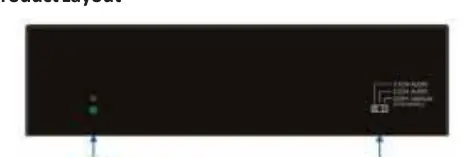
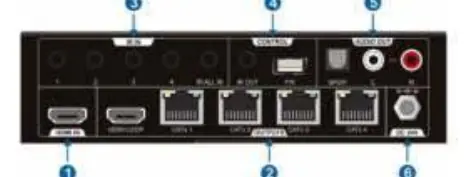
Rear Panel: Includes HDMI In, HDMI Loopout, four CAT6/7 outputs, five IR input jacks (IR All In, IR In 1-4), IR Out, and a USB port for firmware updates.
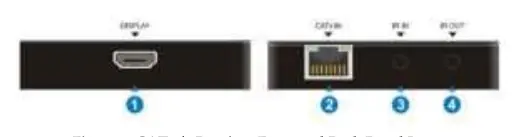
Receiver: Features an HDMI Out port, CAT6/7 In port, IR In, and IR Out.
Hardware Installation
- Power off all devices, including the HDMI source and displays.
- Connect your HDMI source device to the Splitter/Extender's HDMI In port using an HDMI cable.
- Connect CAT6/7 cables from the Splitter/Extender's CAT6/7 Out ports to the CAT6/7 In ports on the Receivers.
- Optional: Connect a local HDMI display to the HDMI Loopout port on the Splitter/Extender.
- Connect HDMI displays to the HDMI Out port on each Receiver.
- Optional: Connect IR Receiver and Emitter cables to the appropriate IR ports if remote control is required.
- Connect the included power adapter to the Splitter/Extender and plug it into a power outlet. Note: Receivers are powered via PoC; no separate power adapter is needed for them.
- Power on your HDMI source and displays.
IR Control
The system supports bi-directional IR control. You can control the source device from a remote location or control the display devices from the source location. Connect the IR Emitter cable to the IR Out port and point it at the device's IR window. Connect the IR Receiver cable to the IR In port on the receiver or splitter.
CAT Cable Wiring
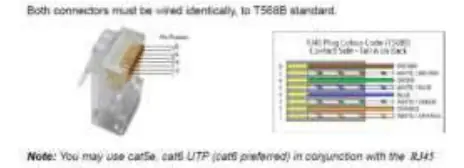
For optimal performance, use the T568B wiring standard for both RJ-45 connectors. Ensure the cable is solid copper core 23AWG and avoid using CCA (Copper Clad Aluminum) cables. Keep cables away from noisy electrical sources.
Troubleshooting
- Poor video quality or no signal: Check that all HDMI cables are connected properly and are in good working condition. Ensure the display resolution is compatible with the splitter's resolution.
- No HDMI signal on CAT6/7 outputs: Verify HDMI cable connections.
- Splash screen on displays: Often caused by damaged or low-quality HDMI cables. Replace with higher-quality cables.
Specifications
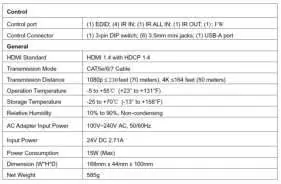
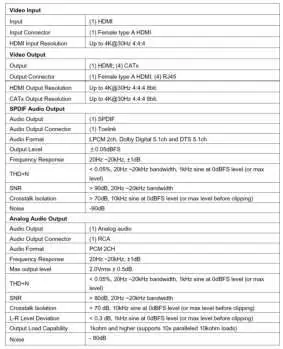
The device supports HDMI 1.4 and HDCP 1.4. Transmission distance is up to 70m (230ft) at 1080p and 50m (164ft) at 4K. It supports up to 4K@30Hz YUV 4:4:4 and 1080p @60Hz YUV 4:4:4.
Practical help
Common problems
Poor video quality or no video signal
Check HDMI cable connections and integrity. Ensure the display resolution is compatible with the splitter's resolution.
Splash screen on displays
This is typically caused by damaged or low-quality HDMI cables. Replace with higher-quality HDMI cables.
No HDMI signal output from CAT6/7 connectors
Verify that HDMI cables are connected properly and are in good working condition.
Before use
- Power off all devices (source and displays) before installation.
- Ensure you have CAT6/7 cables (not included).
- Ensure you have HDMI cables (not included).
- Verify the power adapter is connected to a reliable outlet.
- Ensure the CAT cable is solid copper core 23AWG.
Specs in practice
- Transmission Distance
- Up to 70m (230ft) at 1080p and 50m (164ft) at 4K using CAT6/7 cables.
- PoC (Power over Cable)
- Receivers are powered by the splitter via the CAT cable; no separate power adapter is needed for the receivers.
Images and diagrams
- Front Panel: Contains Power LED and EDID selector switch.
- Rear Panel: Contains HDMI In, HDMI Loopout, CAT6/7 Outputs, IR ports, and Audio outputs.
- Receiver: Contains HDMI Out, CAT6/7 In, and IR ports.
Model compatibility
- Supports HDMI 1.4 and HDCP 1.4.
- Supports up to 4K@30Hz YUV 4:4:4.
- Use T568B wiring standard for RJ-45 connectors.

Manual page author
Michael Turner
Technical manual editor
Reviews PDF manuals for structure, safety notes, and practical product details so readers can find the right information quickly.