Home / Security
User Manual for Honeywell SiXPANIC 2-Button Wireless Panic Key
Quick guide for the Honeywell SiXPANIC 2-Button Wireless Panic Key. Learn how to enroll the device, replace the battery, and perform system tests.
Quick answers from the manual
Quick answer
- The SiXPANIC is a bi-directional wireless key fob for Honeywell security systems. It is enrolled via the controller's 'SiX Programming' menu and requires an annual test. p. 1, 2
Key actions
- Enroll the device by setting the controller to Programming Mode and selecting SiX Programming. p. 1
- Replace the battery by opening the casing and inserting a new 3V CR2450 coin cell. p. 2
First start
- Enroll the device using the controller's programming menu, then perform a Go/No Go test. p. 1
Problems and fixes
Enrollment not confirmed
Press and hold both buttons briefly again to restart enrollment.
p. 1Maintenance and reset
- The product must be tested at least once each year. p. 2
Technical specifications
| Parameter | Value | Meaning | Pages |
|---|---|---|---|
| Battery | 3V Coin Cell (CR2450) | Power source | p. 2 |
| RF Frequency | 2.4GHz | Wireless communication frequency | p. 2 |
Where to find it in the PDF
- Installation and Enrollment p. 1
- Specifications and Battery Replacement p. 2
Table of contents
Quick Guide from the Manual
The Honeywell SiXPANIC is a bi-directional wireless key fob designed for use with Honeywell security systems that support SiX series devices. This guide covers the essential steps for enrollment, battery maintenance, and system testing.
Enrollment
To enroll the SiXPANIC with a Lyric Controller:
- Set the Lyric Controller to Programming Mode: Security > Tools > [installer code] > Program > SiX Programming.
- Press and hold both buttons on the key fob briefly until the LED flashes green.
- The enrollment process may take up to 20 seconds.
- Once complete, the MAC ID will be displayed, and the LED will light solid green for 3 seconds.
- If enrollment fails, press and hold both buttons again to restart.
- Press Edit to configure the Alarm Report option, then Save. Enter a Zone Descriptor and save again.
For the Lyric Gateway, use the AlarmNet 360 platform for enrollment.
LED Indications
- Green flashing: The unit is transmitting.
- Red flashing: Low battery indication (occurs during key press).
Battery Replacement
The device uses a 3V CR2450 coin cell battery. To replace it, open the device casing, remove the old battery, and insert a new one, ensuring correct polarity. Dispose of used batteries properly and keep them away from children.
Testing and Maintenance
After enrollment, verify signal strength by performing a Go/No Go test with the device in its intended mounting location. Adjust the location or orientation if necessary. The product must be tested at least once each year to ensure proper functionality.
Safety Information
Important: This wireless key is intended as a convenience and should not be considered a life safety device. The device cannot be used with another system until it is removed from the current controller. Constant exposure to extreme temperatures or high humidity may reduce battery life.
Manufacturer information
Honeywell International Inc.
Practical help
Common problems
Enrollment not confirmed
Press and hold both buttons briefly again to restart the enrollment process.
Device cannot be used with another system
The device must be removed from the current controller before it can be enrolled in a new system.
Before use
- Ensure the controller is in Programming Mode.
- Verify the device is within range of the controller.
- Check that the battery is installed correctly.
- Perform a Go/No Go test after enrollment to verify signal strength.
Specs in practice
- RF Frequency
- 2.4GHz.
- Operating Temperature
- 0°C to 50°C (32°F to 122°F).
Images and diagrams
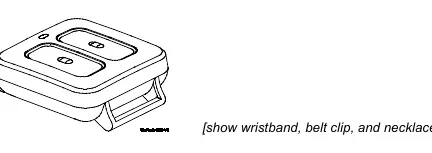
- The manual includes a diagram showing the device with optional accessories like a wristband, belt clip, and necklace.
- A diagram illustrates the battery replacement process.
Model compatibility
- Compatible with Honeywell controls that support SiX series devices.
- Not a life safety device.

Manual page author
Michael Turner
Technical manual editor
Reviews PDF manuals for structure, safety notes, and practical product details so readers can find the right information quickly.