Computers / Laptops
HP 15-FD0000 Notebook User Guide
Quick guide for the HP 15-FD0000 notebook. Learn about hardware components, network connections, power management, system maintenance, security, and troubleshooting.
Table of contents
Manual images
Click an image to enlargeQuick guide from the manual
This guide provides essential information for using and maintaining your HP 15-FD0000 notebook. After setting up and registering your computer, it is recommended to back up your hard drive, connect to a network, familiarize yourself with the hardware and software, and ensure your antivirus software is up to date.
Getting to know your computer
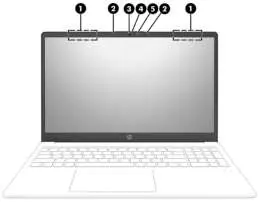
The computer features various ports and components. The right side includes a USB SuperSpeed port, AC adapter and battery light, and a power connector. The left side includes a USB SuperSpeed port, an HDMI port, a USB Type-C SuperSpeed port, and an audio-out/audio-in combo jack. The display area contains WLAN antennas, internal microphones, a camera, a camera privacy cover, and a camera light.
Connecting to a network
You can connect to the internet using a WLAN (Wi-Fi) or a wired LAN connection. To connect to a wireless network, ensure the WLAN device is on, select the network icon on the taskbar, and choose your network. For wired connections, plug a network cable into the RJ-45 port on the computer and the other end into a wall jack or router.
Entertainment features
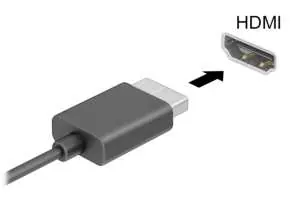
The computer supports various entertainment functions, including camera usage, audio playback, and video output. You can connect external monitors or TVs using an HDMI cable. To set up HDMI audio, right-click the Speakers icon in the taskbar, select Sound settings, and set the digital output device as the default.
Navigating the screen
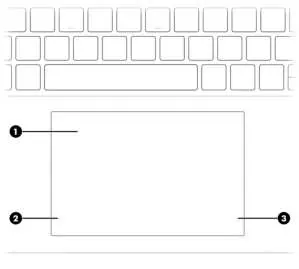
You can navigate using touch gestures on the touchpad or touch screen (on select models). Common gestures include tapping to select, two-finger pinch to zoom, and various multi-finger swipes to switch between apps or desktops. You can customize these gestures in the Windows settings.
Managing power
The computer uses Sleep and Hibernation modes to conserve power. You can initiate these states via the Power icon or by closing the display. If the battery reaches a critical level, the computer may automatically initiate Hibernation or shut down. Use the HP Fast Charge feature (on select models) to charge the battery to 50% in 30 to 45 minutes when the computer is shut down.
Maintaining your computer
Regular maintenance is key to optimal performance. Use Disk Defragmenter and Disk Cleanup to manage your hard drive. Keep the computer clean by wiping external surfaces with a moistened microfiber cloth. Avoid using abrasive cleaners or spraying liquids directly on the device.
Securing your computer and information
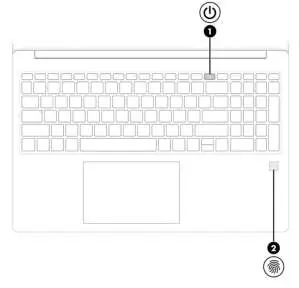
Protect your data by setting Windows passwords and using the Setup Utility (BIOS) for additional security. Windows Hello allows for fingerprint or facial recognition sign-in. Always keep your security software and operating system updated to protect against threats.
Diagnostics and recovery
If you encounter hardware issues, use the HP PC Hardware Diagnostics utility (Windows or UEFI versions) to run tests. If the system fails to boot, you can use HP Recovery media or the HP Cloud Recovery Download Tool to restore your system to its factory state.
Specifications
The computer operates on DC power (100 V–240 V, 50 Hz–60 Hz). Operating temperature ranges from 5°C to 35°C (41°F to 95°F), and operating humidity is 10% to 90% (noncondensing).
Manufacturer information
HP Inc.
Practical help
Common problems
Computer will not restart after changing processor settings
Do not change processor configuration settings in msconfig.exe from 4 or 2 processors to 1 processor.
Low battery level
Connect the AC adapter to the computer and to external power, or save your work and shut down the computer.
Touchpad not responding
Check touchpad settings in Windows or use an external mouse to navigate to settings.
Before use
- Register the computer.
- Back up your hard drive by creating recovery media.
- Connect to a wired or wireless network.
- Familiarize yourself with the computer hardware and software.
- Update or purchase antivirus software.
- Access HP Support Assistant for guided assistance.
Specs in practice
- Operating Temperature
- 5°C to 35°C (41°F to 95°F)
- Operating Humidity
- 10% to 90% (noncondensing)
- Operating Altitude
- -15 m to 3,048 m (-50 ft to 10,000 ft)
Images and diagrams
- Right side components: USB SuperSpeed port, AC adapter/battery light, Power connector.
- Left side components: USB SuperSpeed port, HDMI port, USB Type-C port, Audio combo jack.
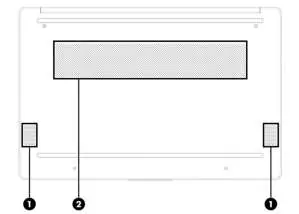
- Bottom components: Speakers, Vent.
Model compatibility
- Some features (e.g., HP Mobile Broadband, eSIM, GPS, Wake-on-voice) are select products only.
- Keyboard area is disabled in stand, tent, and tablet modes.
- HP 3D DriveGuard only protects internal hard drives.

Manual page author
Michael Turner
Technical manual editor
Reviews PDF manuals for structure, safety notes, and practical product details so readers can find the right information quickly.