Computers / Laptops
HP 15A-NA0000 Chromebook User Guide
Quick guide for the HP 15A-NA0000 Chromebook. Learn about components, navigation gestures, battery charging, printing, system recovery, and technical specifications.
Table of contents
Manual images
Click an image to enlargeQuick guide from the manual
This guide provides essential information for operating your HP 15A-NA0000 Chromebook. It covers hardware components, navigation gestures, power management, printing, and system recovery procedures. Always refer to the official HP support website for the latest updates and detailed troubleshooting.
Components
The computer features various ports and indicators to help you connect devices and monitor status.
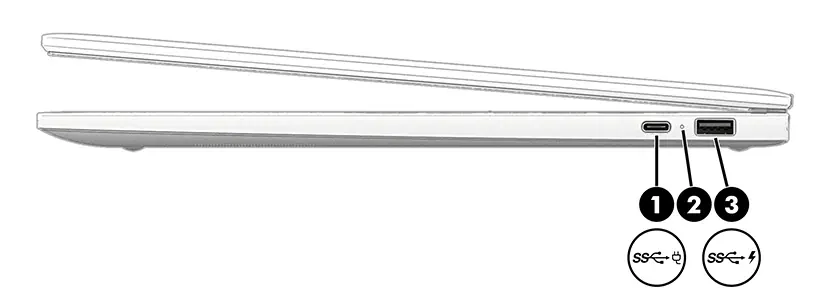
- Right side: Includes a USB Type-C power connector/SuperSpeed port, AC adapter/battery light, and a USB SuperSpeed port with HP Sleep and Charge.
- Left side: Includes an audio-out/audio-in combo jack, AC adapter/battery light, USB Type-C power connector/SuperSpeed port, and a memory card reader.
- Display: Contains WLAN antennas, internal microphones, and a camera with a status light.
- Keyboard area: Features a touchpad, special keys (esc, search, power), and an integrated numeric keypad.
Navigating the screen
You can navigate using the touchpad or touch screen (on select models) with specific gestures:
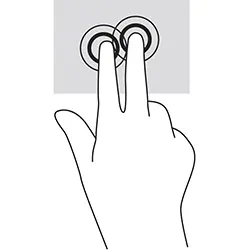
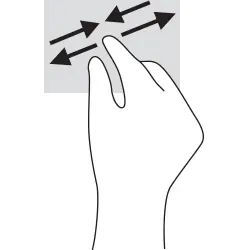
- Tap: Use one finger to select or double-tap to open items. Tap with two fingers to open a context-sensitive menu.
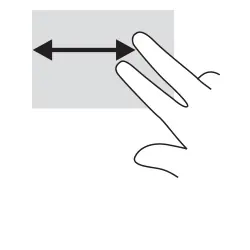
- Scrolling: Drag two fingers on the touchpad or one finger on the touch screen to scroll.
- Swipe: Swipe up from the bottom of the touch screen to show the shelf.
- Pinch zoom: Use two fingers on the touch screen to zoom in or out.
Power and battery
The battery is factory-sealed and not user-replaceable. To charge, connect the AC adapter to the computer. The battery light indicates status: white (charged), amber (charging), or blinking amber (low battery).
Printing
You can print using the built-in ChromeOS solution or the HP Print for Chrome app. For the built-in solution, search for "set up printer" in the ChromeOS settings. For the HP app, install it from the Chrome Web Store.
Backing up, resetting, and recovering
If your system is not working properly, you can reset or recover the operating system.
- Resetting (Powerwash): Erases user data and resets settings. Go to Settings > Advanced > Powerwash.
- Recovering: Reinstalls the operating system. This requires a USB flash drive or SD card (4GB+) and internet access. Use the "ChromeOS is missing or damaged" screen to initiate recovery (press esc+f3 and the power button).
Specifications
The computer operates on DC power (100V–240V, 50Hz–60Hz). Operating temperature is 5°C to 35°C (41°F to 95°F) with 10% to 90% relative humidity.
Electrostatic discharge
To prevent damage to electronic components, always discharge static electricity by touching an unpainted metal surface before handling internal components or drives.
Accessibility
HP is committed to providing accessible products. Refer to the accessibility section for information on assistive technology, standards (like EN 301 549), and resources for users with disabilities.
Manufacturer information
HP Inc.
Practical help
Common problems
Computer not charging
Check the AC adapter connection. If the light is amber, it is charging. If it is off, the computer is using battery power.
System unresponsive
Press and hold the power key for at least 10 seconds to force a shutdown.
ChromeOS missing or damaged
Enter recovery mode by pressing and holding esc+f3, then pressing the power button. Follow on-screen instructions to recover via internet or recovery media.
Before use
- Identify the location of ports on the right and left sides.
- Verify the AC adapter is connected properly for charging.
- Learn the touchpad and touch screen gestures for navigation.
- Back up important files before performing a factory reset or system recovery.
- Ensure recovery media (USB/SD) is 4GB or larger if needed.
Specs in practice
- Operating Temperature
- 5°C to 35°C (41°F to 95°F).
- Relative Humidity
- 10% to 90% (operating, noncondensing).
Images and diagrams
- Right side: USB Type-C power/data, battery light, USB SuperSpeed port.
- Left side: Audio combo jack, battery light, USB Type-C power/data, memory card reader.
Model compatibility
- HP printers produced in 2017 and later are supported automatically by ChromeOS.
- Recovery media requires a USB flash drive or SD card with 4GB or greater capacity.

Manual page author
Michael Turner
Technical manual editor
Reviews PDF manuals for structure, safety notes, and practical product details so readers can find the right information quickly.