Computers / Laptops
Maintenance and Service Guide for HP 15.6 inch Laptop 15-fd2xxx and 15-fr0xxx
Comprehensive maintenance and service guide for HP 15.6 inch Laptops (15-fd2xxx and 15-fr0xxx). Includes detailed component removal and replacement procedures, BIOS setup, system recovery, and hardware specifications.
Table of contents
Manual images
Click an image to enlargeQuick guide from the manual
This guide provides essential maintenance and service information for the HP 15.6 inch Laptop (models 15-fd2xxx and 15-fr0xxx). It is intended for authorized service providers and users performing self-repairs. Always ensure the computer is powered off and disconnected from power sources before beginning any disassembly. Use appropriate tools, such as a magnetic Phillips P1 screwdriver and a nonconductive pry tool, and follow electrostatic discharge (ESD) precautions to prevent damage to sensitive components.
Safety and preparation
Before servicing the computer, follow these safety guidelines:
- Power off: Shut down the computer and disconnect the power cord and all external devices.
- ESD protection: Discharge static electricity before handling internal components. Use a grounded work surface and avoid touching pins, leads, or circuitry.
- Component handling: Place subassemblies and screws away from the work area to prevent loss or damage.
Component identification
The manual details the location of all external components, including:
- Right side: USB 5 Gbps port, AC adapter/battery light, and power connector.
- Left side: USB 5 Gbps port, HDMI port, USB Type-C 10 Gbps port, and audio combo jack.
- Display: WLAN antennas, internal microphones, camera, and camera privacy cover.
- Keyboard area: Power button, fingerprint reader, and special function keys.
Illustrated parts catalog
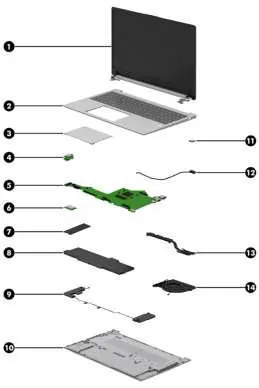
This section provides exploded views and part numbers for major components, including the display assembly, top cover with keyboard, touchpad, system board, WLAN module, solid-state drive, battery, speakers, heat sink, and fans. For the most current information, visit http://partsurfer.hp.com.
Removal and replacement procedures
The manual provides step-by-step instructions for removing and replacing internal components. Key procedures include:
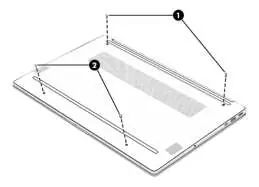
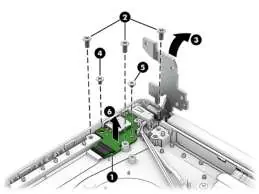
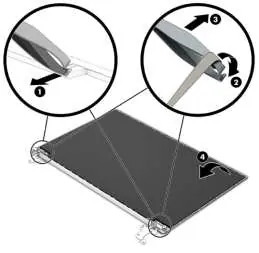
- Bottom cover: Remove screws and use a plastic tool to release the cover.
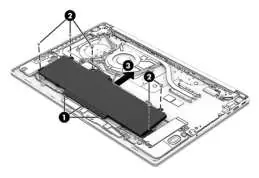
- Battery: Follow specific instructions for removing and reinstalling the battery, including the use of a revive kit for new battery installations.
- Solid-state drive: Remove the securing screw and pull the drive from the socket.
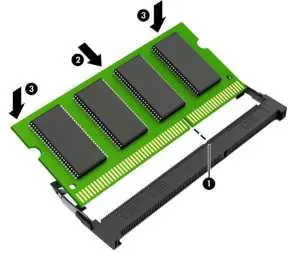
- Memory modules: Spread retention clips to tilt the module up for removal.
- WLAN module: Disconnect antenna cables before removing the module.
- System board: Disconnect all cables (display, speaker, touchpad, keyboard, etc.) before removing the board.
- Display assembly: Requires careful removal of antenna cables and display panel cables.
BIOS and diagnostics
The Setup Utility (BIOS) allows you to configure hardware settings and startup sequences. Access it by pressing f10 during startup. The manual also covers using HP PC Hardware Diagnostics (Windows and UEFI) to identify and troubleshoot hardware failures.
System recovery
If the system fails to load, you can use Windows tools or the HP Cloud Recovery Download Tool to create recovery media. The manual explains how to restore the system, create restore points, and change the boot order in BIOS.
Specifications
Detailed specifications are provided for the computer system, including dimensions, weight, input power, operating temperature, and humidity limits. Display and solid-state drive specifications are also listed.
Battery care and recycling
If you notice battery swelling, stop using the notebook immediately and contact HP for replacement options. Do not dispose of batteries in household waste; follow local regulations for recycling.
Official resources from the manual
Manufacturer information
HP Inc.
Practical help
Common problems
Battery swelling
Stop using the notebook until the battery can be replaced. Contact HP for replacement options.
System failure or BIOS issues
Use HP PC Hardware Diagnostics (Windows or UEFI) to identify hardware failures. Access BIOS by pressing f10 during startup.
Before use
- Ensure you have a magnetic Phillips P1 screwdriver.
- Use a nonconductive, nonmarking pry tool.
- Discharge static electricity before handling internal components.
- Shut down the computer and disconnect all external devices before disassembly.
- Save your work or shut down through the operating system before removing the battery.
Images and diagrams
- Exploded views of computer components.
- Step-by-step removal procedures for battery, SSD, and display assembly.
- Port layout diagrams for left and right sides.
Model compatibility
- Parts vary by model (e.g., UMA graphics memory models have only one fan).
- Some features like fingerprint reader or low blue light mode are select products only.

Manual page author
Emily Carter
User documentation editor
Prepares concise manual descriptions and highlights the most useful setup, operation, and maintenance information for readers.