Computers / Printers
User Manual for HP LaserJet Pro M1530 MFP Series
Get started with your HP LaserJet Pro M1530 MFP Series printer. This user manual covers setup, printing, scanning, copying, faxing, maintenance, and troubleshooting.
Table of contents
Manual images
Click an image to enlargeQuick Start Guide
This guide provides essential information for setting up and using your HP LaserJet Pro M1530 MFP Series printer. For initial setup, ensure the printer is connected to power and your computer via USB or network. Install the provided software to enable full functionality, including printing, scanning, and faxing.
Product Overview
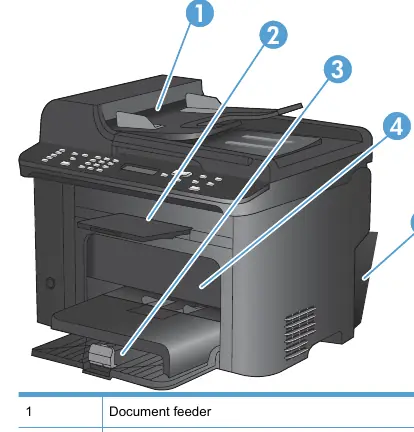
The HP LaserJet Pro M1530 MFP Series is a multifunction printer featuring a flatbed scanner, a 35-page document feeder, and automatic two-sided printing. It supports PCL 5, PCL 6, and HP postscript level 3 emulation.
Control Panel
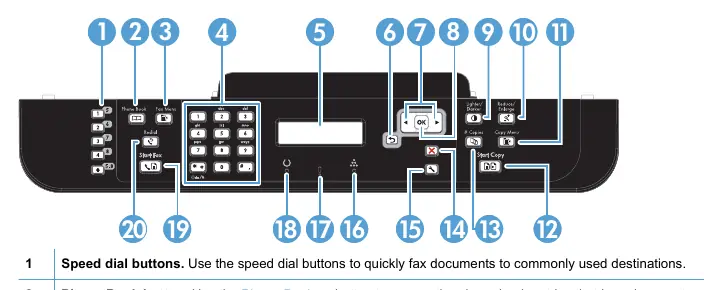
The control panel allows you to navigate menus, monitor status, and perform tasks like copying, scanning, and faxing. Key buttons include the alphanumeric keypad for dialing, the Fax Menu, Copy Menu, and dedicated Start buttons for copying and faxing.
Software Installation
Full software installation is required for optimal performance. The software includes drivers and utilities like HP ToolboxFX, which allows you to check printer status, configure settings, and view troubleshooting information.
Connectivity
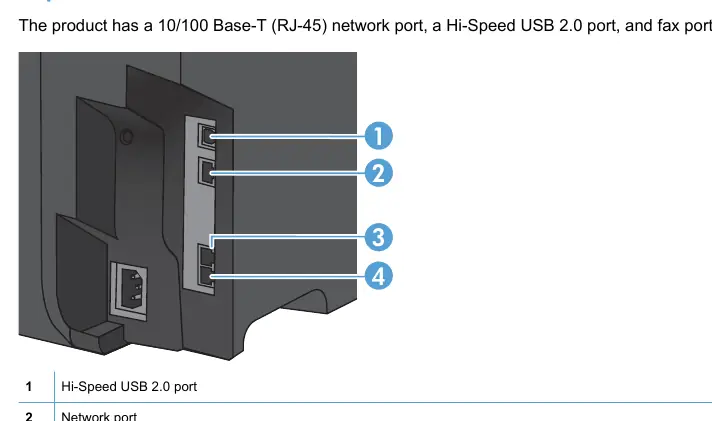
The printer supports USB 2.0 and 10/100 Base-T network connections. For network setup, the printer supports protocols such as TCP/IP (IPv4/IPv6), DHCP, and Bonjour. You can configure network settings via the control panel or the Embedded Web Server (EWS).
Paper Handling
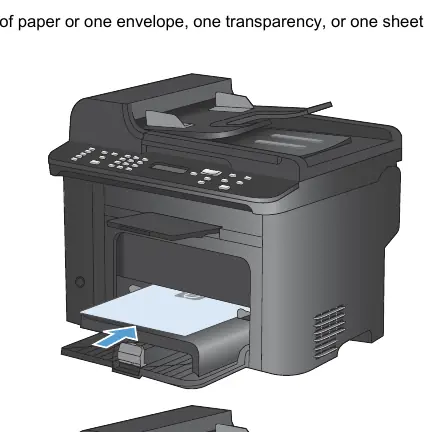
The printer features a priority input slot (up to 10 sheets) and Tray 1 (up to 250 sheets). Always load paper with the top forward and the side to be printed on facing up. Ensure paper guides are adjusted to prevent jams.
Printing
You can print from Windows or Mac computers. The printer driver provides access to features like duplex printing, multiple pages per sheet, and custom print settings. For best results, ensure the paper type and size settings in the driver match the media loaded in the tray.
Copying
The printer supports one-touch copying, multiple copies, and ID card copying. You can adjust copy settings such as quality (Auto, Mixed, Picture, Film Photo, Text), lightness/darkness, and reduce/enlarge settings directly from the control panel.
Scanning
Scanning can be performed using HP Scan software or TWAIN/WIA-compliant applications. You can scan to a computer, adjust resolution and color settings, and use OCR software to convert scanned text into editable documents.
Faxing
The printer includes V.34 fax capabilities with two RJ-11 ports. Setup involves connecting the phone line, configuring the fax header, and setting the answer mode (Automatic, TAM, Fax/Tel, or Manual). You can manage a phone book, use speed dials, and schedule faxes.
Maintenance
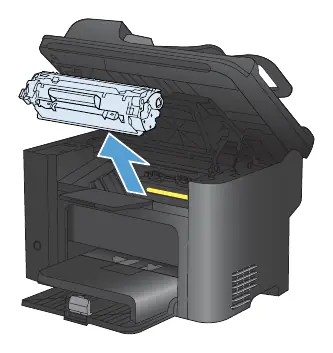
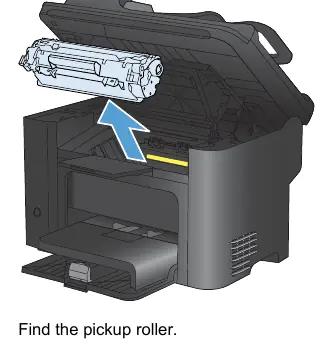
Regular maintenance includes redistributing toner in the print cartridge, cleaning the pickup roller, and cleaning the scanner glass. Use the Supplies Status page to monitor cartridge life.
Troubleshooting
If you encounter issues, consult the problem-solving checklist. Common issues include paper jams, print quality problems, and connectivity errors. Use the control panel to interpret error messages and run diagnostic tests like the Run Fax Test.
Manufacturer information
HP Inc.
Practical help
Common problems
Printer not picking up paper
Check tray for jams, ensure paper is loaded correctly, and adjust paper guides.
Comm. Error (Fax)
Check phone line, try a different cord, or reduce fax speed.
Printer prints slowly
Disable Quiet Mode, check network signal, or ensure computer meets minimum specs.
Before use
- Ensure printer is plugged in and turned on.
- Check for error messages on the control panel.
- Verify paper is loaded in the tray.
- Ensure correct printer driver is installed.
Images and diagrams
- Control panel layout (p. 21)
- Interface ports (p. 19)
- Loading paper trays (p. 68)
- Clearing jams (p. 229)
Model compatibility
- Supports Windows XP, Vista, 7, Server 2003/2008.
- Mac OS X 10.5, 10.6 and later.
- Not directly compatible with digital phone lines (DSL/PBX/ISDN) without proper filters/converters.

Manual page author
David Miller
Documentation analyst
Organizes user manual content into clear summaries, with attention to model details, product context, and everyday usability.