Computers / Printers
User Manual for HPRT MPT-II Mobile Thermal Printer
Quick guide for the HPRT MPT-II mobile thermal printer. Learn how to install the battery, load paper, connect via Bluetooth or serial, and understand LED indicators.
Quick answers from the manual
Quick answer
- The HPRT MPT-II is a 2-inch mobile thermal printer. Setup involves installing the battery, loading thermal paper, and connecting via Bluetooth, Serial, or IR. p. 1, 2
Key actions
- Power On p. 2
- Self-test p. 2
- Charging p. 2
First start
- Install battery and load paper before powering on. p. 2
Show 4 more answers Show less
Problems and fixes
Bluetooth connection issues
Ensure distance is within 10 meters.
p. 1Maintenance and reset
- Self-test checks printer status. p. 2
Technical specifications
| Parameter | Value | Meaning | Pages |
|---|---|---|---|
| Resolution | 203dpi | Print quality | p. 2 |
| Battery | 1500mAh 7.4V | Power capacity | p. 2 |
Where to find it in the PDF
- Safety and Introduction p. 1
- Specifications and Operation p. 2
- Regulatory Information p. 3
Table of contents
Manual images
Click an image to enlargeQuick Guide from the Manual
The HPRT MPT-II is a 2-inch mobile thermal printer. To get started, ensure the Li-ion battery is installed correctly, the printer is charged, and thermal paper is loaded. The device supports Bluetooth, Serial, and IR connectivity for printing from various host devices.
Device Overview
The printer features a power button, feed button, and status indicators. Key components include the infrared interface, USB interface, and the paper compartment cover.
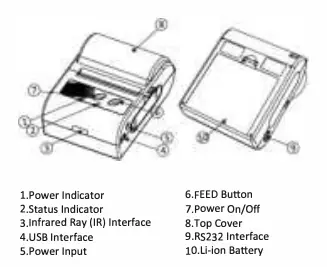
Preparation Before Using
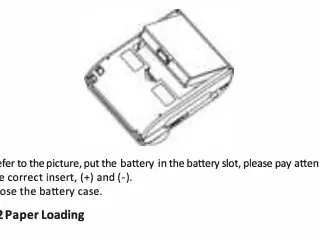
Battery Installation
- Open the battery compartment.
- Insert the Li-ion battery, ensuring correct polarity (+ and -).
- Close the battery case.
Paper Loading
- Press the indicated area on the upper cover to open it.
- Insert the thermal paper roll, ensuring it is oriented correctly.
- Pull the paper out slightly and close the cover.
Operation
Powering On and Off
Press the power button to turn the printer on. To turn it off, hold the power button for 2 seconds.
Self-Test
Hold the FEED button while pressing the Power button for about 3 seconds to initiate a self-test, which checks printer settings and status.
Charging
When the battery is low, the blue LED will flash and the buzzer will beep. Charge using the provided power adapter (220V, 50Hz). The blue LED indicates charging status.
Connectivity
Bluetooth
- Power on the printer.
- Search for Bluetooth devices on your host device.
- Select 'MPT-II' and enter the password '0000' to pair.
Serial and IR
The printer supports serial connection via DB-9 cable and IR/IrDA communication. For IR printing, ensure the IR window of the host device faces the printer's IR window within 50cm at an angle of less than 30 degrees.
LED and Buzzer Indicators
The printer uses a combination of red and blue LED flashes and buzzer sounds to indicate status, such as power-on, charging, paper end, and standby mode.
Technical Specifications
- Printing Method: Thermal line printing
- Resolution: 203dpi (8 dots/mm)
- Printing Speed: Max 70mm/s
- Battery: 1500mAh 7.4V rechargeable Li-ion
- Paper Width: 58mm
Practical help
Common problems
Printer does not print or prints rubbish codes via Bluetooth
Ensure the communication distance is within 10 meters.
Paper not feeding or printing
Check if the paper is loaded reversely; ensure it is loaded correctly.
Battery overheating or abnormal behavior
Use only the specified charger and ensure correct battery orientation (+/-).
Before use
- Install the Li-ion battery observing correct polarity.
- Load thermal paper roll.
- Charge the battery fully before first use.
- Ensure the printer is powered on.
Show more Show less
Specs in practice
- Max Printing Speed
- 70mm/s.
Images and diagrams
- Battery Installation: Insert battery into the slot observing correct polarity.
- Paper Loading: Press the indicated area to open the cover, insert paper, and close.
Model compatibility
- Compatible with Windows XP/Vista/Win 7/8/10.
- Bluetooth pairing requires password '0000'.

Manual page author
Michael Turner
Technical manual editor