Computers / Printers
Setup Guide for Canon imageRUNNER 1643iF II / 1643i II
A quick setup guide for the Canon imageRUNNER 1643iF II and 1643i II printers. This guide covers initial configuration, security settings, network setup, fax installation, and software driver downloads.
Table of contents
Manual images
Click an image to enlargeQuick Setup Guide
This document provides the essential steps to configure your Canon imageRUNNER 1643iF II or 1643i II printer for the first time. Follow these procedures to ensure the machine is ready for use.
Initial Settings
When you turn on the machine for the first time, the Setup Guide will automatically start on the operation panel. Follow the on-screen instructions to:
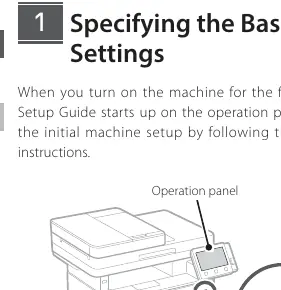
- Select your language, country/region, and time zone.
- Set the current date and time.
Security Settings
Configure basic security settings to prevent unauthorized access:
- Remote UI: Choose whether to enable the Remote UI for web-based management.
- System Manager Mode: Set a System Manager ID and PIN to manage extended functions and access privileges.
- General User Mode: Set a PIN for general users to access the Remote UI.
Network Settings
Connect the machine to your network using one of the following methods:
Wireless LAN
- Check your router's SSID and Network key.
- Select the network on the operation panel and enter the password.
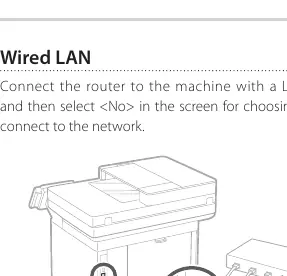
Wired LAN
- Connect the router to the machine using a LAN cable.
- Select the wired connection option on the screen.
Fax Setup
For models equipped with fax functionality, the Fax Setup Guide will start the first time you select the Fax option on the Home screen:
- Enter the unit's telephone number and name.
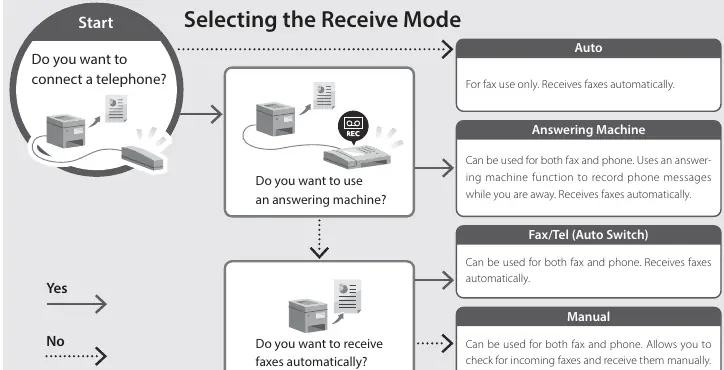
- Select the receive mode that best suits your telephone connection (Auto, Answering Machine, Fax/Tel, or Manual).
- Connect the machine to the telephone line jack.
Software Installation
To install the necessary software and drivers, visit the official Canon support website at https://global.canon/en/support/ and search for your specific model.
Official resources from the manual
Manufacturer information
Canon Inc.
Practical help
Common problems
Cannot connect to wireless network
Ensure you have the correct SSID and Network key from your router before starting the setup.
Fax not receiving automatically
Verify that the correct receive mode (Auto, Answering Machine, Fax/Tel) is selected based on your telephone line setup.
Cannot access advanced settings
Ensure you have correctly configured the System Manager ID and PIN during the initial setup.
Before use
- Ensure the printer is powered on.
- Have your router's SSID and network key ready for wireless setup.
- Have a LAN cable available if using a wired network connection.
- Verify the telephone line connection if using fax features.
- Have a computer ready to download the latest drivers from the Canon website.
Specs in practice
- System Manager Mode
- An administrative mode required to configure extended functions and manage access privileges.
- Receive Mode
- Determines how the machine handles incoming calls (e.g., automatic fax reception vs. manual).
Images and diagrams
- The operation panel diagram shows the location of the power button and navigation controls.
- The wired LAN diagram illustrates the correct port for connecting the LAN cable.
- The receive mode diagram helps you choose the correct setting based on whether you use a telephone or answering machine.
Model compatibility
- Fax settings are only applicable to models equipped with fax functionality.
- Drivers must be downloaded from the regional Canon support website.

Manual page author
Michael Turner
Technical manual editor
Reviews PDF manuals for structure, safety notes, and practical product details so readers can find the right information quickly.