Smart Home / Smart Plugs & Strips
User Manual for Idinio WiFi Smart Plug 10A
Quick start guide and user manual for the Idinio WiFi Smart Plug 10A. Includes setup instructions, pairing via the Idinio Smart App, AP mode troubleshooting, and safety guidelines.
Table of contents
Manual images
Click an image to enlargeQuick guide from the manual
This document provides instructions for setting up and operating the Idinio WiFi Smart Plug. The device requires a 2.4GHz WiFi network to function. Ensure your smartphone is connected to the correct network before starting the pairing process. If the device fails to pair, use the AP Mode troubleshooting steps provided.
Requirements
- A smartphone or tablet.
- A 2.4GHz WiFi network (5GHz networks are not supported).
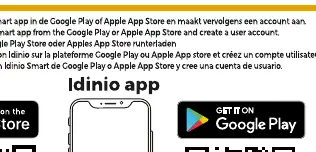
- The Idinio Smart App installed from the App Store or Google Play.
- An active user account in the Idinio Smart App.
Pairing process
- Plug the smart plug into a wall outlet.
- If the LED indicator is not blinking rapidly, reset the device by holding the power button for 5 seconds.
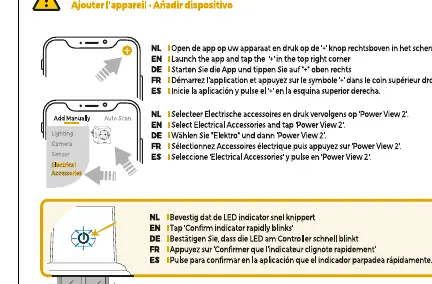
- Open the Idinio Smart App and tap the plus (+) icon in the top right corner.
- Select 'Electrical Accessories' and then 'Power View 2'.
- Confirm the LED is blinking rapidly.
- Enter your 2.4GHz WiFi network name and password, then tap 'Confirm'.
- The app will automatically connect to the device. You can rename the device once the process is complete.
AP Mode troubleshooting
If the standard pairing method fails, use AP Mode:
- In the app, select 'AP Mode' in the top right corner.
- Ensure the LED is blinking slowly. If not, reset the device again.
- Follow the in-app instructions to connect your phone to the device's hotspot.
- Return to the app to complete the connection.
Safety and maintenance
- Do not use cleaning solvents or abrasives.
- Clean the device only with a soft, dry cloth.
- Do not attempt to repair the device yourself; doing so will void the warranty.
- Keep the device out of reach of children and animals.
- Ensure the device is used in a well-ventilated area.
Disposal
The device must be disposed of separately from household waste. It should be handed in for recycling in accordance with local environmental regulations for waste disposal.
Manufacturer information
Idinio
Practical help
Common problems
Device not pairing
Ensure you are connected to a 2.4GHz WiFi network, not 5GHz. If the LED is not blinking, reset the device by holding the power button for 5 seconds.
Pairing failure
Use AP Mode as an alternative pairing method if the standard connection fails.
Before use
- Ensure your smartphone is connected to a 2.4GHz WiFi network.
- Download the Idinio Smart App from the App Store or Google Play.
- Create an account in the Idinio Smart App.
- Plug the smart plug into a wall outlet.
Images and diagrams
- Resetting: Hold the power button for 5 seconds until the LED blinks rapidly.
- AP Mode: Used when standard pairing fails; requires selecting AP Mode in the app.
Model compatibility
- Requires 2.4GHz WiFi network.
- Compatible with Idinio Smart App.

Manual page author
David Miller
Documentation analyst
Organizes user manual content into clear summaries, with attention to model details, product context, and everyday usability.