Smart Home / Smart Plugs & Strips
User Manual for NOUS A6Z Smart Zigbee Socket
Quick guide for the NOUS A6Z Smart Zigbee Socket. Learn how to connect to the Zigbee network, use the Nous Smart Home app, integrate with Alexa, and follow safety precautions.
Table of contents
Manual images
Click an image to enlargeQuick guide from the manual
The NOUS A6Z is a smart Zigbee socket designed for remote control of electrical appliances. To use this device, you must have a Zigbee gateway (such as Nous E1, E7, or a Tuya-compatible hub) and the Nous Smart Home application installed on your smartphone. The device requires a 2.4 GHz Wi-Fi network for the gateway connection.
Device description
The smart socket allows for automatic and manual shutdown of connected appliances. It features an electromechanical relay, a mechanical button for local control, and an LED indicator for status. It also includes energy monitoring capabilities to track electricity consumption.
Safety precautions
- Read the manual carefully before use.
- Operate the device within the specified temperature and humidity limits.
- Do not install near heat sources like radiators.
- Avoid mechanical loads and do not allow the device to fall.
- Clean only with a damp flannel cloth; do not use abrasive or chemically active detergents.
- Do not overload the device capacity to prevent short circuits or electric shock.
- Do not disassemble the device; repairs must be performed by a certified service center.
Design and controls
The device features two main interface elements:
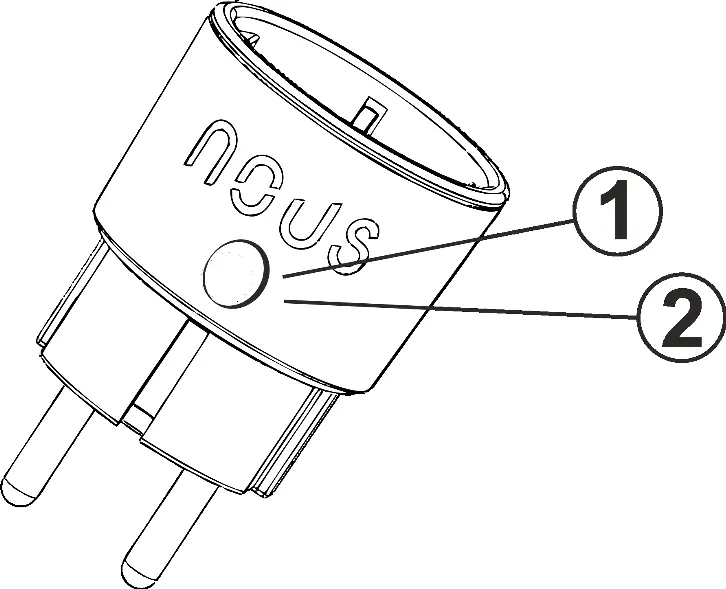
- Button: A short press toggles the device ON/OFF. A long press (5-7 seconds) resets the device settings and Zigbee network parameters.
- Socket indicator: Displays the current operational status of the outlet.
Connecting to the Zigbee network
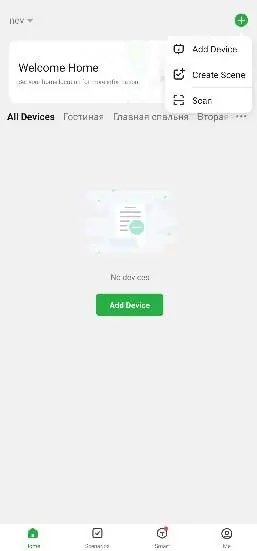
- Ensure your smartphone is connected to a 2.4 GHz Wi-Fi network and your Zigbee hub is already connected to the app.
- Plug in the smart socket. If the indicator does not flash quickly, hold the button for 5-7 seconds to reset it.
- Open the Nous Smart Home app and select the option to add a new device.
- The app should automatically scan for the device. If it does not appear, select it manually from the list under the Smart sockets category.
- Follow the on-screen prompts to complete the pairing process with the Zigbee hub.
- Once connected, you can rename the device and assign it to a room.
Connecting to Alexa
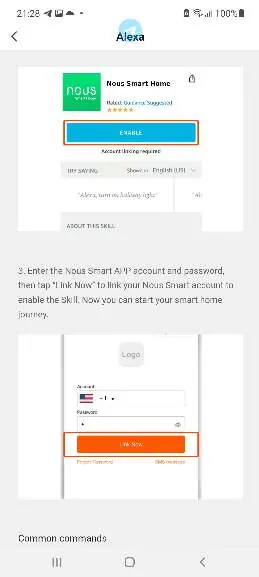
- Log in to your Alexa account and navigate to Settings.
- Select Skills & Games and search for NOUS Smart Home.
- Enable the skill and link your account using your registered credentials.
- Once linked, use the command Alexa, open my devices to discover the socket.
- You can control the device using voice commands such as Alexa, turn on [device name] or Alexa, turn off [device name]. Ensure the device name in Alexa matches the name in the Nous Smart Home app.
Practical help
Common problems
Device will not connect to the network
Ensure your Zigbee hub is connected to the app and your Wi-Fi network is 2.4 GHz. 5 GHz networks are not supported.
Device not found during pairing
Reset the socket by holding the button for 5-7 seconds until the indicator flashes quickly, then try adding it manually.
Alexa cannot control the device
Ensure the device name in the Alexa app matches the name in the Nous Smart Home app and that the skill is enabled.
Before use
- Ensure you have a compatible Zigbee gateway (Nous E1, E7, or Tuya compatible).
- Install the Nous Smart Home app on your smartphone.
- Verify your Wi-Fi network is 2.4 GHz.
- Grant all necessary permissions to the app during installation.
- Register a user account in the app.
Specs in practice
- Mechanical Button
- Used for manual ON/OFF switching and factory resetting the device.
- Energy Monitoring
- Built-in function to track and record electricity usage of connected appliances.
Images and diagrams
- Button: Short press for ON/OFF, long press (5-7s) for factory reset.
- Socket indicator: Shows the current power status of the outlet.
Model compatibility
- Requires a Zigbee gateway/hub for operation.
- Compatible with Amazon Alexa and Google Home.
- Requires 2.4 GHz Wi-Fi for the gateway connection.

Manual page author
Emily Carter
User documentation editor
Prepares concise manual descriptions and highlights the most useful setup, operation, and maintenance information for readers.