Computers / Keyboards Input
User Guide for Insignia 3-Key 2.4GHz Slim Wireless Mouse
Quick setup guide and troubleshooting for the Insignia 3-Key 2.4GHz Slim Wireless Mouse. Learn how to install the battery, connect the nano receiver, adjust DPI settings, and resolve common connectivity issues.
Quick answers from the manual
Quick answer
- To set up the mouse, insert the AA battery, plug the nano receiver into a USB port, and slide the power switch to ON. p. 1
Key actions
- Adjusting DPI sensitivity p. 1
First start
- Install battery and connect receiver p. 1
Problems and fixes
Mouse not working
Check battery, ensure power is ON, move closer to computer, or try a different USB port.
p. 2Maintenance and reset
- Cleaning the mouse p. 1
Technical specifications
| Parameter | Value | Meaning | Pages |
|---|---|---|---|
| DPI | 800, 1200, 1600 | Sensitivity settings | p. 2 |
| Battery | 1 AA | Power source | p. 2 |
Where to find it in the PDF
- Setup and Features p. 1
- Specifications and Troubleshooting p. 2
Table of contents
Manual images
Click an image to enlargeQuick guide from the manual
This guide provides instructions for setting up and using the Insignia 3-Key 2.4GHz Slim Wireless Mouse. The device uses a USB nano receiver and requires one AA battery to operate.
Package contents
- Wireless mouse
- USB nano receiver
- AA battery
- Quick Setup Guide
System requirements
- Windows 11, Windows 10, macOS, and ChromeOS
- One available USB port
Setting up your mouse
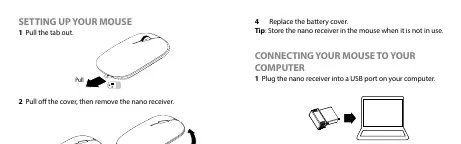
- Pull the tab out from the battery compartment.
- Pull off the cover and remove the nano receiver.
- Insert the included AA battery into the compartment, ensuring the + and - signs match the symbols inside.
- Replace the battery cover.
Connecting your mouse
- Plug the nano receiver into an available USB port on your computer.
- Slide the power switch on the bottom of the mouse to ON. The computer will automatically detect the mouse.
Adjusting mouse sensitivity
You can cycle through three sensitivity settings (800, 1200, and 1600 DPI) by pressing the DPI button located on the bottom of the mouse.
Cleaning your mouse
Wipe the mouse with a damp, lint-free cloth.
Troubleshooting
- Mouse not working: Ensure the mouse is turned on, move it closer to the computer, check the battery, or try a different USB port.
- Sensitivity issues: Press the DPI button to cycle through settings or adjust cursor/scroll wheel settings in your computer's operating system.
- Interference: Move other wireless devices away from the computer.
- Surface issues: Avoid using the mouse on reflective, transparent, or metallic surfaces.
Specifications
- Radio frequency: 2.4GHz
- Operating distance: 33 ft (10 meters)
- Battery: 1 AA alkaline battery
- Battery life: Approximately 3 months
- DPI settings: 800, 1200, 1600
- Interface: USB 1.1, 2.0, 3.0
Practical help
Common problems
Mouse is not responding
Ensure the power switch is set to ON, check that the battery is installed correctly, or try plugging the nano receiver into a different USB port.
Cursor movement is too fast or slow
Press the DPI button on the bottom of the mouse to cycle through the three available sensitivity settings (800, 1200, 1600).
Intermittent connection or lag
Move other wireless devices away from the computer to prevent interference and ensure the mouse is used on a flat, non-reflective surface.
Before use
- Verify you have an available USB port on your computer.
- Ensure you have the included AA battery.
- Remove the battery tab before first use.
- Store the nano receiver in the mouse storage slot when not in use.
Specs in practice
- Operating distance
- The maximum range (33 ft / 10 m) the mouse can be from the receiver.
- Battery life
- Estimated 3 months based on average usage.
Images and diagrams
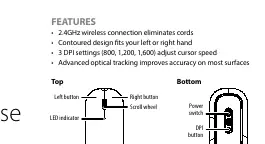
- The top view identifies the left/right buttons, scroll wheel, and LED indicator.
- The bottom view identifies the power switch, DPI button, and battery compartment.
- The inside view shows the battery installation and nano receiver storage location.
Model compatibility
- Compatible with Windows 11, Windows 10, macOS, and ChromeOS.

Manual page author
David Miller
Documentation analyst
Organizes user manual content into clear summaries, with attention to model details, product context, and everyday usability.