Electronics / Speakers & Soundbars
Insignia 2-Device Universal Remote NS-RMT2D18 User Guide
Quick setup guide and user manual for the Insignia 2-Device Universal Remote (NS-RMT2D18). Learn how to program your remote for TVs, streaming devices, and audio equipment, troubleshoot common issues, and reset to factory defaults.
Quick answers from the manual
Quick answer
- To program your remote, use one of three methods: Method A (Popular Brands), Method B (Direct Code Entry), or Method C (Code Search). See pages 2-4 for detailed steps. p. 2, 3, 4
Key actions
- Programming the remote p. 2, 3, 4
- Adding an audio device p. 5, 6
- Resetting to factory defaults p. 7
First start
- Install two AAA batteries and follow the programming steps on page 2. p. 2
Problems and fixes
Remote not controlling device
Ensure remote is programmed and set to the correct mode.
p. 10Maintenance and reset
- Resetting to factory defaults p. 7
Where to find it in the PDF
- Programming Methods p. 2, 3, 4
- Audio Device Setup p. 5, 6
- Remote Overview p. 8, 9
- Troubleshooting p. 10
- Code Lists p. 11, 56
Table of contents
Manual images
Click an image to enlargeQuick Guide
The Insignia 2-Device Universal Remote (NS-RMT2D18) is designed to control your TV and a set-top box (cable, satellite, or streaming). It comes pre-set for Insignia TVs and DIRECTV set-top boxes. If you need to program it for other devices, follow the methods outlined in this guide.
Installing Batteries
The remote requires two AAA batteries (not included). Ensure the + and - symbols on the batteries match the symbols inside the battery compartment.
Programming Your Remote
There are three ways to set up your remote:
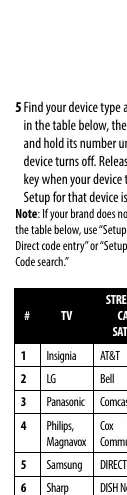
- Setup method A: Popular brands: Use this for pre-set popular brands. Turn on your device, press and hold SETUP until the LED blinks twice, press the device button (TELEVISION or CABLE/SATELLITE/STREAMING), press 0 or 1 to select device type, then find your brand in the table and hold its number until the device turns off.
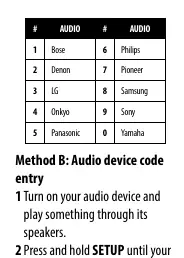
- Setup method B: Direct code entry: Use this if your device's code is in the provided list. Turn on your device, press the device button, hold SETUP until the LED blinks twice, enter the 5-digit code, and press the Power button to test.
- Setup method C: Code search: Use this if your brand is not listed. Turn on your device, hold SETUP until the LED blinks twice, press the device button, press 0 or 1, then press and hold OK until your device turns off.
Using Your Remote
Press the TELEVISION or CABLE/SATELLITE/STREAMING button to select the device you want to control. In Watch TV mode, you can use the remote's volume and input buttons to control the TV, while other buttons control the set-top box.
Adding an Audio Device
You can program the remote to control an audio device (like a soundbar) while in CABLE/SATELLITE/STREAMING mode. Use Method A (Popular audio devices) or Method B (Audio device code entry) to program the volume controls.
Locking and Unlocking Controls
You can lock channel controls (Channel Up/Down, Digits, Enter, Last) to a specific device. To lock, hold SETUP until the LED blinks twice, press 9, 7, 3, then press CH +. To unlock, press 9, 7, 3, then press CH -.
Resetting to Factory Defaults
To reset the remote to factory settings, press and hold SETUP until the LED blinks twice, then press 9, 7, 7.
Remote Overview
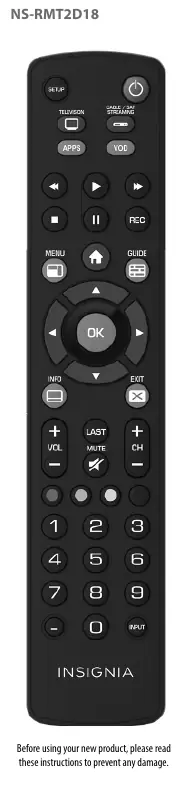
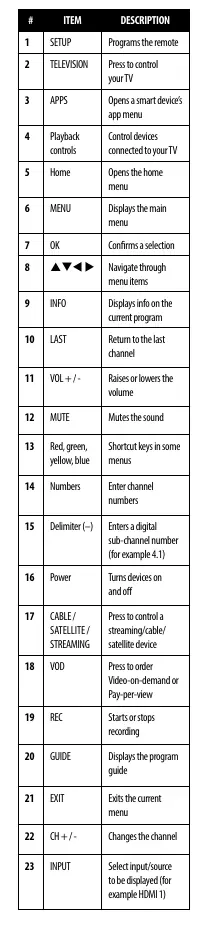
The remote features dedicated buttons for setup, device selection, playback controls, menu navigation, volume, channel, and input selection. Refer to the button mapping table for specific functions.
Troubleshooting
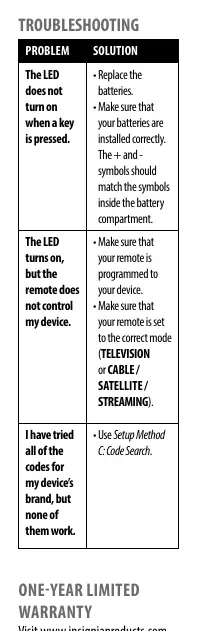
If the LED does not turn on, replace the batteries. If the remote does not control your device, ensure it is programmed correctly and set to the right mode. If codes do not work, try the Code Search method.
Practical help
Common problems
The LED does not turn on when a key is pressed.
Replace the batteries. Ensure batteries are installed correctly with the correct polarity (+/-).
The LED turns on, but the remote does not control my device.
Ensure the remote is programmed to your device and set to the correct mode (TELEVISION or CABLE/SATELLITE/STREAMING).
I have tried all of the codes for my device's brand, but none of them work.
Use Setup Method C: Code Search to perform a manual search for your device.
Before use
- Install two AAA batteries (not included).
- Ensure battery polarity (+/-) matches the compartment.
- Turn on the target device you wish to control.
Images and diagrams
- The Remote Overview (Page 8) provides a numbered layout of all buttons.
- The Button Description table (Page 9) explains the function of each numbered button.
Model compatibility
- Works with a TV and a set-top box (cable, satellite, or streaming).
- Pre-set for Insignia TVs and DIRECTV set-top boxes.

Manual page author
David Miller
Documentation analyst
Organizes user manual content into clear summaries, with attention to model details, product context, and everyday usability.