Power / Power Banks
User Manual for Verbatim Bluetooth 5.0 2.4GHz Wireless Mouse VAPMI164
Quick guide for the Verbatim Bluetooth 5.0 2.4GHz Wireless Mouse (VAPMI164). Learn how to set up 2.4GHz and Bluetooth connections, adjust DPI settings, and troubleshoot common issues.
Quick answers from the manual
Quick answer
- To connect the mouse, use the USB receiver for 2.4GHz mode (default) or use the Bluetooth pairing button for Bluetooth mode. Switch between modes by holding the DPI/Mode button for 3 seconds. p. 3, 4
Key actions
- Switch between 2.4GHz and Bluetooth p. 4
- Change DPI sensitivity p. 4, 5
First start
- Insert battery, turn on, and plug in USB receiver for 2.4GHz mode. p. 3
Problems and fixes
Mouse not connecting via Bluetooth
Check device Bluetooth is on. Press 'Bluetooth pairing' button to broadcast ID.
p. 5Maintenance and reset
- Clean with a damp soft cloth; do not use chemical solvents. p. 2
Technical specifications
| Parameter | Value | Meaning | Pages |
|---|---|---|---|
| DPI | 800, 1200, 1600, 2400 | Sensitivity levels | p. 3 |
| Working distance | Max 10 meter | Wireless range | p. 2 |
Where to find it in the PDF
- Front Cover p. 1
- Specifications and Safety p. 2
- Diagram and Setup p. 3
- Bluetooth and DPI Settings p. 4, 5
Table of contents
Quick guide from the manual
This guide covers the setup and operation of the Verbatim VAPMI164 wireless mouse. The device supports both 2.4GHz wireless (via USB receiver) and Bluetooth 5.0 connectivity. It features adjustable DPI settings and a power-saving sleep mode.
Product Overview
The mouse includes the following controls and features:
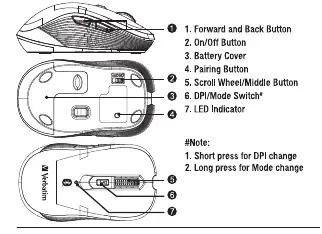
- Forward and Back Buttons: Located on the side.
- On/Off Button: Located on the bottom.
- Battery Cover: Located on the bottom.
- Pairing Button: Used for Bluetooth pairing.
- Scroll Wheel/Middle Button: For navigation.
- DPI/Mode Switch: Short press for DPI change, long press for mode change.
- LED Indicator: Shows connection status and DPI settings.
Installation and Setup
2.4GHz Mode
- Install the AA battery into the battery compartment.
- Turn on the mouse using the On/Off button. The LED indicator will turn red for 2 seconds, indicating 2.4GHz mode.
- Remove the USB receiver from the battery compartment and connect it to your computer's USB-A port.
- The mouse will automatically connect and be ready to use.
Bluetooth Mode
- In 2.4GHz mode, press the DPI/Mode Switch for 3 seconds until the LED indicator turns green.
- Press the Bluetooth pairing button on the bottom. The LED will flash green.
- On your device, turn on Bluetooth and select 'Add new Bluetooth items'.
- Select 'Verbatim BT Mouse' to connect.
Settings and Adjustments
Switching Resolution (DPI)
You can adjust the sensitivity by pressing the DPI/Mode switch. The LED will flash to indicate the current setting:
- 1 flash: 800 dpi
- 2 flashes: 1200 dpi
- 3 flashes: 1600 dpi
- 4 flashes: 2400 dpi
Mode Switching
To switch between 2.4GHz and Bluetooth, long-press the DPI/Mode switch for 3 seconds. The LED will be red for 2.4GHz mode and green for Bluetooth mode.
Troubleshooting
If you encounter issues, check the following:
- Mouse not connecting via Bluetooth: Ensure the device's Bluetooth is on. If previously connected, press the 'Bluetooth pairing' button to broadcast the pairing ID.
- Cursor not moving smoothly: This often indicates a low battery level. Replace the battery.
Specifications
- Product Name: Bluetooth 5.0 2.4GHz Wireless Mouse
- Model: VAPMI164
- Working Distance: Max 10 meters
- Battery: AA
- Operating Systems: Windows 8, MacOS 10.12, iPadOS 9, Android 6 or higher
- Operating Temperature: 0°C to 40°C
Safety and Maintenance
- Do not alter, modify, or disassemble the device.
- Do not expose the device to moisture, water, rain, snow, heat, or direct sunlight.
- Clean the surface with a damp soft cloth; do not use chemical solvents.
- Do not operate the device if it has been dropped or damaged.
Practical help
Common problems
Mouse not connecting to a previously paired Bluetooth device
Ensure the device's Bluetooth is enabled. Press the 'Bluetooth pairing' button on the bottom of the mouse to broadcast the pairing ID.
Cursor movement is not smooth
This is likely due to a low battery. Replace the AA battery.
Before use
- Install the included AA battery into the compartment.
- Ensure the mouse is turned on using the bottom switch.
- For 2.4GHz mode, ensure the USB receiver is plugged into the computer.
- For Bluetooth mode, ensure the host device has Bluetooth enabled.
Specs in practice
- DPI (800/1200/1600/2400)
- Sensitivity of the mouse. Higher DPI means the cursor moves faster on screen.
- Bluetooth Mode
- Connects directly to Bluetooth-enabled devices; LED indicator is green.
Images and diagrams
- The mouse features a DPI/Mode switch button on the bottom that controls both sensitivity and connection type.
- The LED indicator provides visual feedback for connection mode (Red=2.4GHz, Green=Bluetooth) and DPI settings.
Model compatibility
- Compatible with Windows 8, MacOS 10.12, iPadOS 9, Android 6 or higher.

Manual page author
David Miller
Documentation analyst
Organizes user manual content into clear summaries, with attention to model details, product context, and everyday usability.