Computers / KVM Switches
IOGEAR GCS32HU 2-Port Full HD KVM Switch
Quick setup guide for the IOGEAR GCS32HU 2-Port Full HD KVM Switch. Learn how to connect your keyboard, mouse, and monitor to switch between two computers.
Quick answers from the manual
Quick answer
- The IOGEAR GCS32HU allows you to control two computers with one HDMI monitor, keyboard, and mouse. Connect your peripherals to the KVM console ports and the integrated cables to your computers, then use the remote port selector to switch between them. p. 3
Key actions
- Connect peripherals to the KVM console ports. p. 3
- Connect KVM cables to computers. p. 3
- Switch between computers. p. 3
First start
- Power on both computers; the KVM defaults to port 1. p. 3
Where to find it in the PDF
- Package Contents and Requirements p. 1
- Product Overview p. 2
- Hardware Installation p. 3
Table of contents
Manual images
Click an image to enlargeQuick guide from the manual
The IOGEAR GCS32HU is a 2-port KVM switch designed to control two computers using a single HDMI monitor, USB keyboard, and USB mouse. This guide provides the necessary steps to install and operate the device.
Package contents
- 1 x GCS32HU KVM Switch
- 1 x Remote Port Selector
- 1 x Quick Start Guide
- 1 x Warranty Card
System requirements
Ensure your setup meets the following requirements before installation:
- Console: HDMI monitor, standard wired USB keyboard, and standard 2 or 3 button wired USB mouse.
- Computer: HDMI port and USB Type-A port.
- Operating Systems: Windows 7, 8.1, 10, 11; Mac OS 9.0+; Linux, UNIX, and other USB supported systems.
Product overview
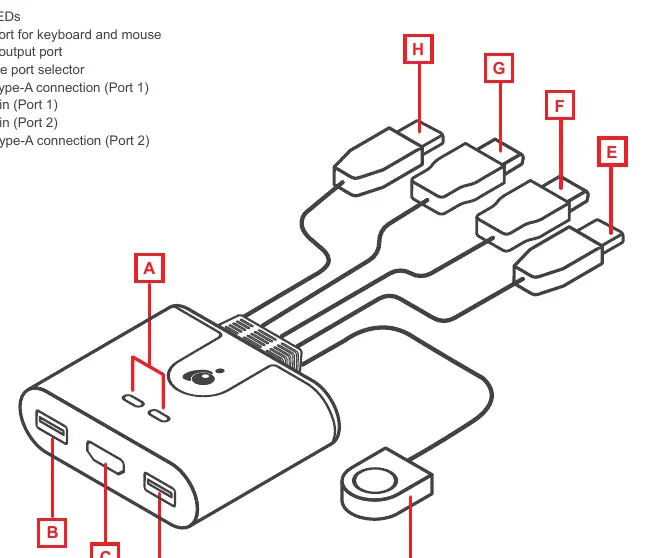
The device features a remote port selector for switching control between computers and LED indicators to show the active port. The unit includes integrated cables for connecting to your computers.
Hardware installation
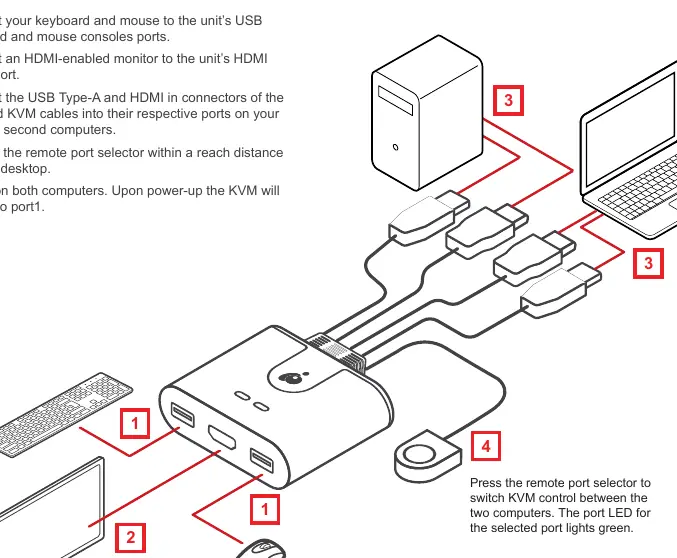
- Connect your keyboard and mouse to the USB keyboard and mouse console ports on the KVM switch.
- Connect your HDMI-enabled monitor to the HDMI output port on the KVM switch.
- Connect the USB Type-A and HDMI connectors from the integrated KVM cables into the respective ports on your first and second computers.
- Place the remote port selector in a convenient location on your desktop.
- Power on both computers. The KVM will default to port 1 upon power-up.
Operation
To switch KVM control between the two connected computers, press the remote port selector. The port LED for the selected computer will light up green.
Support
For further assistance, visit www.iogear.com for product information or www.iogear.com/support for live help and technical support.
Official resources from the manual
Practical help
Common problems
Monitor not displaying
Ensure the HDMI monitor is securely connected to the KVM's HDMI output port and that the computer is powered on.
Keyboard or mouse not responding
Verify that the USB keyboard and mouse are connected to the dedicated USB console ports on the KVM switch.
Before use
- Verify you have an HDMI monitor available.
- Ensure you have a standard wired USB keyboard and mouse.
- Check that both computers have available HDMI and USB Type-A ports.
- Ensure the remote port selector is placed within reach.
Specs in practice
- Remote Port Selector
- A physical button used to toggle control between the two connected computers.
Images and diagrams
- The overview diagram identifies the console ports (keyboard/mouse/monitor) and the computer connection cables (HDMI/USB).
- The installation diagram illustrates the connection flow from the KVM switch to the monitor, peripherals, and both computers.
Model compatibility
- Compatible with Windows 7, 8.1, 10, 11.
- Compatible with Mac OS 9.0+.
- Compatible with Linux and UNIX systems with USB support.

Manual page author
Emily Carter
User documentation editor
Prepares concise manual descriptions and highlights the most useful setup, operation, and maintenance information for readers.