Computers / KVM Switches
Tripp Lite 2-Port DisplayPort 1.2 KVM Switch User Manual
Quick guide for the Tripp Lite 2-Port DisplayPort 1.2 KVM Switch (B004-DP2UA2-K). Includes installation steps, hotkey commands, firmware upgrade instructions, and technical specifications.
Quick answers from the manual
Quick answer
- The B004-DP2UA2-K is a 2-port DisplayPort 1.2 KVM switch that allows control of two computers from a single console. It supports UHD resolutions up to 3840x2160 @ 60Hz and offers switching via remote port selector, hotkeys, or mouse clicks. p. 2
Key actions
- Switching ports via hotkeys p. 6, 7
- Installing the KVM p. 5
First start
- Power off all devices, connect monitor, keyboard, mouse, and audio to console ports, then connect computers using provided cables. p. 5
Problems and fixes
Mouse port switching not working
Enable mouse port switching and mouse emulation via hotkeys.
p. 6Maintenance and reset
- Reset hotkeys to default using [Scroll Lock] [Scroll Lock] [r] [Enter]. p. 7
Technical specifications
| Parameter | Value | Meaning | Pages |
|---|---|---|---|
| Max Resolution | 3840 x 2160 @ 60Hz | Maximum supported video resolution | p. 11 |
Where to find it in the PDF
- Installation p. 5
- KVM Operation p. 6, 7
- Specifications p. 11
Table of contents
Manual images
Click an image to enlargeQuick guide from the manual
The Tripp Lite B004-DP2UA2-K is a 2-port DisplayPort 1.2 KVM switch designed to control two computers from a single DisplayPort console. It supports UHD resolutions up to 3840 x 2160 @ 60Hz and offers multiple switching methods including a remote port selector, keyboard hotkeys, and mouse port switching.
Installation
Follow these steps to set up your KVM switch:
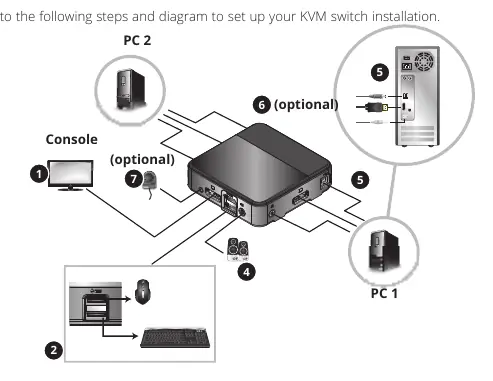
- Ensure all devices are powered off before making connections.
- Connect your DisplayPort monitor to the console port on the KVM.
- Connect your USB keyboard and mouse to the console USB ports.
- Optionally, connect a USB hub to the console mouse port for additional peripherals.
- Connect speakers to the console audio jack.
- Use the provided DisplayPort, USB, and 3.5 mm audio cables to connect your computers to the KVM switch ports.
- Optionally, connect the Remote Port Selector to the 3.5 mm jack on the KVM.
- Power on all connected devices. The KVM will automatically switch to the first powered-on computer.
KVM Operation
You can switch between computers using three methods:
- Remote Port Selector: Press the button on the remote unit to toggle focus.
- Mouse Port Switching: Double-click the scroll wheel on a 3-key wheel mouse (must be enabled via hotkeys).
- Keyboard Hotkeys: Use hotkey commands starting with [Scroll Lock] [Scroll Lock] (or [Ctrl] [Ctrl]).
Keyboard Hotkeys
All hotkey commands start by pressing the [Scroll Lock] key twice. Common commands include:
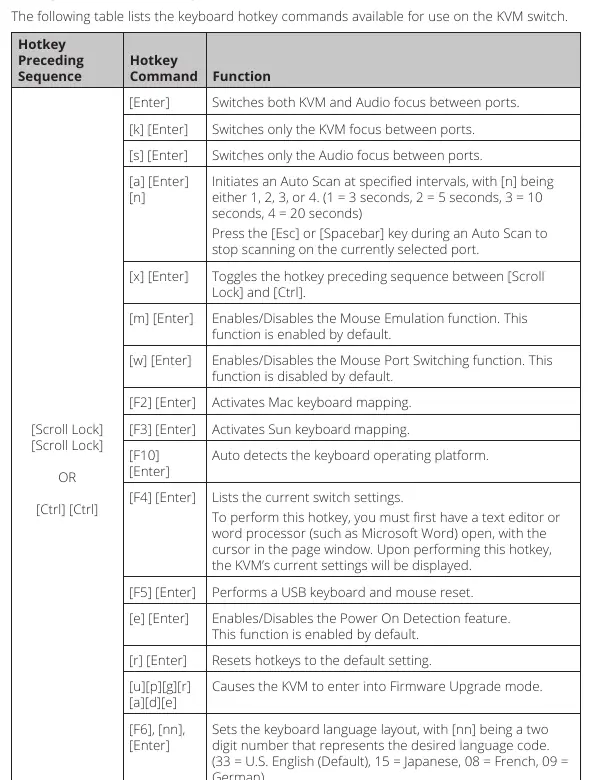
- [Enter]: Switch both KVM and audio focus.
- [k] [Enter]: Switch only KVM focus.
- [s] [Enter]: Switch only audio focus.
- [a] [Enter] [n]: Initiate Auto Scan (n=1-4).
- [F4] [Enter]: List current switch settings (requires text editor open).
- [F5] [Enter]: Reset USB keyboard and mouse.
Firmware Upgrade
To upgrade the firmware:
- Download the firmware file from Tripplite.Eaton.com/support.
- Enter Firmware Upgrade Mode by either holding the remote selector button while connecting the USB cable or using the hotkey command [Scroll Lock] [Scroll Lock] [u] [p] [g] [r] [a] [d] [e].
- Run the Firmware Upgrade Utility on your computer and follow the on-screen instructions.
Specifications
- Computer Ports: 2
- Max Resolution: 3840 x 2160 @ 60Hz
- Operating Temperature: 32° to 122°F (0° to 50°C)
- Dimensions: 1.1 x 3.7 x 3.7 in.
- Weight: 0.26 lb. (0.12 kg)
Official resources from the manual
Practical help
Common problems
Mouse port switching not working
Ensure mouse port switching and mouse emulation are enabled via hotkeys. Only 3-key wheel mice are supported.
Firmware upgrade failed
Disconnect USB, hold Remote Port Selector button, reconnect USB, and retry steps 3-9.
Display issues
Enable monitor redetection for the specific port using hotkey [q], [n], [Enter].
Before use
- Power off all devices before connecting.
- Ensure total cable length does not exceed 10 ft (3 m).
- Use a powered USB hub if connecting multiple peripherals.
- Ensure graphics cards support DisplayPort 1.2 for MST.
Specs in practice
- Max Resolution
- 3840 x 2160 @ 60Hz
- Operating Temperature
- 0°C to 50°C (32°F to 122°F)
Images and diagrams
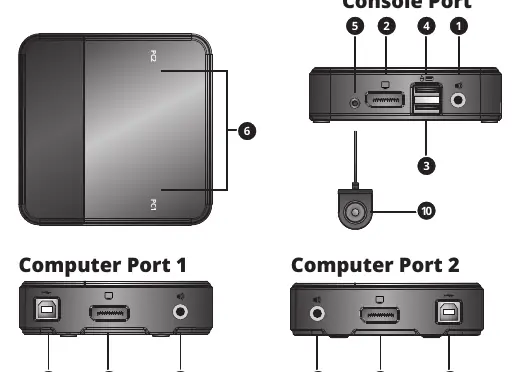
- Page 4 shows the KVM components and port layout.
- Page 5 illustrates the installation setup with PC 1, PC 2, and console.
Model compatibility
- Compatible with Windows, Mac, and Linux.
- Requires DisplayPort 1.2 compatible graphics card for MST.
- Only 3-key wheel mice supported for mouse port switching.

Manual page author
Michael Turner
Technical manual editor
Reviews PDF manuals for structure, safety notes, and practical product details so readers can find the right information quickly.