Electronics / Two-Way Radios
User Manual for Black Box Advanced 2/4/8-Port DVI-I Secure KVM Switch
Comprehensive user guide for the Black Box Advanced DVI-I Secure KVM Switch. Includes installation instructions for single and multi-head units, security features, CAC configuration, EDID learning, and troubleshooting steps.
Quick answers from the manual
Quick answer
- The Black Box Advanced DVI-I Secure KVM Switch allows control of multiple computers from a single console. It features anti-tamper switches, high isolation on USB channels, and secure EDID emulation. p. 4
Key actions
- Install the KVM Switch p. 6, 7
- Configure CAC Port p. 10
First start
- Connect all peripherals and computers while powered off, then power on the KVM switch followed by the computers. p. 6, 7
Problems and fixes
No Power
Check power adapter connection and voltage (12VDC).
p. 13
No Video
Check video cables and restart computers.
p. 13Maintenance and reset
- Restore Factory Defaults via the Administration and Security Management Program. p. 11
Technical specifications
| Parameter | Value | Meaning | Pages |
|---|---|---|---|
| Max Resolution | 2560 x 1600 @ 60Hz; 3840x2160 @ 30Hz | Maximum supported video resolution. | p. 3 |
| Power | 12V DC, 3A | Power adapter requirements. | p. 3 |
Where to find it in the PDF
- Technical Specifications p. 3
- Installation p. 6, 7
Table of contents
Manual images
Click an image to enlargeImportant Information
The Black Box Advanced DVI-I Secure KVM Switch is designed for secure switching between multiple computers. It features anti-tamper switches, high isolation on USB channels, and secure EDID emulation. Important: This product does not support wireless devices, keyboards with integrated USB hubs, or microphones. Connection of authentication devices (CAC) with external power sources is prohibited.
Installation
Ensure all power is disconnected before starting installation.
Single-Head Units
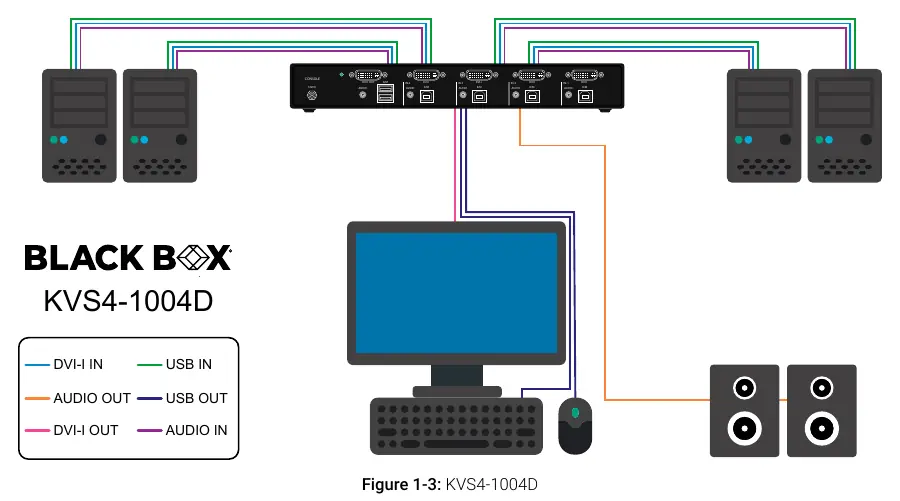
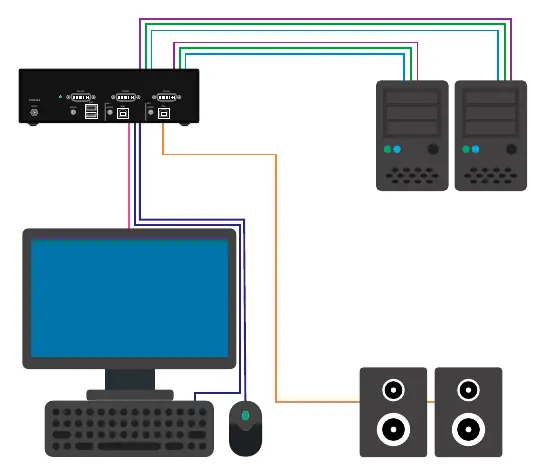
- Connect DVI cables from each computer to the corresponding DVI-I IN ports on the switch.
- Connect USB cables (Type-A to Type-B) from each computer to the respective USB ports on the switch.
- Optionally connect stereo audio cables (3.5mm) from computers to the AUDIO IN ports.
- Connect a monitor to the DVI-I OUT console port.
- Connect a USB keyboard and mouse to the console USB ports.
- Optionally connect speakers to the AUDIO OUT port and CAC devices to the CAC port.
- Power on the switch using the 12VDC power supply, then turn on the computers.
Multi-Head Units
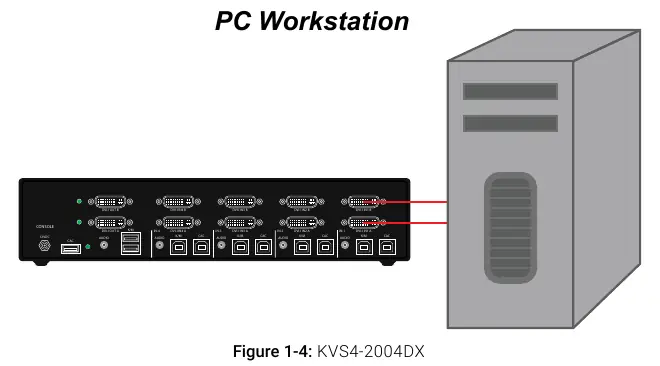
Follow the same steps as single-head units, ensuring that all DVI ports for a single computer are connected to the same channel on the switch. The DVI-I IN connectors for the same channel are arranged vertically.
EDID Learn
The switch automatically learns the connected monitor's EDID upon power-up. If you connect a new monitor, a power cycle is required. The switch indicates the learning process by flashing front panel LEDs. If the read EDID is identical to the stored one, the function is skipped.
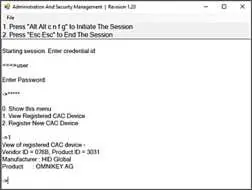
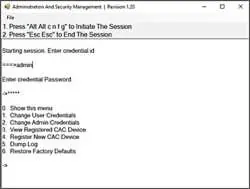
CAC Configuration
The CAC port allows registration of specific USB peripherals. To configure:
- Open the Administration and Security Management Program.
- Press the Alt key twice and type "cnfg".
- Enter the default username "user" and password "12345".
- Select "Register New CAC Device" and follow the on-screen prompts.
Troubleshooting
If you encounter issues, check the following:
- No Power: Verify the power adapter is securely connected and providing 12VDC.
- Flashing LEDs with clicking: Reboot the unit and verify USB 1.0/1.1 keyboard/mouse connections.
- No Video: Check video cable connections and test the computer directly with the monitor.
- Keyboard/Mouse not working: Ensure they are standard HID devices and try a different USB port.
Practical help
Common problems
No Power
Ensure the power adapter is securely connected to the unit and providing approximately 12VDC. Replace the power supply if necessary.
Flashing LEDs with clicking sound
Reboot the unit. Verify that both keyboard and mouse connections are USB 1.0 or 1.1 and connected to the designated K/M ports.
No Video
Check all video cable connections. Connect the computer directly to the monitor to verify the computer and monitor are functioning. Restart the computers.
Keyboard or Mouse not working
Check if the device is properly connected. Try connecting the USB cable to a different port on the computer. Ensure the device works when connected directly to the computer.
Before use
- Ensure power is turned off before connecting cables.
- Use DVI cables for video connections.
- Use USB Type-A to Type-B cables for computer connections.
- Connect monitor to the DVI-I OUT console port.
- Connect keyboard and mouse to the console USB ports.
- Verify that the power adapter is 12VDC, 3A minimum.
Specs in practice
- Max Resolution
- Supports up to 2560 x 1600 @ 60Hz or 3840x2160 @ 30Hz with an HDMI-to-DVI adapter.
- Power Requirements
- Requires 12V DC, 3A (minimum) power adapter with center-pin positive polarity.
- Operating Temp
- The unit operates between 32° to 104° F (0° to 40° C).
Images and diagrams
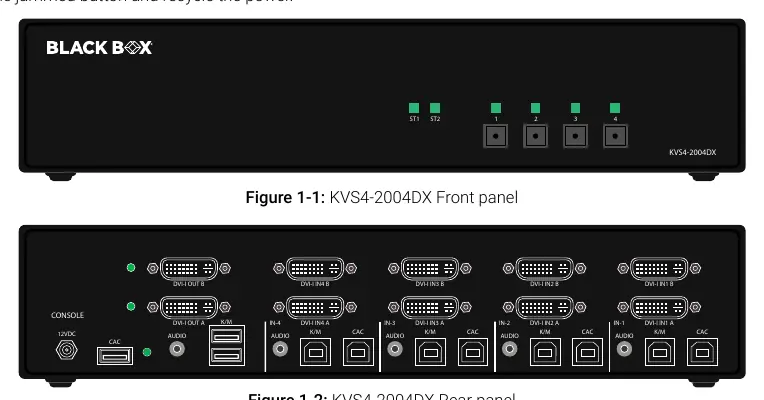
- Front panel: Contains port selection buttons and status LEDs (ST1, ST2, and port indicators).
- Rear panel: Contains console ports (12VDC, Audio, K/M, CAC) and input ports (DVI-I, USB, Audio) for each channel.
Model compatibility
- Supports standard HID USB keyboards and mice only.
- Does not support wireless devices or keyboards with integrated USB hubs.
- Does not support microphone audio input or line input.

Manual page author
David Miller
Documentation analyst
Organizes user manual content into clear summaries, with attention to model details, product context, and everyday usability.