Electronics / Headphones Earbuds
User Manual for JBL Tune Buds Earbuds
Quick start guide for JBL Tune Buds. Learn how to connect, use touch controls, manage multi-point connections, reset to factory settings, and understand LED indicators.
Table of contents
Manual images
Click an image to enlargeQuick guide from the manual
This guide provides essential instructions for setting up and using your JBL Tune Buds. Key actions include pairing via Bluetooth, using touch controls for playback and ANC, and managing multi-point connections. For advanced customization, download the JBL Headphones app.
What's in the box
- JBL Tune Buds earbuds
- Charging case
- Ear tips (S/M/L sizes)
- USB charging cable
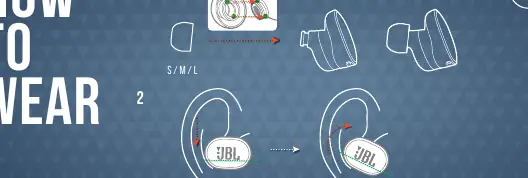
How to wear
For the best audio performance and fit, try the different sizes of ear tips included in the box. Ensure the earbuds are positioned correctly in your ear for a secure seal.
Power on & Connect
To connect your earbuds:
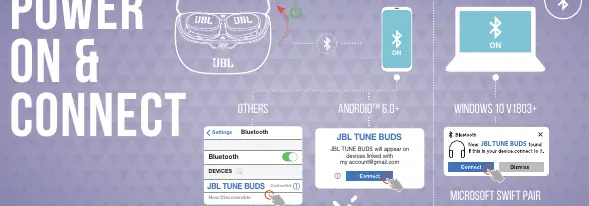
- Open the charging case to power on the earbuds.
- Enable Bluetooth on your device.
- Select "JBL TUNE BUDS" from your device's Bluetooth menu to connect.
- The earbuds support Fast Pair for Android 6.0+ and Microsoft Swift Pair for Windows 10 v1803+.
Dual Connect + Sync
The earbuds support both Stereo mode (using both earbuds) and Mono mode (using a single earbud).
Multi-point connection
You can connect to a maximum of 2 devices simultaneously. To initiate pairing, hold the touch control on the earbud for 5 seconds.
Controls
Use touch gestures on the earbuds to control playback and features:
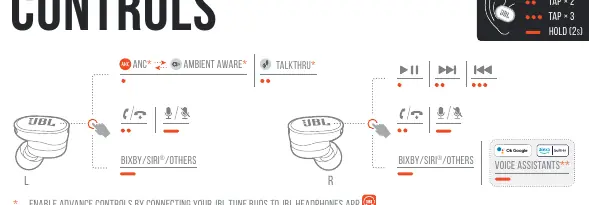
- Tap x1: Play/Pause, Answer/End call
- Tap x2: Next track, Mute/Unmute microphone
- Tap x3: Previous track
- Hold (2s): Activate Voice Assistant (Bixby/Siri/Others)
- Hold (2s) on Left earbud: Cycle through ANC, Ambient Aware, and TalkThru modes
Factory Reset
If you experience connectivity issues, you can perform a factory reset:
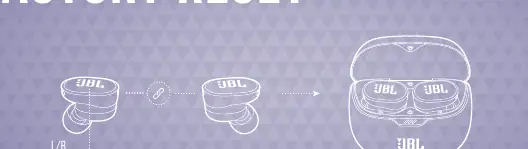
- Ensure the earbuds are in the charging case.
- Tap the earbud twice and hold for 5 seconds.
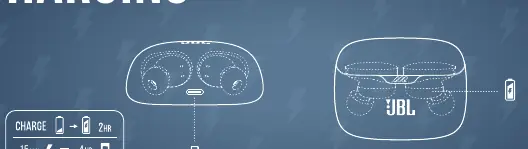
Charging
Charge the earbuds using the provided case. A full charge takes approximately 2 hours. A 15-minute charge provides up to 4 hours of playtime.
LED Behaviors
- Flashing Blue: BT connecting
- Solid Blue: BT connected
- Slow Flashing Blue: BT not connected
- Low Battery: Indicated by specific LED patterns on the case
- Charging: Indicated by LED patterns on the case
Technical Specifications
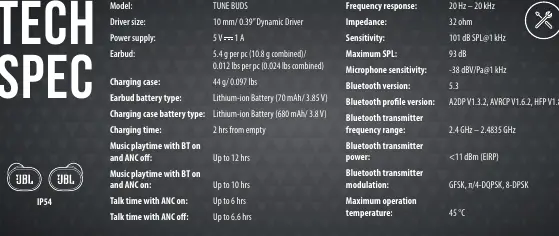
- Driver size: 10 mm Dynamic Driver
- Bluetooth version: 5.3
- Frequency response: 20 Hz – 20 kHz
- Impedance: 32 ohm
- Maximum operation temperature: 45 °C
- IP Rating: IP54
Manufacturer information
JBL
Practical help
Common problems
Earbuds not connecting
Ensure Bluetooth is enabled on your device and select 'JBL TUNE BUDS' in the settings. If issues persist, try a factory reset.
Poor audio quality or fit
Try different sizes of ear tips (S/M/L) to ensure a proper seal in your ear canal.
Multi-point connection not working
Ensure you are only connecting to a maximum of 2 devices. Hold the touch control for 5 seconds to enter pairing mode.
Before use
- Charge the charging case and earbuds fully
- Download the JBL Headphones app for advanced controls
- Select the correct ear tip size for your ears
Specs in practice
- Bluetooth version
- 5.3 for stable and efficient wireless connectivity
- Charging time
- 2 hours to charge from empty
Images and diagrams
- Page 4: How to wear and fit ear tips
- Page 6: Bluetooth pairing process
- Page 9: Touch control gestures
- Page 12: Factory reset procedure
Model compatibility
- Compatible with Android 6.0+
- Compatible with Windows 10 v1803+

Manual page author
Michael Turner
Technical manual editor
Reviews PDF manuals for structure, safety notes, and practical product details so readers can find the right information quickly.