Electronics / Headphones Earbuds
User Manual for JBL Quantum 360X Wireless for Xbox
Quick start guide for the JBL Quantum 360X Wireless for Xbox gaming headset. Learn how to connect via 2.4GHz or Bluetooth, use dual source switching, configure PC settings, and understand LED indicators.
Table of contents
Manual images
Click an image to enlargeQuick guide from the manual
This guide provides essential instructions for setting up and using your JBL Quantum 360X Wireless for Xbox headset. It covers connectivity, button controls, PC software configuration, and LED status indicators.
What's in the box
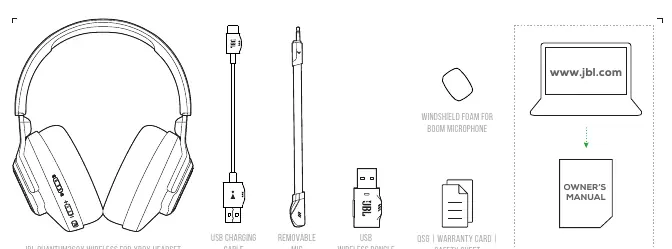
- JBL Quantum 360X Wireless for Xbox headset
- USB charging cable
- Removable boom microphone
- USB wireless dongle
- Windshield foam for boom microphone
- Quick Start Guide, Warranty Card, and Safety Sheet
Overview
The headset features several controls and indicators:
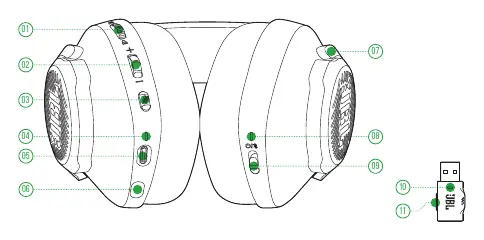
- 01 Game audio-chat balance dial: Adjusts the mix between game and chat audio.
- 02 Volume Control: Adjusts master volume.
- 03 Microphone Mute / Unmute: Toggles microphone status.
- 09 Power on / off and Bluetooth pairing slider: Controls power and initiates Bluetooth pairing.
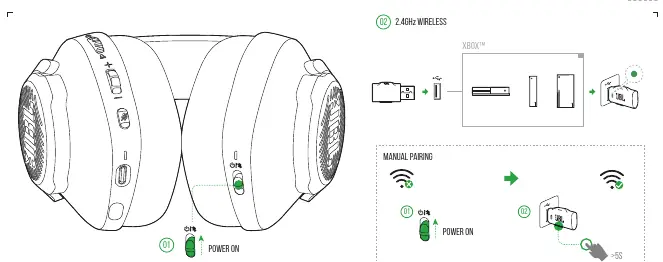
- 11 2.4GHz pairing button: Used to pair the headset with the USB dongle.
Power on & Connect
Xbox
Connect the USB wireless dongle to your Xbox console. Power on the headset using the power slider. The headset should connect automatically via 2.4GHz wireless.
PC, Mac, and other devices
Connect the USB wireless dongle to a USB Type-A port on your device. Power on the headset. For devices without auto-switch, you may need to press the pairing button on the dongle.
Bluetooth & Dual Source
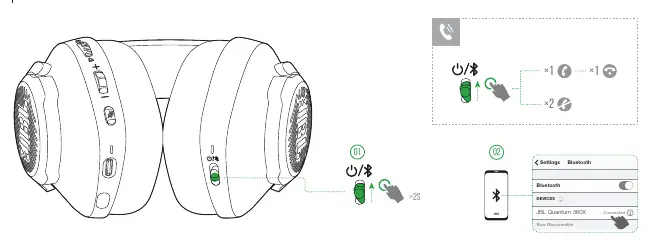
To pair via Bluetooth, slide and hold the power slider for more than 2 seconds. Select 'JBL Quantum 360X' in your device's Bluetooth settings. The headset supports dual source switching, allowing you to stay connected to the 2.4GHz source (e.g., game console) while simultaneously connected to a Bluetooth device (e.g., smartphone) for calls.
First time setup (PC)
- Connect the headset to your PC via the 2.4GHz USB wireless dongle.
- Go to 'Sound Settings' -> 'Sound Control Panel'.
- Under 'Playback', set 'JBL Quantum360X WIRELESS FOR XBOX Game' as the 'Default Device'.
- Set 'JBL Quantum360X WIRELESS FOR XBOX Chat' as the 'Default Communication Device'.
- Under 'Recording', set 'JBL Quantum360X WIRELESS FOR XBOX Chat' as the 'Default Device'.
- In your chat application, select 'JBL Quantum360X WIRELESS FOR XBOX Chat' as the default audio device.
Charging
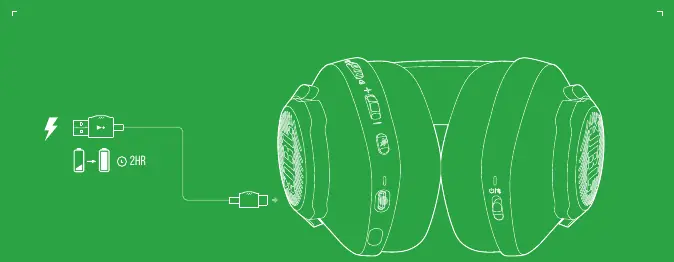
Connect the USB-C charging cable to the headset's USB-C port. A full charge takes approximately 2 hours.
LED Behaviours
The LEDs indicate the status of the headset:
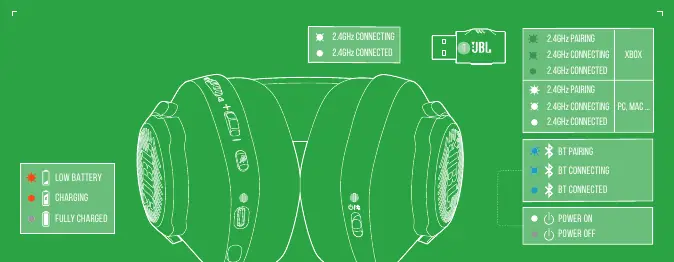
- 2.4GHz LED: Flashing indicates pairing/connecting; solid indicates connected.
- Power/Bluetooth LED: Indicates power status and Bluetooth pairing/connection status.
- Charging LED: Red indicates charging; off indicates fully charged; flashing red indicates low battery.
Manufacturer information
JBL
Practical help
Common problems
Headset not connecting to PC/Console
Ensure the USB wireless dongle is securely connected and the headset is powered on. If necessary, re-pair using the 2.4GHz pairing button.
No sound on PC
Verify that 'JBL Quantum360X WIRELESS FOR XBOX Game' is set as the Default Device in Windows Sound Control Panel.
Bluetooth pairing fails
Ensure the headset is in pairing mode by sliding and holding the power slider for >2 seconds until the LED indicates pairing.
Before use
- Charge the headset for 2 hours before first use.
- Install JBL QuantumENGINE software on your PC (Windows 10/11) for full features.
- Attach the removable boom microphone.
- Ensure the USB wireless dongle is connected to your gaming device.
Specs in practice
- Battery life
- Up to 22 hours via 2.4GHz or 26 hours via Bluetooth.
- Charging time
- Approximately 2 hours for a full charge.
Images and diagrams
- The headset features a game/chat balance dial to adjust audio mix on the fly.
- The power slider also functions as the Bluetooth pairing control.
- The 2.4GHz pairing button is located on the USB dongle.
Model compatibility
- Compatible with PC, Xbox, PlayStation, Nintendo Switch, Mobile, and Mac.
- JBL QuantumENGINE software features (Surround, EQ, etc.) are available on Windows PC only.

Manual page author
Emily Carter
User documentation editor
Prepares concise manual descriptions and highlights the most useful setup, operation, and maintenance information for readers.