Electronics / RFID Barcode Scanners
User Guide for Honeywell Voyager 1250g Barcode Scanner
Comprehensive user guide for the Honeywell Voyager 1250g single-line laser scanner. Includes setup instructions, interface programming, data editing, maintenance, and troubleshooting.
Table of contents
Manual images
Click an image to enlargeQuick Guide from the Manual
The Honeywell Voyager 1250g is a single-line laser scanner designed for high-performance scanning of linear barcodes. To get started, connect the appropriate interface cable to the scanner and then to your host device (USB, Keyboard Wedge, RS232, or RS485). The scanner will beep upon successful connection. Verify operation by scanning the sample symbols provided in the back of the manual.

Getting Started
After unpacking, inspect the device for shipping damage. Save the shipping container for future storage. The scanner is factory-programmed for common settings, but can be customized by scanning specific programming barcodes found in this manual.
Connecting the Device
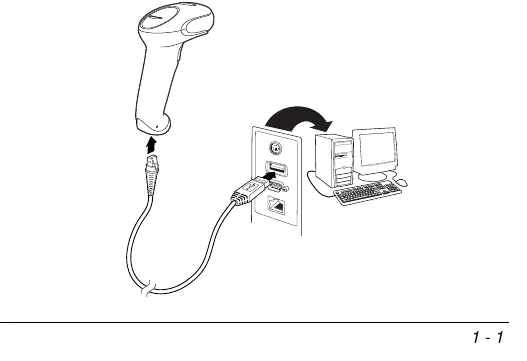
- USB: Connect the interface cable to the scanner and the computer's USB port. The unit defaults to USB PC Keyboard mode.
- Keyboard Wedge: Disconnect the keyboard cable from the terminal/computer, connect the scanner cable, and reconnect the keyboard.
- RS232 Serial Port: Connect the serial cable to the scanner and the computer's serial port. Tighten the screws to secure the connection.
- RS485: Connect the interface cable to the device and the computer.
Reading Techniques
The scanner projects a red aiming beam. Center this beam horizontally over the barcode. The beam size adjusts automatically based on distance. For highly reflective (laminated) codes, tilt the code 15° to 18° to prevent glare.
Programming and Settings
The scanner is programmed by scanning menu barcodes. You can set custom defaults, configure input/output settings (beeper volume, pitch, duration, and LED indicators), and adjust presentation modes. The manual provides detailed sections for programming the interface, data editing (adding prefixes/suffixes), and data formatting.
Maintenance
Periodic maintenance ensures reliable operation:
- Cleaning: Clean the scanner window with a soft cloth or lens tissue dampened with water or a mild detergent solution. Do not use solvents like alcohol or acetone.
- Cable Replacement: The interface cable is field-replaceable. Use a paper clip to press the cable release on the underside of the handle to disconnect the cable.
Troubleshooting
If the scanner is not functioning:
- Laser not illuminating: Check cable connections and host power.
- Trouble reading symbols: Ensure the window is clean, the barcode is not damaged, and the symbology is enabled.
- Data not entered: Ensure the scanner is programmed for the correct terminal interface.
Product Specifications
The Voyager 1250g features an IP42 rating for protection against foreign particles and dripping water. It operates in temperatures from 0°C to 40°C (32°F to 104°F) and is designed to withstand 30 drops to concrete from 1.5m (5 ft).
Manufacturer information
Honeywell International Inc.
Practical help
Common problems
Scanner not reading barcodes
Ensure the scanner window is clean, the barcode is not damaged, and the specific symbology is enabled in the scanner settings.
Data not displayed correctly on host
The scanner may be programmed for the wrong terminal interface. Reprogram using the correct Plug and Play barcode.
Laser aimer not illuminating
Check that the interface cable is connected properly and that the host system is powered on.
Before use
- Inspect for shipping damage
- Verify items in the carton match your order
- Connect the interface cable to the scanner first
- Connect the cable to the host computer
- Power cycle the host terminal if required by the interface
Specs in practice
- Operating Temperature
- 0°C to 40°C (32°F to 104°F).
Images and diagrams
- Connection diagrams for USB, Keyboard Wedge, RS232, and RS485 interfaces
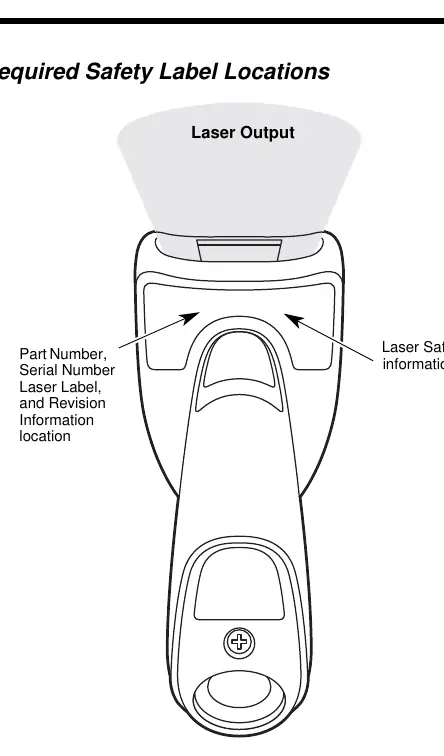
- Safety label locations on the scanner body
Model compatibility
- Supports standard 1D and GS1 DataBar symbologies
- Requires specific interface cables for different host connections

Manual page author
Emily Carter
User documentation editor
Prepares concise manual descriptions and highlights the most useful setup, operation, and maintenance information for readers.