Electronics / Microphones
User Manual for KRUX Emote 2000s Microphone
Quick guide for the KRUX Emote 2000s microphone. Learn how to install, adjust gain, change polar patterns, and use the mute function.
Quick answers from the manual
Quick answer
- The KRUX Emote 2000s is a USB condenser microphone. Connect it via USB-C to your computer. Use the knob to control volume (Blue LED) and gain (Green LED). p. 1
Key actions
- Switch between Volume and Gain control p. 1
- Mute the microphone p. 2
First start
- Connect the USB cable to the microphone and your computer. p. 1
Technical specifications
| Parameter | Value | Meaning | Pages |
|---|---|---|---|
| Sampling Rate | 96 kHz / 24 bit | Audio recording resolution | p. 1 |
| Cable Length | 2 m | USB cable length | p. 1 |
Where to find it in the PDF
- Technical Specifications and Installation p. 1
- Safety and Warranty p. 2
Table of contents
Manual images
Click an image to enlargeQuick Guide
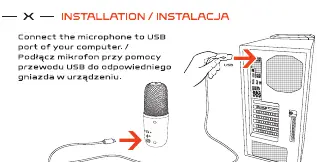
The KRUX Emote 2000s is a plug-and-play USB condenser microphone. To start using it, connect the included USB cable to the USB-C port on the microphone and the other end to a USB port on your computer. The device is compatible with Windows, macOS, and Linux systems.
Technical Specifications
- Microphone Type: Condenser
- Directivity: Cardioid / Omnidirectional
- Sampling Rate: 96 kHz / 24 bit
- Frequency Range: 20-20 000 Hz
- Cable Length: 2 m
- Weight: 170 g (microphone only), 318 g (with base)
- Warranty: 24 months
Device Overview
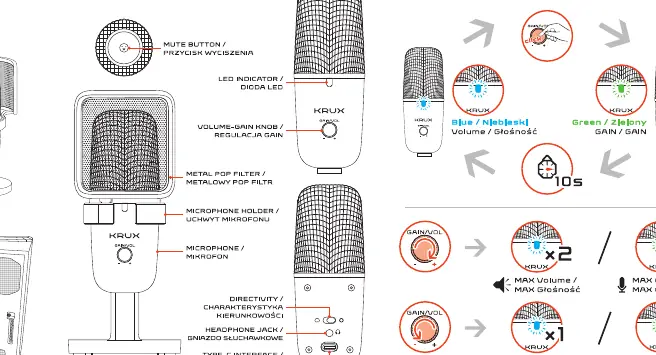
The microphone features a metal pop filter, a volume/gain control knob, a mute button, and a headphone jack. The base is adjustable to ensure proper positioning during use.
Operation and Controls
The microphone uses a multi-function knob and LED indicators to manage audio settings:
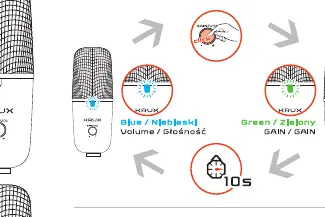
- LED Indicator: The color indicates the current mode. Blue indicates Volume control, while Green indicates Gain control.
- Switching Modes: Click the volume/gain knob to toggle between Volume (Blue) and Gain (Green) modes.
- Adjusting Levels: Rotate the knob to increase or decrease the selected level (Volume or Gain).
- Mute Function: Tap the mute button located on the top of the microphone to toggle the mute status.
- Directivity: The microphone supports switchable polar patterns (Cardioid and Omnidirectional) to suit different recording environments.
Safety and Warranty
Do not expose the device to excessive humidity, dust, or rapid temperature changes. The device is not suitable for children under 5 years old. If the device has been exposed to different temperatures, wait approximately 30 minutes before use to allow it to reach room temperature. For warranty claims or support, visit the official KRUX website at krux.tech.
Official resources from the manual
Practical help
Common problems
Microphone not detected by computer
Ensure the USB cable is securely connected to both the microphone and the computer's USB port.
Audio is too quiet or distorted
Check the LED indicator. If it is Green, you are adjusting Gain. Adjust the knob to an appropriate level. If it is Blue, you are adjusting headphone volume.
Android compatibility issues
The kit does not include an OTG adapter. Ensure your Android device supports OTG functionality and use a compatible OTG adapter.
Before use
- Ensure the USB cable is fully inserted into the USB-C port on the microphone.
- Check that the microphone is not muted (tap the mute button if necessary).
- Verify that your operating system (Windows, macOS, or Linux) recognizes the device.
- Allow the device to acclimate to room temperature for 30 minutes if it was moved from a cold environment.
Specs in practice
- Sampling Rate (96 kHz / 24 bit)
- Indicates high-resolution audio recording quality suitable for professional streaming and voiceovers.
- Cardioid Pattern
- Captures sound primarily from the front, ideal for solo recording and reducing background noise.
- Omnidirectional Pattern
- Captures sound from all directions, suitable for group recordings or ambient sound.
Images and diagrams
- The LED indicator cycles between Blue (Volume) and Green (Gain) when the knob is clicked.
- The mute button is located on the top of the microphone housing.
- The headphone jack is located on the bottom of the microphone for real-time monitoring.
Model compatibility
- Compatible with Windows, macOS, and Linux.
- Android support requires an OTG adapter (not included).

Manual page author
Emily Carter
User documentation editor
Prepares concise manual descriptions and highlights the most useful setup, operation, and maintenance information for readers.