Computers / Laptops
Owner's Manual for LG 17Z90TP-G.AD88A13 Laptop
Comprehensive owner's manual for the LG 17Z90TP-G.AD88A13 laptop. Includes essential safety precautions, battery maintenance tips, startup procedures, and troubleshooting steps for common issues.
Quick answers from the manual
Quick answer
- To turn on your LG laptop, connect the provided adaptor to the charging port and press the power button. If the system is unresponsive, perform a reset by holding the power button for 6 seconds. p. 5
Key actions
- Reset the system p. 5, 6
- Optimize battery lifespan p. 3
First start
- Charge the battery pack completely before using the PC for the first time. p. 4
Problems and fixes
Power does not turn on
Check power connection, reconnect, or reset system by holding power button for 6 seconds.
p. 5Maintenance and reset
- Reset the system by holding the power button for 6 seconds. p. 5, 6
Where to find it in the PDF
- Safety Precautions p. 2, 3
- Connecting and Turning On p. 5
- Troubleshooting p. 5, 6
Table of contents
Quick guide from the manual
This manual provides essential instructions for the safe and efficient use of your LG laptop. Key procedures include initial battery charging, proper system shutdown, and troubleshooting steps for power or connectivity issues. Always use the provided adaptor and follow the safety guidelines to prevent damage to the device or injury.
Important Safety Precautions
To prevent unexpected danger or damage, observe the following safety rules:
- Battery Safety: Keep the battery away from heat sources. Do not store the device in temperatures above 60°C or in high-humidity environments like saunas or cars.
- Usage Environment: Do not operate the laptop on soft surfaces like carpets, blankets, or beds, as this can cause overheating. Ensure adequate ventilation.
- Adaptor Safety: Do not bend the power cable excessively, as this may break internal wires and cause electric shock or fire. Use only the provided adaptor.
- Glass Protection: For models with Corning Gorilla Glass, avoid excessive shock. If the glass is broken, stop using the device immediately and contact the service center.
Battery Usage and Maintenance
Proper battery care extends the lifespan of your device:
- Initial Use: Charge the battery pack completely before using the laptop for the first time.
- Long-term Storage: If the PC will not be used for an extended period, keep the battery level at approximately 50%.
- Extend Battery Life: Use the 'Extend Battery Life' function in the 'My gram' or 'LG Smart Assistant' software to limit the maximum charge to 80%.
- Charging: Avoid keeping the battery completely charged at all times; use the battery for a while before recharging.
Getting Started
Checking Components: Ensure your package includes the PC main body, adaptor, and power cable. Note that some models may include additional components like LAN or HDMI adaptors.
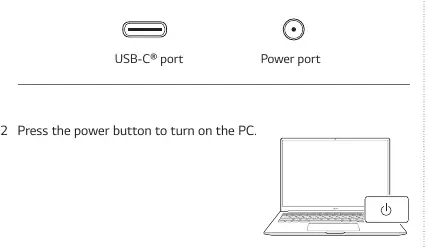
Connecting and Turning On: Connect the provided adaptor to the compatible charging port (USB-C or dedicated power port) on the PC. Press the power button to turn on the system.
System Shutdown: Always shut down the system properly using the Start menu (Start button > Power button > Shut down). Do not force a shutdown while the system is loading.
Troubleshooting
If you encounter issues, check the following before contacting support:
- Power Issues: If the PC does not turn on, ensure the power cord is connected. If it still fails, disconnect the power, and hold the power button for at least 6 seconds to reset the system.
- Wireless Network: If Wi-Fi is not connecting, check if Airplane Mode is enabled and set it to 'Off'. You may need to reinstall the wireless network driver.
- System Freezes: If the system stops during use, perform a hard reset by holding the power button for 6 seconds. Note that unsaved data may be lost.
- Screen Brightness: On AMD models, the 'Vari-Bright' function may adjust screen brightness to save battery. You can disable or configure this in the AMD Software settings.
Manufacturer information
LG Electronics
Practical help
Common problems
The power does not turn on.
Check the power cord connection. If it fails, disconnect the power, and hold the power button for at least 6 seconds to reset the system.
The system stops during use or does not shut down.
Hold the power button for 6 seconds to reset the system. Note: Unsaved data may be lost.
Wireless network is not connected.
Ensure Airplane Mode is set to 'Off'. Check the Wi-Fi icon on the taskbar or reinstall the wireless network driver.
Screen brightness changes automatically.
This is likely the 'Vari-Bright' function. You can disable or adjust it in the AMD Software settings.
Before use
- Charge the battery pack completely before first use.
- Back up all critical user data to an external storage device.
- Ensure the system is fully loaded before shutting down.
- Connect the laptop to the internet to keep LG software updated.
Specs in practice
- Extend Battery Life
- A software setting that limits the maximum battery charge to 80% to improve battery longevity.
Images and diagrams
- The laptop features either a USB-C port or a dedicated power port for charging; ensure you use the port compatible with your provided adaptor.
Model compatibility
- Use only the provided adaptor; using other adaptors may cause damage.
- The provided USB-C power cable supports power supply and USB 2.0 specifications only.

Manual page author
Michael Turner
Technical manual editor
Reviews PDF manuals for structure, safety notes, and practical product details so readers can find the right information quickly.