Computers / Tablets
User Guide for Lenovo Yoga 7i 2-in-1 Aura Edition
Comprehensive user guide for the Lenovo Yoga 7i 2-in-1 Aura Edition. Includes setup instructions, hardware overview, intelligent features, power management, and troubleshooting tips.
Quick answers from the manual
Quick answer
- This guide provides instructions for the Lenovo Yoga 7i 2-in-1 Aura Edition, covering setup, hardware features, intelligent AI modes, power management, and troubleshooting. p. 1, 6
Key actions
- Open Novo Button menu p. 46
- Switch operation modes p. 28
- Pair Bluetooth accessory p. 39
First start
- Follow on-screen Windows setup instructions. p. 24
Problems and fixes
PC won't start
Disconnect external devices and check power adapter.
p. 54
Screen flickers
Reset graphics driver or update/uninstall incompatible apps.
p. 63Maintenance and reset
- Reset PC via Windows recovery options. p. 25
Technical specifications
| Parameter | Value | Meaning | Pages |
|---|---|---|---|
| Battery Capacity | 70 Wh | Typical capacity | p. 19 |
| Charging Power | 65 W | Maximum output power | p. 19 |
Where to find it in the PDF
- Hardware Overview p. 8, 10, 12, 14
- Intelligent Features p. 28, 35
- Troubleshooting p. 54, 61
Table of contents
Manual images
Click an image to enlargeQuick guide from the manual
This guide provides essential information for the Lenovo Yoga 7i 2-in-1 Aura Edition. It covers initial setup, hardware features, intelligent AI modes, power management, and troubleshooting. For detailed support, refer to the Lenovo Vantage app or the Lenovo Support website.
Hardware overview
The computer features various ports and components:
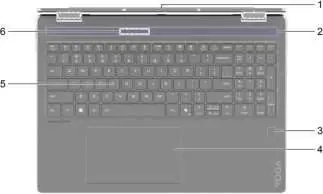
- Front: Microphones, Infrared LED/camera, camera shutter, and screen.
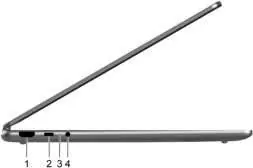
- Left: HDMI connector, multi-purpose USB Type-C connector, charging light, and combo audio jack.
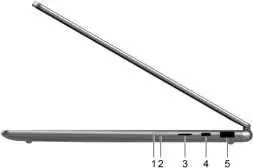
- Right: Power button, microSD card slot, multi-purpose USB Type-C connector, and USB Standard-A connector.
- Bottom: Air vents (intake), speakers, and the Novo button hole for system recovery.
Getting started
Upon turning on the PC, follow the Windows setup process to create a user account and connect to a network. You can enhance security by setting up facial recognition or enrolling fingerprints in Settings > Accounts > Sign-in options.
Intelligent features
The Aura Edition includes AI-powered features:
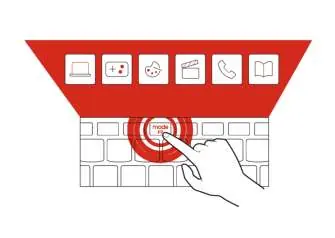
- Smart Modes: Automatically optimizes performance based on activity (Working, Gaming, Creating, etc.). Access via the widget (F9).
- Smart Share: Enables seamless connection and file sharing with Bluetooth devices.
- Smart Care: Provides on-demand support via Lenovo Vantage.
- Presence Detection: Automatically wakes or locks the computer based on user presence.
Power management
Manage battery life using Lenovo Vantage. Modes include Normal, Conservation (limits charge to 75-80%), and Overnight charge optimization. You can adjust power button behavior and sleep timeouts in Windows settings.
Accessories
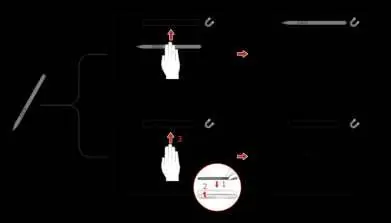
The Lenovo Yoga Pen Gen 2 is designed for writing and sketching. It charges via USB Type-C. The pen attaches magnetically to the upper cover of the PC.
Troubleshooting
If you encounter issues, try restarting the PC, checking power connections, or using the Windows recovery options. For specific hardware issues, use the Device Manager to update or roll back drivers.
Practical help
Common problems
PC won't start
Disconnect all external devices, check the power adapter, and use the Windows startup repair tool.
Stuck in sleep or hibernate mode
Reset the graphics driver by pressing Windows logo key + Ctrl + Shift + B, or restart the PC.
PC is plugged in but not charging
Ensure the power adapter is securely connected, use the correct wattage adapter, and check the battery charging mode in Lenovo Vantage.
Touchpad not responding
Enable the touchpad in Settings > Bluetooth & devices > Touchpad, or update/roll back the driver in Device Manager.
Before use
- Charge the battery using the included power adapter.
- Complete the Windows initial setup process.
- Enroll fingerprints or set up facial recognition for secure login.
- Install or update the Lenovo Vantage app for full feature access.
- Deactivate the pen's shipping mode by connecting it to a power source.
Images and diagrams
- Front view: Identifies camera, microphones, and screen.
- Left view: Identifies HDMI, USB-C, and audio ports.
- Right view: Identifies power button, microSD slot, and USB-A port.
- Pen attachment: Shows how to magnetically attach the pen to the PC cover.
Model compatibility
- Supports Wi-Fi 7 (802.11be) and Bluetooth 5.4.
- Compatible with Lenovo Yoga Pen Gen 2.
- Supports external displays via HDMI or USB-C.

Manual page author
Michael Turner
Technical manual editor
Reviews PDF manuals for structure, safety notes, and practical product details so readers can find the right information quickly.