Computers / Laptops
Owner's Manual for LG 17ZT90P Series Notebook
Quick guide for the LG 17ZT90P Series notebook. Includes setup instructions, battery care, system reset procedures, and technical specifications.
Quick answers from the manual
Quick answer
- The LG 17ZT90P Series is a notebook that requires a separate Windows 10 IoT Enterprise installation. Charge the battery fully before first use and use the provided AC adapter for power. p. 3, 7
Key actions
- Reset the system p. 6
- Charge the battery p. 7
First start
- Charge the battery completely before first use. p. 5
Problems and fixes
System frozen or not finished properly
Reset the system by holding the power button for 6 seconds.
p. 6Maintenance and reset
- System Reset p. 6
Technical specifications
| Parameter | Value | Meaning | Pages |
|---|---|---|---|
| Power Rating | Up to 65.0 W | Maximum power consumption of the AC adapter. | p. 7 |
| Charging Time | 3.0 hours | Standard time to charge the battery. | p. 7 |
Where to find it in the PDF
- Product Components p. 3
- Names of Parts p. 4
- Battery Precautions p. 5
- Connecting to Power p. 7
Table of contents
Manual images
Click an image to enlargeImportant Information
This manual provides essential safety and operational information for the LG 17ZT90P Series notebook. Please read all instructions carefully before use. Note that this product does not come with an operating system pre-installed; you must purchase and install Windows 10 IoT Enterprise separately.
Product Components
Ensure the following items are included in the package:
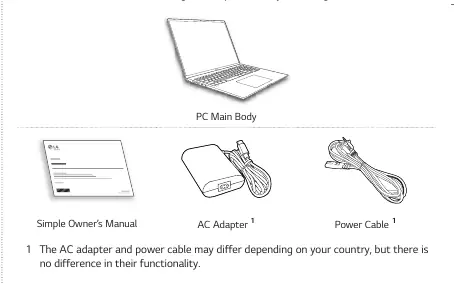
- PC Main Body
- Simple Owner's Manual
- AC Adapter
- Power Cable
Note: Components may vary in shape and color depending on the specific model.
Windows 10 Installation
This device supports Windows 10 IoT Enterprise. Follow these steps for installation:
- Install Windows.
- Install Drivers.
- Perform Windows Update.
- Complete installation.
Refer to the Windows OS help menu for detailed installation procedures.
Names of Parts
The notebook features various ports and components:
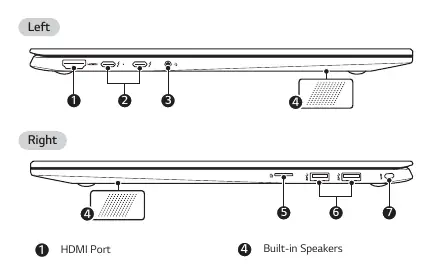
- Left Side: HDMI Port, USB-C Port (supports Thunderbolt, LAN adapter, and Power), Headphone Port (4-pole).
- Right Side: Built-in Speakers, UFS/Micro SD Card Slot, USB Port (USB 3.2 Gen 2x1), Security Keyhole.
- Front: Webcam, Webcam Status Lamp, Built-in Microphone, Keyboard, Touchpad, Power Button (with Fingerprint Sensor on supported models).
Battery Usage and Precautions
The battery is a built-in component. Follow these guidelines for optimal performance:
- First Use: Charge the battery completely before using the PC for the first time.
- Storage: If not using the PC for an extended period, keep the battery level at approximately 50% to extend its lifespan.
- Temperature: Keep the room temperature between 23°F (-5°C) and 104°F (40°C). Do not expose the PC to heat above 104°F (60°C).
- Safety: Do not disassemble, modify, or short-circuit the battery. Keep away from heat sources and metallic objects.
Connecting to Power
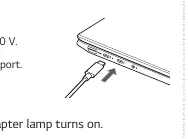
Use only the provided AC adapter. Connect the cable to the AC adapter and then to a power outlet. Connect the AC adapter jack to the USB-C port on the PC. The AC adapter lamp will turn on when connected.
System Reset
If the system stops or fails to finish OS installation properly, you can reset it:
- Remove the AC adapter.
- Press and hold the power button for approximately 6 seconds.
- Press the power button again to turn on the computer.
Caution: Unsaved data may be lost during a system reset.
Technical Specifications
- AC Adapter: Input 100-240V, 50/60Hz; Output 5.0V/9.0V/15.0V/20.0V.
- Operating Temperature: 50°F (10°C) to 95°F (35°C).
- Operating Humidity: 20% RH to 80% RH.
- Charging Time: Approximately 3.0 hours.
Manufacturer information
LG Electronics
Practical help
Common problems
System will not turn on
Connect the AC adapter and charge the battery sufficiently.
System is frozen or not responding
Remove the adapter and hold the power button for 6 seconds to reset.
Battery not charging
Ensure the temperature is within the operating range (50°F-95°F) and the AC adapter is properly connected.
Before use
- Charge the battery completely before first use.
- Verify you have a Windows 10 IoT Enterprise license.
- Check that all components (PC, AC adapter, power cable) are present.
- Ensure the AC adapter is connected to a compatible power outlet.
Specs in practice
- AC Adapter Input
- Supports 100V to 240V, making it suitable for international use.
- Charging Time
- Approximately 3 hours for a full charge; may take longer if the system is in use.
- Operating Temperature
- The range (50°F to 95°F) in which the device should be used for optimal performance.
Images and diagrams
- Left side ports include HDMI, USB-C/Thunderbolt, and Headphone jack.
- Right side ports include USB 3.2, UFS/Micro SD slot, and Security Keyhole.
- The power button is located on the keyboard deck.
Model compatibility
- Supports Windows 10 IoT Enterprise only.
- USB-C port supports charging, data transfer, and LAN adapter connection.

Manual page author
David Miller
Documentation analyst
Organizes user manual content into clear summaries, with attention to model details, product context, and everyday usability.