Computers / Laptops
Owner's Manual for LG gram 17Z90Q-N.APB7U1 Laptop
Quick guide for the LG gram 17Z90Q-N.APB7U1 laptop. Includes safety precautions, system shutdown procedures, troubleshooting for touchpad and Wi-Fi, and component checks.
Quick answers from the manual
Quick answer
- This manual covers safety precautions, proper shutdown procedures, component checks, and basic troubleshooting for the LG gram 17Z90Q-N.APB7U1 laptop. p. 2, 4, 6
Key actions
- Shut down the system properly via the Start menu. p. 4
- Back up data to external storage. p. 2
Problems and fixes
Touchpad not working
Check LG Smart Assistant settings or Fn keys.
p. 6
Wi-Fi not connecting
Check airplane mode using [Fn] + [F6].
p. 6Where to find it in the PDF
- Precautions p. 2
- Product Tour p. 3
- Shutdown p. 4
- Troubleshooting p. 6
Table of contents
Manual images
Click an image to enlargeQuick guide from the manual
This document provides essential safety and operational information for the LG gram 17Z90Q-N.APB7U1 laptop. Users should prioritize backing up critical data to external storage and following proper shutdown procedures to prevent system errors.
Precautions before product use
Before using your laptop, please note the following:
- Data Backup: Always back up critical user data to an external storage device (USB HDD, memory card, etc.) to prevent loss due to SSD malfunction.
- System Shutdown: Do not shut down the system before it is completely loaded. Wait for the system to load fully (usually 1-2 minutes) before initiating a shutdown.
- Cleaning: Use only cleaning agents dedicated to PCs. Avoid using thinner, benzene, alcohol, or similar agents, as they may damage or deform the product.
Product tour
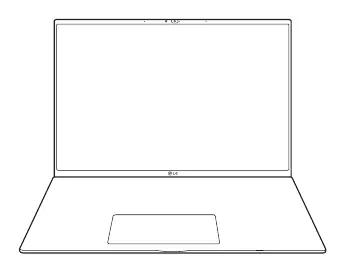
The laptop features a standard front-facing design including the display, keyboard, and touchpad area.
System shutdown
To power off the system correctly:
- Press the Windows key or [Ctrl] + [ESC] to display the Start menu.
- Press the Start button > Power button and select [Shut down].
Important safety precautions
To prevent unexpected danger or damage:

- Do not use the product on top of carpet, blankets, or beds.
- Do not place the power adapter under a blanket.
- Failure to follow these instructions may cause the product to malfunction or result in a fire.
Troubleshooting
If you encounter issues, check the following:
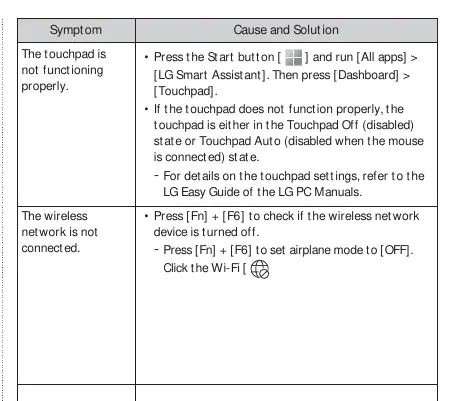
- Touchpad not functioning: Run [LG Smart Assistant] from [All apps] and check the [Dashboard] > [Touchpad] settings. Ensure the touchpad is not in 'Touchpad Off' or 'Touchpad Auto' mode.
- Wireless network not connected: Press [Fn] + [F6] to check if the wireless device is turned off or if airplane mode is enabled.
Official resources from the manual
Manufacturer information
LG Electronics
Practical help
Common problems
Touchpad is not functioning properly
Check if the touchpad is disabled in LG Smart Assistant or if it is in 'Touchpad Auto' mode (disabled when a mouse is connected).
Wireless network is not connected
Press [Fn] + [F6] to check if the device is turned off or if airplane mode is active.
Before use
- Back up all critical data to an external storage device.
- Ensure the system is fully loaded before shutting down.
- Check all components provided in the package.
- Use only PC-dedicated cleaning agents.
Images and diagrams
- Front view of the laptop showing the screen and input area.
Model compatibility
- Do not use the product on soft surfaces like beds, carpets, or blankets to prevent overheating and fire hazards.

Manual page author
Michael Turner
Technical manual editor
Reviews PDF manuals for structure, safety notes, and practical product details so readers can find the right information quickly.