Electronics / Monitors
User Manual for LG Portable Monitor 16MR70
Quick guide for the LG Portable Monitor 16MR70. Learn how to connect via USB-C, use the folio cover as a stand, adjust brightness, install LG Switch software, and troubleshoot common display issues.
Quick answers from the manual
Quick answer
- The LG 16MR70 is a portable monitor that connects via USB-C. It requires a host device supporting DisplayPort Alternate Mode and USB Power Delivery (7.5W+). Use the included folio cover as a stand and install the LG Switch software (Windows only) for full functionality. p. 3, 5, 7
Key actions
- Connect to PC p. 5
- Adjust Brightness p. 6
- Install LG Switch p. 7
Problems and fixes
Screen blank or unstable
Check DP Alt Mode and USB PD support on the host device.
p. 8
Cannot charge
Use a PD charger with 45 W or higher.
p. 8Technical specifications
| Parameter | Value | Meaning | Pages |
|---|---|---|---|
| Resolution | 2560 x 1600 @ 60 Hz | Maximum and recommended resolution. | p. 8 |
| Power Consumption | 8 W | Operation mode (factory default). | p. 8 |
Where to find it in the PDF
- Product Tour p. 3
- Using Folio Cover p. 4
- Connecting the Product p. 5
- Specifications p. 8, 9
Table of contents
Manual images
Click an image to enlargeQuick guide from the manual
The LG 16MR70 is a portable monitor designed for use with PCs and devices supporting DisplayPort Alternate Mode and USB Power Delivery (USB PD). To begin, connect the monitor to your device using the provided USB-C cable. The included folio cover serves as both a screen protector and a stand for horizontal or vertical viewing. For advanced features like screen splitting and monitor settings, install the LG Switch software.
Product components
- Monitor body
- USB-C cable
- Folio cover
- Owner's manual and regulatory information
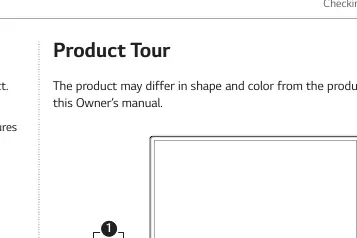
Product tour
The monitor features two USB-C ports on the sides and a screen brightness adjustment/power button. The USB-C ports support Power Delivery (PD) and connection to external display screens. To turn the power on or off, press and hold the upper and lower buttons of the screen brightness adjustment button simultaneously for 2 seconds or longer.
Using the folio cover
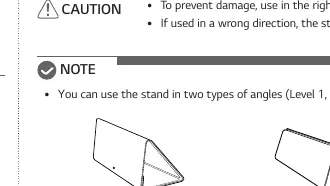
The folio cover can be folded to create a stand. Attach the docking side of the cover to the back of the monitor. Fold the soft side (suede) outwards to create a triangular shape. The stand supports two angles (Level 1 and Level 2) and can be used in both horizontal and vertical modes.
Connecting the product
Connect the monitor to your PC using the provided USB-C cable. The connected device must support power output (USB PD) of 7.5 W (5 V / 1.5 A) or higher and DisplayPort Alternate Mode. If you need to charge the device while using the monitor, connect a PD charger to the monitor's other USB-C port. Note that the PD function does not operate while the monitor is in Sleep mode or powered off.
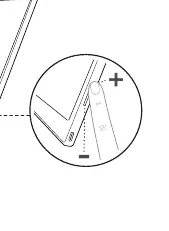
Adjusting screen brightness
You can adjust the screen brightness using the buttons located on the right side of the monitor.
Software installation
Install the LG Switch software to access features like screen splitting and monitor settings. Visit the LG Electronics website at www.lg.com, navigate to Product Support or Support, then Software & Drivers, and search for 16MR70. LG Switch is available for Windows only.
Troubleshooting
If you encounter issues, check the following:
- Screen blank or unstable: Ensure the connected device supports DisplayPort Alternate Mode and USB PD. Connect the USB-C cable to the monitor first, then the device.
- Power does not turn on: Verify the USB-C cable connection.
- Screen unclear: Use the recommended resolution of 2560 x 1600.
- Cannot charge: Ensure the adapter supports PD charging (45 W or higher recommended).
- Pixel spots: A few red, green, blue, white, or black spots are normal for LCD screens and are not a malfunction.
Specifications
The monitor features a 16-inch IPS LCD with a resolution of 2560 x 1600 at 60 Hz. It supports DisplayPort Alternate Mode and requires 5-20 V, 3.25 A power input. Power consumption in operation mode is approximately 8 W.
Official resources from the manual
Manufacturer information
LG Electronics
Practical help
Common problems
Screen stays blank or connection is unstable
Check if the connected device supports DisplayPort Alternate Mode and USB PD. Connect the USB-C cable to the monitor first, then the device.
Cannot charge the connected device
Ensure the PD charger supports sufficient wattage. A PD charger with 45 W or higher is recommended.
Screen looks unclear
Set the screen resolution to the recommended 2560 x 1600.
Power does not turn on
Verify the connection using the USB-C cable provided with the monitor.
Before use
- Verify all components are present: Monitor, USB-C cable, Folio cover.
- Ensure your PC supports DisplayPort Alternate Mode.
- Ensure your PC supports USB Power Delivery (7.5 W or higher).
- Use only the provided USB-C cable for connection.
- Download LG Switch software from the LG website for advanced features.
Specs in practice
- Power Consumption
- 8 W in operation mode (factory default).
- Display Type
- 16-inch IPS LCD.
Images and diagrams
- The folio cover folds into a triangular stand for horizontal or vertical orientation.
- The monitor has two USB-C ports; one for display/data and one for PD charging.
Model compatibility
- LG Switch software is compatible with Windows only.
- Requires devices with DisplayPort Alternate Mode and USB PD support.

Manual page author
David Miller
Documentation analyst
Organizes user manual content into clear summaries, with attention to model details, product context, and everyday usability.