Computers / Tablet Accessories
User Manual for Logitech Harmony 1100i
Quick guide for the Logitech Harmony 1100i universal remote. Learn how to set up activities, customize buttons, use the help feature, and troubleshoot common issues.
Table of contents
Manual images
Click an image to enlargeQuick guide from the manual
The Logitech Harmony 1100i is an activity-based universal remote control. It uses Smart State Technology to control your home theater system as a whole, knowing which devices need to be on and which inputs to select for specific activities like watching a DVD or listening to music. Setup is performed via the Harmony Remote Software on your computer.
Getting to know your remote
The remote features a touch screen and physical buttons. The screen displays navigation icons and activity controls. Key buttons include:
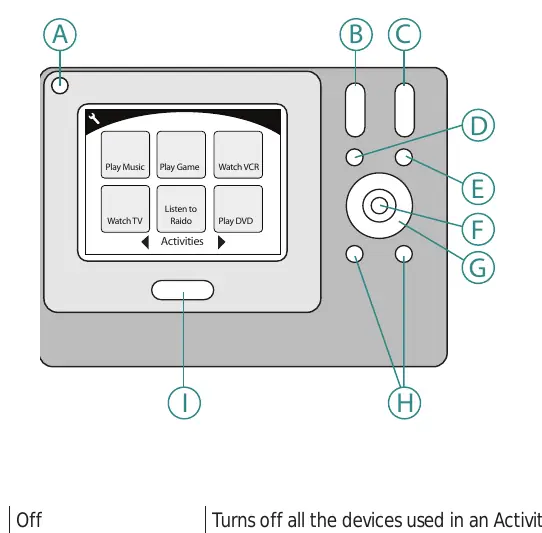
- Off: Turns off all devices used in an activity.
- Volume Up/Down: Adjusts volume.
- Channel Up/Down: Changes channels.
- Mute: Toggles sound.
- OK: Confirms menu selections.
- Navigation Buttons: Scrolls through options.
- Smart Buttons: Customizable buttons.
- Activities: Displays the main activities screen.
Setting up your Harmony 1100i
The setup process is guided by the Harmony Remote Software:
- Create Account: Set up your user account in the software.
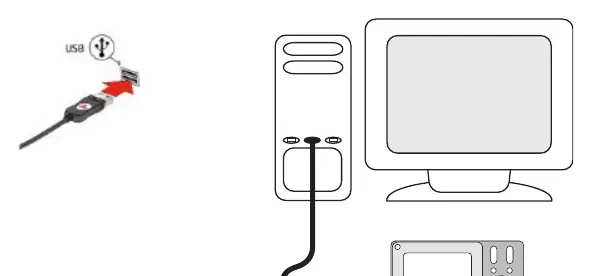
- Connect: Use the provided USB cable to connect the remote to your computer.
- Set up Devices: Enter manufacturer and model numbers for your entertainment components.
- Set up Activities: Configure activities (e.g., Watch TV) based on your devices.
- Update Remote: Transfer settings from your PC to the remote.
Using your Harmony 1100i
To start an activity, simply touch the item on the screen. The remote automatically powers on the necessary devices and sets the correct inputs. If a device becomes out of sync (e.g., doesn't turn on), press the Help button on the remote to guide you through a re-synchronization process.
Customizing your Harmony 1100i
You can personalize your remote experience:
- Activities: Rename, reorder, or add/remove activities.
- Favorite Channels: Set up quick access to your favorite TV channels.
- Buttons: Customize button functions or add custom-labeled buttons for specific commands.
- Slideshows: Add your own images to create a slideshow on the remote screen.
- Backlight: Adjust brightness and duration settings.
Adding additional features
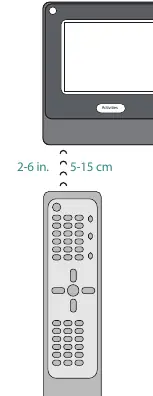
If a device command is missing, you can use the Learn IR feature to teach the Harmony 1100i commands from your original remote. You can also adjust delay settings (Power On, Inter-Key, Input, Inter-Device) if devices are not responding correctly.
Troubleshooting
- TV doesn't turn on: Try increasing the Inter-Device Delay.
- Wrong input: Verify activity settings and input order in the software.
- Double commands: Lower the repeats for the device in the software.
- Communication issues: Disable internet security software or firewalls.
Product specifications
The Harmony 1100i features a 3.5-inch diagonal touch screen with 320x240 resolution. It supports up to 15 devices and has an IR transmission range of up to 65 feet. It is compatible with Windows 2000/XP/Vista and Mac OS X 10.3-10.5.
Manufacturer information
Logitech
Practical help
Common problems
TV doesn't turn on when starting an activity
Try increasing the Inter-Device Delay for your television in the software.
TV doesn't go to the right input
Check that the activity is set to use the correct input and that inputs are in the correct order.
Remote sends commands twice
Try lowering the repeats for the device in the software.
Software unable to communicate with remote
Try disabling internet security software, including firewalls and anti-virus.
Before use
- Gather manufacturer and model numbers for all devices
- Install the Harmony Remote Software
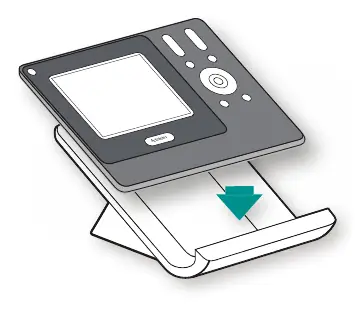
- Charge the remote using the charging station
- Ensure line of sight to entertainment devices
- Have a USB cable ready for connection
Specs in practice
- LCD Resolution
- 320 x 240 (QVGA) for clear display
- IR Transmission Range
- Up to 65ft, allowing control from across the room
- Maximum devices
- Supports up to 15 devices per account
- Supported Platforms
- Windows 2000/XP/Vista and Mac OS X 10.3-10.5
Images and diagrams
- Button layout (A-I) on page 5
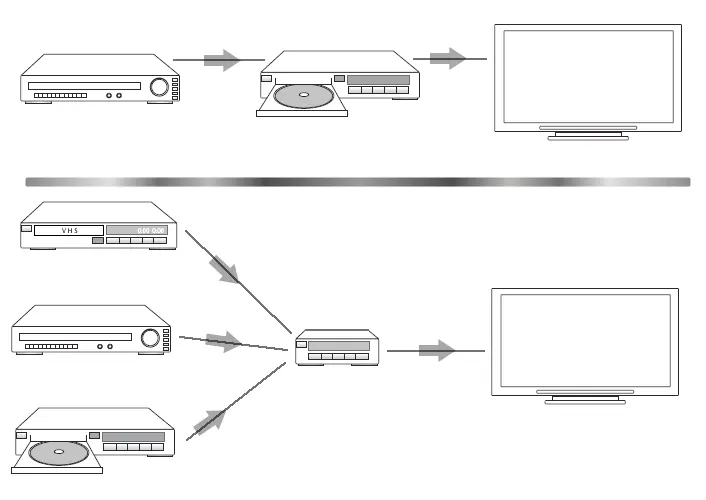
- Passthrough device connection diagram on page 18
- IR learning setup diagram on page 25
Model compatibility
- Supports over 5,000 brands and 225,000 devices
- Requires Harmony Remote Software for initial setup and configuration

Manual page author
David Miller
Documentation analyst
Organizes user manual content into clear summaries, with attention to model details, product context, and everyday usability.