Lighting / Fixtures
Installation and Setup Guide for Maxxima 20W Wifi 14" Satin Nickel Ceiling Light
Complete installation and setup guide for the Maxxima 20W Wifi 14" Satin Nickel Ceiling Light (MCL-914200DW). Learn how to install, pair with Smart Life or TuyaSmart apps, configure voice control for Alexa and Google Home, and troubleshoot...
Quick answers from the manual
Quick answer
- To set up the Maxxima 20W Wifi Ceiling Light, download the Smart Life or TuyaSmart app, turn the light ON-OFF 3 times to enter pairing mode (rapid blinking), and add the device via the app. p. 1
Key actions
- Enter Pairing Mode (EZ) p. 1
- Reset Light p. 1
First start
- Download the Smart Life or TuyaSmart app and create an account. p. 1
Show 4 more answers Show less
Problems and fixes
Light not connecting
Check Wi-Fi password, ensure 2.4GHz network, and ensure Bluetooth is on.
p. 1Maintenance and reset
- Turn the on/off switch 4 or 5 times to reset the light. p. 1
Technical specifications
| Parameter | Value | Meaning | Pages |
|---|---|---|---|
| Power | 20W | Power consumption | p. 1 |
| Brightness | 1600LM | Lumen output | p. 1 |
Where to find it in the PDF
- Installation and Setup Guide p. 1
Table of contents
Manual images
Click an image to enlargeQuick guide from the manual
This document provides instructions for installing and configuring the Maxxima 20W Wifi Ceiling Light. To begin, ensure your smartphone is connected to a 2.4GHz Wi-Fi network and that Bluetooth is enabled. The light must be put into pairing mode by turning it ON and OFF 3 times until it blinks rapidly.
App Configuration
The light is compatible with the Smart Life or TuyaSmart apps. Follow these steps to connect:
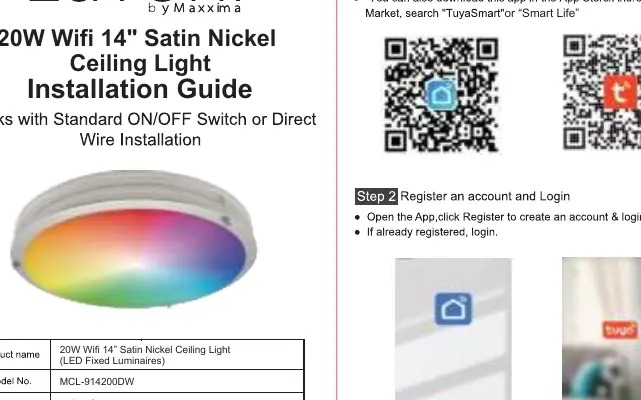
- Download the Smart Life or TuyaSmart app and create an account.
- Turn the light ON-OFF 3 times until it blinks rapidly to enter EZ mode.
- Open the app and click the '+' icon to add a device.
- The device should appear automatically; click 'Go to add'.
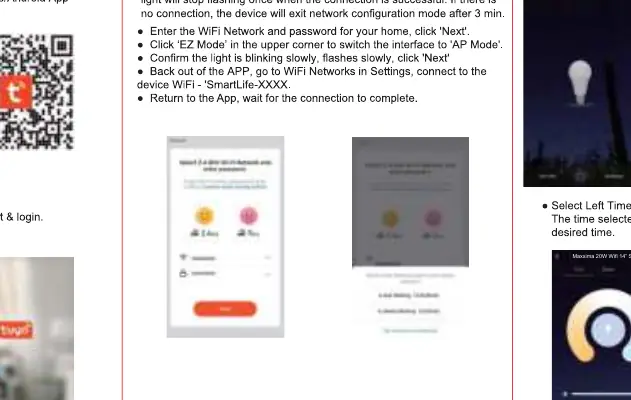
If the light does not connect in EZ mode, you can use AP mode. Turn the light ON-OFF 3 times until it blinks slowly. Follow the in-app instructions to connect to the 'SmartLife-XXXX' Wi-Fi network.
Voice Control Setup
The light supports voice control via Amazon Alexa and Google Home:
- Amazon Alexa: Enable the 'Smart Life' or 'TuyaSmart' skill in the Alexa app, link your account, and discover new devices.
- Google Home: Use the 'Add' function in the Google Home app to link your Smart Life or TuyaSmart account.
Troubleshooting
If you experience issues with the light:
- Ensure the light is connected to a 2.4GHz Wi-Fi network (5GHz is not supported).
- If the internet connection is lost, the light will automatically switch to Bluetooth control mode after 3-5 minutes, allowing short-range control via the app.
- If the light fails to pair, turn it ON-OFF 4 or 5 times to reset it and try again.
Technical Specifications
- Model: MCL-914200DW
- Power: 20W
- Brightness: 1600LM
- Color Temperature: RGB + 2700K - 6000K
Practical help
Common problems
Light not connecting to Wi-Fi
Ensure your phone is connected to a 2.4GHz Wi-Fi network and that Bluetooth is enabled. Try resetting the light by turning it ON-OFF 4-5 times.
Internet connection lost
The light will switch to Bluetooth control mode after 3-5 minutes, allowing you to control it via the app within a short distance.
Before use
- Ensure your smartphone is connected to a 2.4GHz Wi-Fi network.
- Enable Bluetooth on your smartphone.
- Download the Smart Life or TuyaSmart app.
- Ensure the light is installed and powered on.
Show more Show less
Images and diagrams
- The manual provides visual steps for the app interface, including the '+' button to add devices and the 'Go to add' confirmation screen.
- Diagrams illustrate the AP mode connection process, showing how to select the device Wi-Fi network.
Model compatibility
- Requires 2.4GHz Wi-Fi network.
- Compatible with Amazon Alexa and Google Home.
- Works with Smart Life and TuyaSmart apps.

Manual page author
David Miller
Documentation analyst