Automotive / Dash Cams
Firmware Update Instructions for Nextbase 122HD Dash Cam
A step-by-step guide for updating the firmware on your Nextbase 122HD Dash Cam. This manual covers downloading the update, preparing the SD card, and the installation process.
Table of contents
Manual images
Click an image to enlargeImportant Information
This guide provides instructions for updating the firmware on the Nextbase 122HD Dash Cam. The update process involves downloading a specific file to your computer and transferring it to the dash cam's SD card. Do not attempt to open the firmware file on your computer; it is designed only for the dash cam.
Downloading Firmware
Visit the official Nextbase Support & Downloads page to download the latest firmware version for the NBDVR122HD. The file will be saved to your computer's downloads folder as 'FW122HDA.bin'.
Formatting SD Card
Before copying the update, the SD card must be formatted within the dash cam:
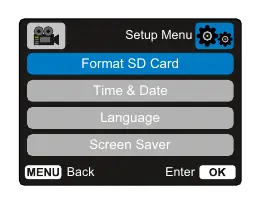
- Ensure the dash cam is not recording.
- Press the 'Menu' button twice to enter the Setup Menu.
- Select 'Format SD Card' and press 'OK' to confirm.
Copying Firmware to SD Card
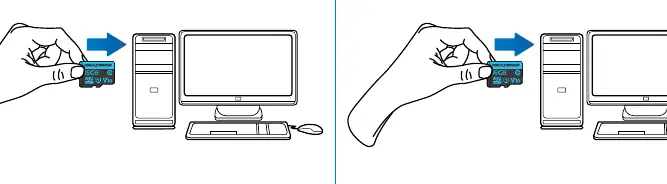
- Turn off the dash cam and remove the SD card.
- Insert the SD card into your computer using an SD card reader.
- The dash cam should appear as a storage device named 'NEXTBASE' in File Explorer (Windows) or Finder (Mac).
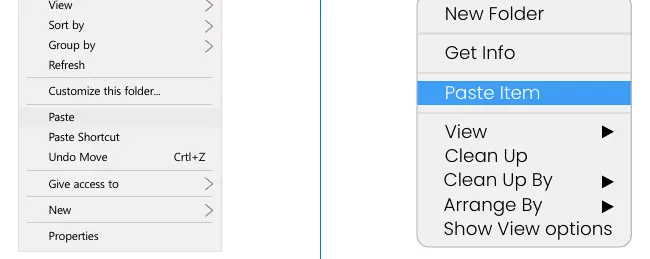
- Right-click the downloaded firmware file and select 'Copy'.
- Open the 'NEXTBASE' storage device, right-click in the white space, and select 'Paste'.
- Ensure the file is not renamed (e.g., do not allow it to become 'FW122HDA(1).bin').
Installing Firmware
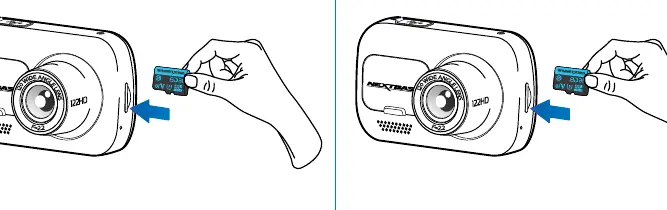
- Once the file is copied, safely remove the SD card from your computer.
- With the dash cam turned off, insert the SD card into the dash cam until it clicks into place.
- Plug the dash cam into power. The update should begin automatically.
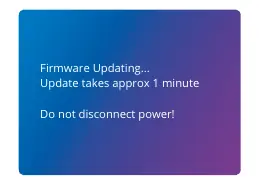
- The screen will display 'Firmware Updating...'. Do not disconnect power during this process.
Verifying Update
After the update, the dash cam will restart and display the PC Connection Screen. Select 'Power On' using the 'OK' button. To verify the version, enter the Setup Menu (press 'Menu' twice), scroll to 'System Info', and press 'OK'.
Official resources from the manual
Practical help
Common problems
Update fails
Ensure the .bin file is not renamed (e.g., no (1) in the filename) and is placed in the root directory of the SD card.
File won't open on computer
The firmware file is not intended to be opened on a computer; it is only for the dash cam to read.
Update does not start
Ensure the SD card was formatted in the camera before copying the file and that the camera is powered on correctly.
Before use
- USB cable (supplied)
- Computer with internet access
- SD card reader
- Nextbase 122HD Dash Cam
Images and diagrams
- Steps 1-2: Downloading the firmware file.
- Steps 3-5: Preparing the SD card and formatting.
- Steps 6-8: Transferring the file to the SD card.
- Steps 9-11: Installing the update on the camera.
- Steps 12-14: Finalizing and verifying the update.
Model compatibility
- This firmware update is specifically for the Nextbase 122HD model.

Manual page author
Michael Turner
Technical manual editor
Reviews PDF manuals for structure, safety notes, and practical product details so readers can find the right information quickly.