Lighting / LED Strips
User Manual for USB HD DVR
Quick guide for the USB HD DVR. Learn how to connect the camera to your Android car head unit, install the required APK software, and troubleshoot common recording issues.
Table of contents
Manual images
Click an image to enlargeQuick guide from the manual
This USB HD DVR is designed for Android-based vehicle audio and video systems. It connects via USB to provide HD video recording, playback, and image browsing. The device requires a specific APK software to be installed on your vehicle's head unit to function correctly.
Product specifications
- Image sensor: CMOS (1/3") low-noise collector
- Lens: 6 sets of all-glass lens, 170° wide-angle, F2.0 aperture
- Storage: TF card (maximum support 32GB)
- Power supply: USB (DC 5V/500mA)
- Features: Automatic recording on power-on, cyclic recording, and automatic time synchronization.
Installation and connection
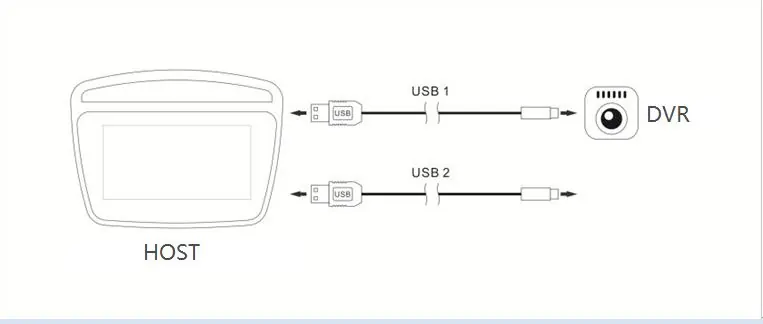
To install the hardware, connect the USB cable from the DVR to the USB interface of your vehicle's large screen head unit. If the device is not detected, try connecting it to a different USB port (e.g., switch from USB1 to USB2).
Software installation
The DVR requires the installation of a specific APK file to operate with your Android head unit. Follow these steps:
- Connect the DVR to the head unit via USB.
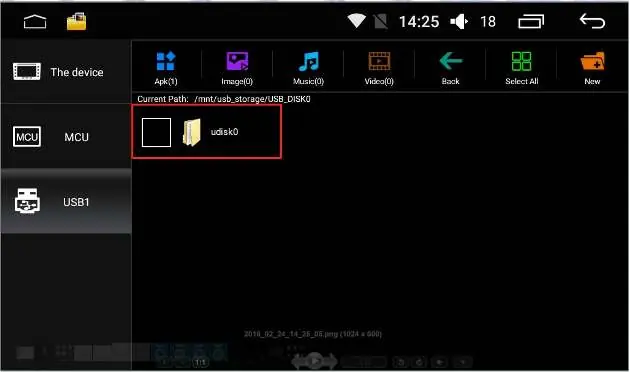
- Open the File Manager application on your vehicle's head unit.
- Locate the external USB flash disk drive.
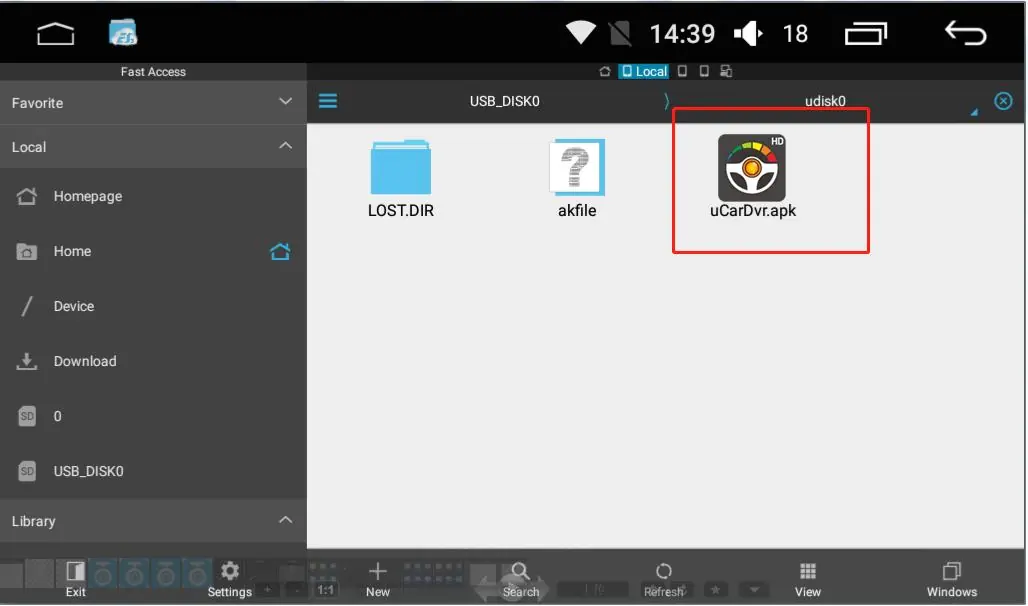
- Find the installation file named uCardvr.apk or car.apk.
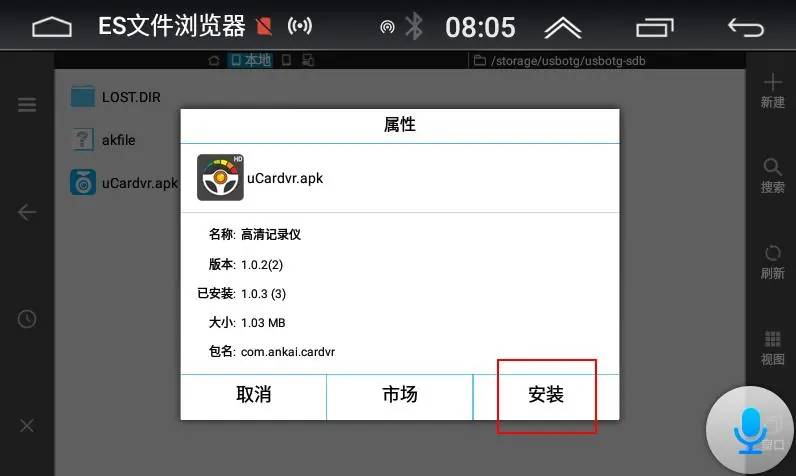
- Select the file to begin the installation process.
- Once installed, an icon for the DVR will appear in your applications menu.
Troubleshooting
If you encounter issues, refer to the following solutions:
- No indication after plugging in: Check if the recording power LED is lit. Try connecting to a different USB port.
- Not recording: Ensure the TF card is inserted correctly. Format the TF card or replace it with a high-speed card.
- No sound: Check if the microphone setting is turned to "On" in the app.
- Frequent restarts: Format the TF card or replace it with a high-speed card.
- Poor video quality: Ensure the protective tape has been removed from the lens.
Official resources from the manual
Manufacturer information
Joom
Practical help
Common problems
No indication after plugging in
Check if the recording power LED is lit. Try connecting to a different USB port on the head unit.
Device is not recording
Verify the TF card is inserted properly. Format the card or replace it with a high-speed TF card.
Video has no sound
Check the settings in the app to ensure the microphone is set to 'On'.
Frequent restarts
Format the TF card or replace it with a high-speed TF card.
Unsatisfactory video quality
Ensure the protective tape on the lens was removed.
Before use
- Ensure the TF card is inserted correctly.
- Remove the protective tape from the lens.
- Connect the DVR to the USB port of the Android head unit.
- Locate the APK file on the USB drive using the head unit's file manager.
- Install the uCardvr.apk or car.apk file.
Images and diagrams
- The connection diagram illustrates plugging the DVR into the USB port of the vehicle's head unit.
- The software installation diagrams show navigating the File Manager to locate and install the APK file.
Model compatibility
- Designed specifically for Android large screen vehicle-mounted audio and video systems.

Manual page author
Michael Turner
Technical manual editor
Reviews PDF manuals for structure, safety notes, and practical product details so readers can find the right information quickly.