Automotive / Dash Cams
User Manual for Nextbase Piqo Dash Cam
Quick guide for the Nextbase Piqo dash cam. Learn how to install, set up, use voice commands, manage recordings, and understand LED status indicators.
Table of contents
Manual images
Click an image to enlargeQuick guide from the manual
The Nextbase Piqo is a compact, high-definition dash cam designed for vehicle security. To get started, download the Nextbase App on your mobile device, create an account, and follow the in-app setup instructions. Ensure you have your car keys and a compatible SD card ready. The device records video automatically when the engine starts, provided it is connected to a power source.
Overview
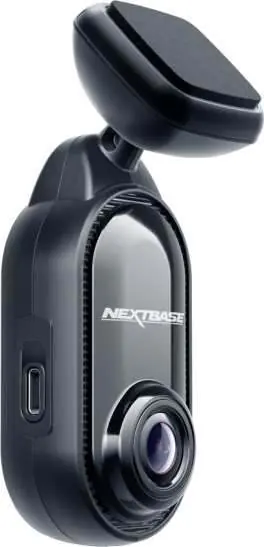
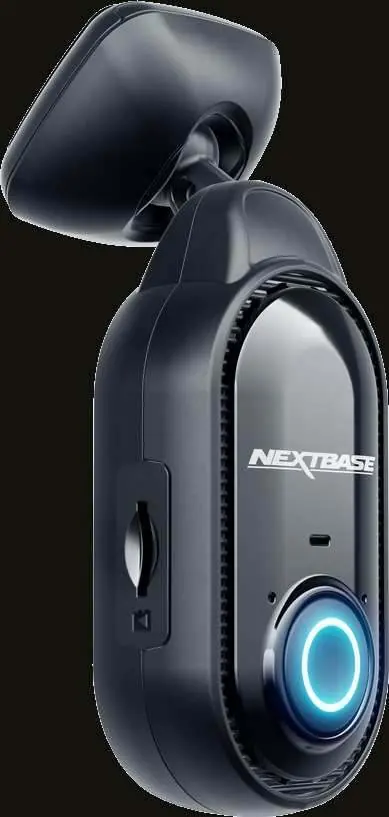
The Piqo dash cam features a front-facing camera, a built-in G-Sensor for impact detection, and a microphone for voice commands. Recorded footage is stored on a microSD card. The device uses Loop Recording to overwrite the oldest files when the card is full, ensuring continuous recording.
Installation
Follow these steps to install your Piqo dash cam:
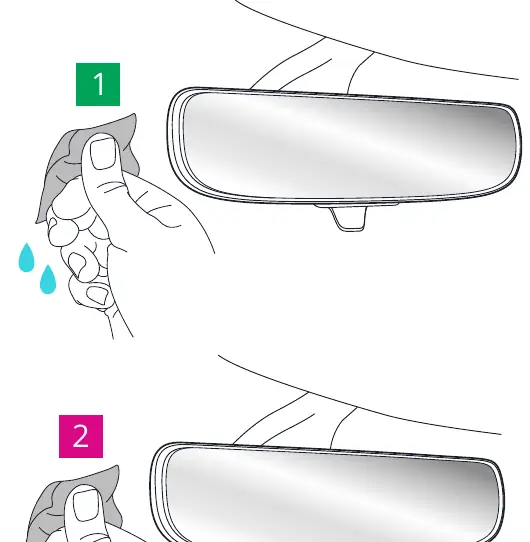
- Prepare: Clean the area of the windscreen where you intend to mount the camera using the provided cleaning kit.
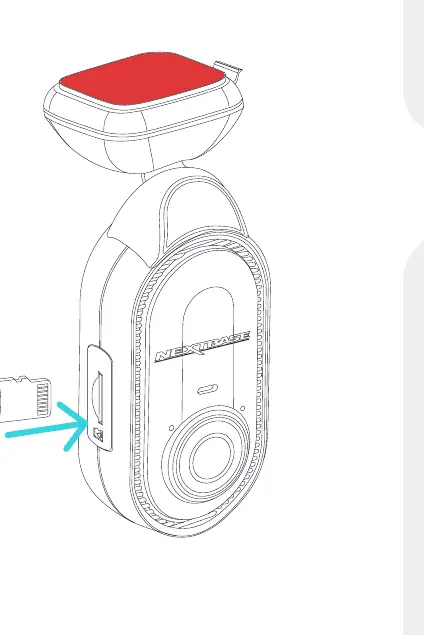
- Insert SD Card: Insert a microSD card into the slot on the side of the device.
- Power Connection: Plug the power cable into the Piqo and the other end into the dual type-C 12V adapter.
- Pairing: Open the Nextbase App, select Piqo, and follow the pairing instructions. Hold the power button for 5 seconds to enter pairing mode.
- Mounting: Use the live view in the app to find the best position. Remove the 3M adhesive backing and press the mount firmly against the clean windscreen for 30 seconds.
- Cable Management: Use the provided fitting tool to tuck the power cable into the vehicle lining, ensuring it does not obstruct the driver's view or interfere with controls.
Features
Library, Downloads & Playback: View, download, and share videos via the Nextbase App. The app creates a high-speed Wi-Fi connection to the camera for easy access.
Voice Commands: Control your dash cam hands-free using commands like "Hey Nexy, Protect" or "Hey Nexy, Witness Mode".
Smart Parking: Automatically records hits or knocks while the vehicle is parked. Requires a permanent live power supply (Pro Install or Quick Connect cable).
Guardian Mode Lite & Witness Mode Lite: Set speed or location limits for other drivers (Guardian) or trigger an instant SOS text to emergency contacts (Witness).
LED Indicators
The ring light on the Piqo indicates device status:
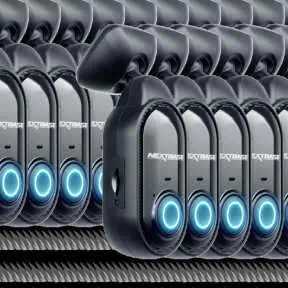
- Blue (Solid): Power On, Not Recording.
- Blue (Pulse): Bluetooth Pairing.
- Red (Pulse): Normal Loop Recording.
- Red (Flash): Recording Protected File.
- Yellow (Pulse): Firmware Installing.
- Orange (Solid): No SD Card Detected.
- Purple (Pulse): Witness Mode Active.
Settings
Adjust settings via the Nextbase App, including Resolution, Exposure, Audio, Time/Speed/GPS/Model Stamps, Impact Sensitivity, and Smart Parking. You can also format the SD card and reset the device to default settings here.
Maintenance and Safety
Keep your firmware updated via the app. Do not spray liquids on the device. To remove the camera from the mount, slide it off. Ensure the windscreen area in front of the lens is clean. Do not interact with the device while driving.
Technical Specifications
Resolution: Piqo 1K (2560 x 1080p) or Piqo 2K (2560 x 1440p). Connectivity: Wi-Fi 2.4GHz, Bluetooth 4.1. GPS: 10Hz. Storage: Up to 128GB (1K) or 256GB (2K). Operating System: iOS 15+, Android 8+.
Practical help
Common problems
Device does not turn on
Ensure all power cables are correctly connected to the 12V adapter and the vehicle ignition is on.
SD Card Error
Check if the SD card is inserted correctly. Ensure you are using a high-quality, compatible card. Format the card via the app settings.
Bluetooth Pairing Failed
Ensure the device is in pairing mode (pulse blue) by holding the power button for 5 seconds. Check app permissions.
Before use
- Download the Nextbase App
- Have car keys ready
- Clean the windscreen with the provided kit
- Insert a compatible microSD card
- Enable all app permissions
Specs in practice
- 1440p Resolution
- High-definition video capture for clearer details.
- Loop Recording
- Automatically overwrites the oldest footage when the memory card is full.
Images and diagrams
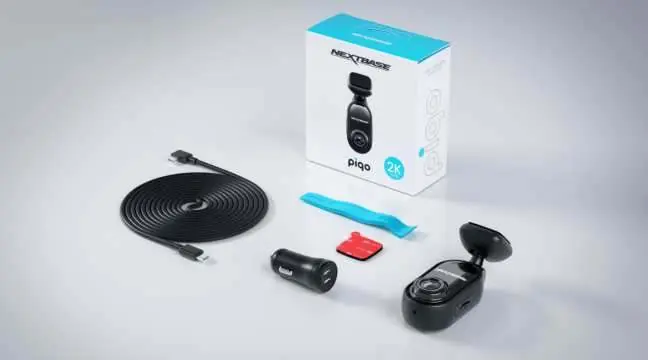
- The 12V adapter connects to the vehicle's power socket.
- The 3M adhesive mount attaches the camera to the windscreen.
- The fitting tool is used to tuck cables into the vehicle's interior lining.
Model compatibility
- Requires iOS 15 or higher.
- Requires Android 8 or higher.
- Smart Parking requires optional Pro Install or Quick Connect cable.

Manual page author
David Miller
Documentation analyst
Organizes user manual content into clear summaries, with attention to model details, product context, and everyday usability.