Electronics / Speakers & Soundbars
User Manual for Niceboy PARTY BOSS 2 200W Party Speaker
Comprehensive user guide for the Niceboy PARTY BOSS 2 200W party speaker. Learn how to operate the device, use Bluetooth, TWS, FM radio, recording functions, and the wireless microphone, along with technical specifications and safety...
Table of contents
Manual images
Click an image to enlargeQuick Guide
The Niceboy PARTY BOSS 2 200W is a powerful party speaker. To start, connect the provided power cable to the rear panel to charge the built-in battery. Charging is indicated by a light on the display. To turn on the speaker, rotate the main volume knob on the top panel to the right and use the power switch.
Device Overview
The top panel features comprehensive controls for your audio experience:
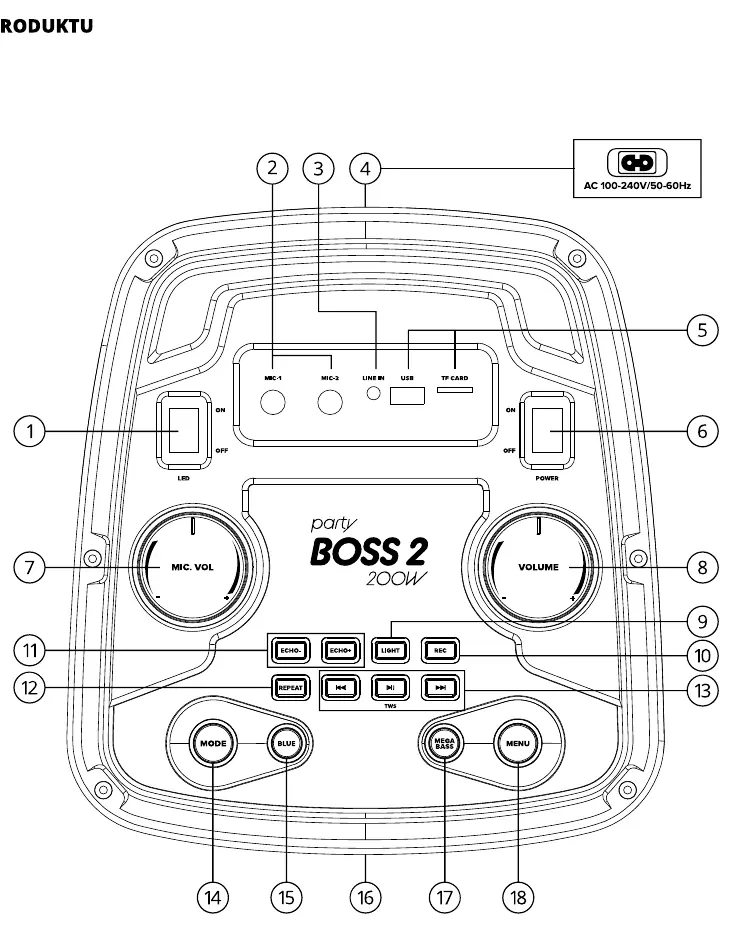
- Volume Controls: Dedicated knobs for main volume and microphone volume.
- Playback Controls: Play/Pause, Next/Previous track, and Repeat functions.
- Mode Selection: Switch between Bluetooth, USB, SD card, FM radio, and AUX input.
- Sound Adjustments: Mega Bass button, EQ settings (EQ01-EQ06), and Echo control for microphones.
- TWS: Allows pairing two speakers for stereo sound.
Operation Modes
Bluetooth Mode
Upon turning on, the speaker enters Bluetooth mode automatically. If not, press the MODE button until the display shows 'BLUE'. Enable Bluetooth on your device and select 'Niceboy PARTY BOSS 2 200W' from the list. The connection is confirmed by a sound signal.
TWS (True Wireless Stereo)
To connect two speakers:
- Ensure both speakers are disconnected from any Bluetooth devices.
- Press and hold the TWS button for 3 seconds on one of the speakers.
- Wait for the acoustic signal confirming the pairing.
USB and SD Card
Insert a USB drive or SD card into the respective slots. The speaker will automatically switch to the appropriate mode. It supports storage media up to 32GB with MP3 and WAV formats.
FM Radio
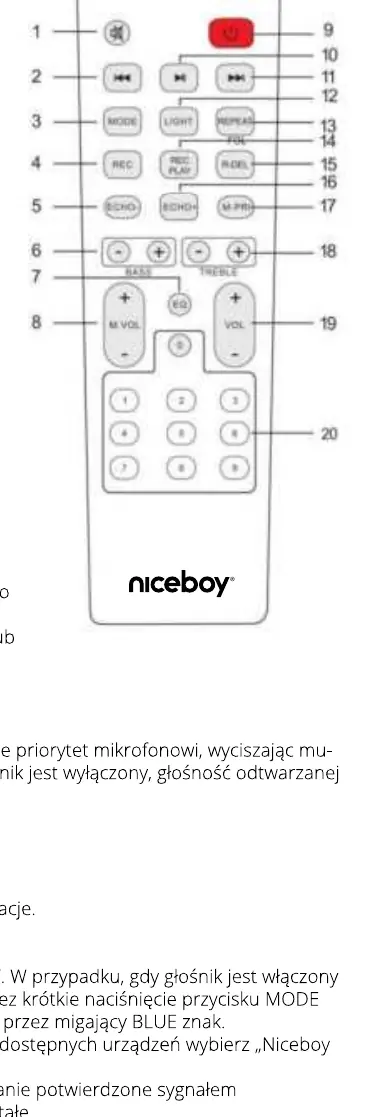
Select FM mode using the MODE button. Press the PLAY button to initiate an automatic scan of available stations. Use the NEXT/PREV buttons or the numeric keypad on the remote to switch between saved stations.
Microphone and Recording
The speaker includes a wireless microphone. Insert AA batteries into the microphone and turn it on; it will pair automatically. You can adjust the microphone volume and echo effect using the top panel controls.
Recording Function:
- Connect the microphone or instruments to the MIC/GT inputs.
- Insert a USB drive or SD card.
- Press the REC button to start recording.
- Press and hold the REC button to stop recording.
Technical Specifications
- Power Output: 200W RMS
- Battery: 4.5Ah 12V
- Charging Time: Approx. 4 hours
- Playback Time: Approx. 8 hours
- Compatibility: USB/SD up to 32GB (MP3, WAV)
- Bluetooth Version: 5.0
Practical help
Common problems
Speaker not connecting via Bluetooth
Ensure the speaker is in Bluetooth mode (display shows 'BLUE'). Check that no other device is currently connected to the speaker.
TWS pairing fails
Ensure both speakers are disconnected from any other Bluetooth devices before attempting to pair them together.
Recording does not start
Ensure a USB drive or SD card is inserted and that it contains at least one MP3 or WAV file.
Before use
- Charge the battery fully before the first use.
- Install batteries in the wireless microphone.
- Install batteries in the remote control.
- Ensure the speaker is placed in an open area for better FM radio reception.
Show more Show less
Images and diagrams
- The top panel contains the main power switch, volume knobs, mode selection, and playback controls.
- The rear panel contains the power input for charging.
- The remote control allows for remote track selection, volume adjustment, and EQ settings.
Model compatibility
- Supports USB drives and SD cards up to 32GB.
- Supported audio formats: MP3 and WAV.

Manual page author
Emily Carter
User documentation editor