Electronics / USB Hubs & Docking
User Manual for OWC 14-Port Thunderbolt 3 Dock
Quick guide for the OWC 14-Port Thunderbolt 3 Dock. Learn how to set up your device, manage ports, perform firmware updates, and troubleshoot common connectivity issues.
Table of contents
Manual images
Click an image to enlargeQuick Guide from the Manual
The OWC 14-Port Thunderbolt 3 Dock is designed to expand the connectivity of your computer. To get started, ensure your system meets the requirements (macOS 10.12+ or Windows 10+). Connect the dock to power using the included power supply, then connect it to your computer using a Thunderbolt 3 cable. Note that specific drivers may be required for certain Apple devices like the SuperDrive or older iPads. Firmware updates are managed via the OWC Innergize software.
Device Overview
The dock features a variety of ports for comprehensive connectivity:
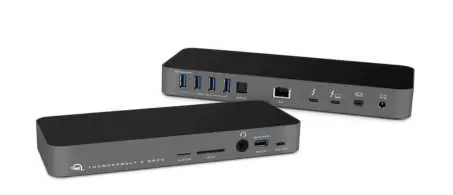
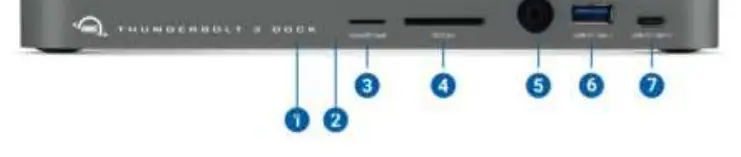
- Front: Includes a microSD card slot, SD card slot, combo audio port (3.5mm), high-power USB 3.1 Gen 1 Type-A port, and a USB 3.1 Gen 2 Type-C port.
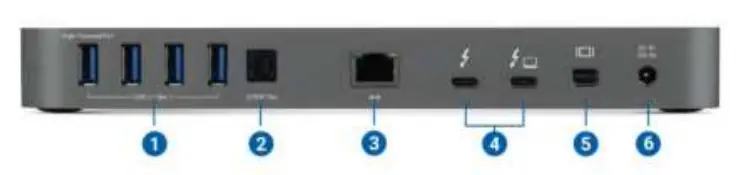
- Rear: Includes four USB 3.1 Gen 1 Type-A ports, an S/PDIF digital audio port, a Gigabit Ethernet port, two Thunderbolt 3 ports, a Mini DisplayPort, and a DC power input.
Setup Instructions
- Connect the included power supply and cable to the dock and a power outlet.
- Connect the dock to your computer's Thunderbolt 3 port using the provided Thunderbolt 3 cable.
- Connect your peripherals (USB devices, displays, audio equipment) to the appropriate ports on the dock.
- Connected devices will be available for use immediately.
Software and Firmware
The OWC Innergize software provides health monitoring, data sanitization, and firmware update capabilities for OWC media cards and compatible docks. To install, download the application for your OS (Mac or PC) and run the installer. A firmware update may be required for the dock to function correctly with the Innergize software. Follow the specific instructions provided in the firmware update package for your operating system.
Usage Notes and Performance
- SD/microSD Cards: Both card readers are controlled by the same chipset; only one can be used at a time.
- Display Support: Supports up to two 4K displays at 60Hz or one 5K display at 60Hz, depending on host capabilities.
- Bandwidth: The front USB Type-A port shares bandwidth with the audio port and media card readers. For best performance, avoid using these simultaneously.
- Thunderbolt 2 Compatibility: Requires a certified Thunderbolt 3 to Thunderbolt 2 adapter and a Thunderbolt 2 cable (not included). Note that this configuration does not support notebook charging.
Troubleshooting
If you encounter issues, follow these steps:
- Verify the power cable is connected and the power source is active.
- Ensure both ends of the Thunderbolt 3 cable are securely plugged in.
- Try a different Thunderbolt cable or port if connectivity issues persist.
- If an SD card is not recognized in Windows, power cycle the dock by disconnecting the power source.
- For Apple SuperDrive or keyboard issues, ensure the required driver is installed.
Safety Precautions
To prevent damage or injury, observe the following:
- Do not expose the device to temperatures outside the operating range (5°C to 35°C / 41°F to 95°F).
- Keep ventilation openings clear to prevent overheating.
- Unplug the device during lightning storms or if it will be unused for an extended period.
- Avoid contact with water or damp conditions.
- Use proper anti-static precautions when handling the device.
Practical help
Common problems
SD/microSD cards not recognized in Windows
Power cycle the dock by disconnecting the power source to create a new card session.
Apple SuperDrive or keyboard not working
Ensure the required software driver is installed (included in the OWC Dock Ejector package).
Device not connecting to computer
Verify the Thunderbolt 3 cable is securely connected and try a different port or cable.
Recorded sound input is quiet
Connect the audio input device directly to the computer system instead of the dock.
Before use
- Ensure your computer has a Thunderbolt 3 port.
- Connect the power supply to the dock.
- Connect the dock to the computer using the provided Thunderbolt 3 cable.
- Check for firmware updates via OWC Innergize software.
- Verify OS compatibility (macOS 10.12+ or Windows 10+).
Specs in practice
- USB 3.1 Gen 1 High-Power
- Provides up to 1.5A of power, suitable for charging devices like iPads.
- Thunderbolt 3 Ports
- Supports data transfer, display output, and host charging (via the dedicated Power Delivery port).
- Operating Temperature
- Device should be kept between 5°C and 35°C (41°F - 95°F) for optimal performance.
Images and diagrams
- Front view shows LED indicators, card slots, audio port, and USB ports.
- Rear view shows USB ports, S/PDIF, Ethernet, Thunderbolt ports, Mini DisplayPort, and power input.
Model compatibility
- SD and microSD card slots cannot be used simultaneously.
- Thunderbolt 2 compatibility requires a certified adapter and cable (not included).
- Front USB Type-A port shares bandwidth with audio and card readers.

Manual page author
David Miller
Documentation analyst
Organizes user manual content into clear summaries, with attention to model details, product context, and everyday usability.