Electronics / USB Hubs & Docking
User Guide for StarTech 120B-USBC-MULTIPORT USB-C Multiport Adapter
Quick-start guide for the StarTech 120B-USBC-MULTIPORT USB-C Multiport Adapter. Includes installation steps, port functions, power delivery requirements, and technical specifications for HDMI, USB-A, and Ethernet connectivity.
Table of contents
Quick Guide
The StarTech 120B-USBC-MULTIPORT is a USB-C multiport adapter designed to expand your workstation connectivity. Key requirements for full functionality include a host computer with a USB-C port that supports DisplayPort (DP) Alt Mode. For dual video output, the host port must support DP Alt Mode with Multi-Stream Transport (MST).
Product Overview
The adapter features three sides with various ports:
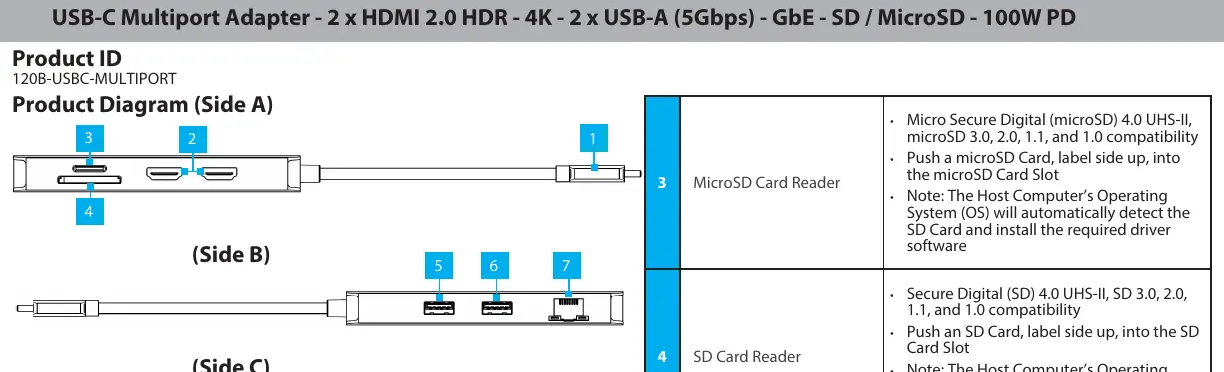
- Side A: Built-in USB-C Host Cable (USB 3.1 Gen 2, 10Gbps, DP 1.4, PD 3.0) and 2 x HDMI 2.0 Output Ports.
- Side B: MicroSD Card Reader, SD Card Reader, USB-A Data/Charge Port (supports BC1.2 5V/1.5A), USB-A Data Port (5Gbps), and Gb Ethernet Port (10/100/1000Mbps).
- Side C: USB-C 100W Power Delivery Port.
Installation
Follow these steps to set up your adapter:
- Connect the Built-in USB-C Host Cable to your host computer. The computer will automatically detect the device and install necessary drivers.
- Connect HDMI cables from your display devices to the HDMI Output Ports.
- Insert memory cards into the microSD or SD Card Reader slots. The computer will mount them as drives.
- Connect USB peripherals to the USB-A Data/Charge Port or USB-A Data Port.
- Connect a network cable to the Gb Ethernet Port to establish a wired LAN connection.
Power Delivery and Charging
The adapter supports USB Power Delivery 3.0. To charge your host computer and connected peripherals:
- Connect a USB-C power adapter (up to 100W) to the USB-C 100W Power Delivery Port.
- The adapter reserves 15W of power for its own operation, providing up to 85W to charge your host computer.
- If no power adapter is connected, the USB-A Data/Charge Port will only output bus power (up to 4.5W) and cannot charge connected peripheral devices.
Important Usage Notes
- Always safely unmount (eject) memory cards within your computer's operating system before physically removing them from the adapter.
- Video performance, including resolution and refresh rate, depends on the host computer's video controller and support for DisplayPort 1.4 (DSC).
Practical help
Common problems
Dual display not working
Ensure your host computer's USB-C port supports DP Alt Mode with MST (Multi-Stream Transport).
USB-A device not charging
Ensure a USB-C power adapter is connected to the PD port; otherwise, the port output is limited to 4.5W.
Memory card not detected or data loss
Always safely unmount (eject) the card in the OS before physically removing it from the adapter.
Before use
- Verify host computer USB-C port supports DP Alt Mode.
- Ensure HDMI cables are connected to display devices.
- Have a USB-C power adapter ready if charging the host or high-power peripherals.
- Ensure CAT 5e/CAT 6 cable is available for Ethernet connection.
Specs in practice
- USB 3.1 Gen 2
- Supports data transfer speeds up to 10Gbps.
- Power Delivery 3.0
- Allows pass-through charging up to 100W (85W available to host after 15W reservation).
Images and diagrams
- Side A contains the host cable and HDMI ports.
- Side B contains the card readers, USB-A ports, and Ethernet port.
- Side C contains the USB-C Power Delivery port.
Model compatibility
- Requires DP Alt Mode on host USB-C port for video output.
- Requires DP Alt Mode with MST for dual video output.

Manual page author
Michael Turner
Technical manual editor
Reviews PDF manuals for structure, safety notes, and practical product details so readers can find the right information quickly.