Electronics / USB Hubs & Docking
Wavlink 13-in-1 USB Hub Docking Station Troubleshooting Guide
A comprehensive troubleshooting guide for the Wavlink 13-in-1 USB Hub Docking Station. Includes solutions for charging, audio, USB connectivity, and system resets.
Table of contents
Quick Guide and Performance Tips
For optimal performance of your Wavlink 13-in-1 USB Hub, it is recommended to update your computer's BIOS, graphics drivers, and Thunderbolt 3 or 4 drivers. These can typically be found on the official website of your PC manufacturer. If you are unsure where to locate these, you may contact Wavlink technical support at [email protected] with your PC's model number for assistance.
Troubleshooting Laptop Charging
If your laptop is not charging via the docking station, check the following:
- Verify Port Compatibility: Ensure your laptop's USB-C port supports Power Delivery (charging). Not all USB-C ports on host devices support this feature.
- Update Drivers: Ensure your BIOS and Thunderbolt drivers are up to date.
- Test Power Adapter: If possible, test the Wavlink device with a different power adapter to rule out a faulty power supply.
- Test Host Environment: Connect the docking station to a different laptop to determine if the issue is specific to your computer.
Troubleshooting Audio Port Issues
If the audio port is not working as expected, please note the following requirements:
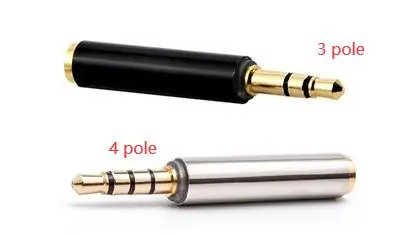
- Connector Type: Ensure you are using a 4-pole audio device (TRRS). A standard 3-pole (TRS) device may not function correctly.
- Isolate the Device: Test the Wavlink device with a different audio headset to rule out a faulty headset.
- Test Host Environment: Try connecting the docking station to a different PC or laptop.
- Isolate Peripherals: Disconnect all USB peripherals and the power adapter, then connect only the audio device to check if the issue persists.
Troubleshooting USB Ports and Wireless Devices
If you experience issues with USB ports or wireless connectivity:
- Wireless Interference: If using a wireless mouse or keyboard, use a USB 2.0 hub to keep the wireless receiver away from the Wavlink device to reduce interference.
- Software Patch: If you are experiencing connectivity issues, you may try installing the Dell USB Type-C patch, which often works with other brands. The file is located at: https://downloads.dell.com/FOLDER03471411M/13/Dell_Dock_USB_TYPE-C_PATCH_2K0JJ_A00_SETUP_ZPE.exe
- Peripheral Isolation: Disconnect all USB peripherals and connect only a mouse to see if it is detected.
System Reset and Blue Screen Issues
If you encounter a blue screen or general system instability when connecting the dock, or if all ports stop working, follow these steps:
- Perform a Hard Reset: Disconnect the docking station from the host machine and power adapter. Leave it unplugged for 1 minute to allow power to dissipate. Connect the docking station to power first, then reconnect it to the laptop.
- Update Drivers: Ensure your BIOS, GPU, and Thunderbolt 3/4 drivers are updated.
- Isolate Hardware: Remove all USB peripherals and the power adapter, then connect only the monitor to check for stability.
- Hardware Check: If the issue persists, consider that there may be a hardware issue with the device itself, the power adapter, or the host environment.
Official resources from the manual
Practical help
Common problems
Laptop not charging via docking station
Verify the laptop's USB-C port supports charging, update BIOS/Thunderbolt drivers, and test with a different power adapter.
Audio port not working
Ensure you are using a 4-pole audio connector. 3-pole connectors may not be compatible.
Wireless mouse/keyboard lag or disconnection
Use a USB 2.0 hub to move the wireless receiver away from the docking station to avoid interference.
Blue screen when connecting the dock
Update BIOS, GPU, and Thunderbolt 3/4 drivers. Try connecting only the monitor to isolate peripheral conflicts.
Before use
- Update your PC's BIOS to the latest version.
- Update graphics drivers.
- Update Thunderbolt 3 or 4 drivers/firmware.
- Verify your laptop's USB-C port supports Power Delivery.
- Ensure you have a 4-pole audio device for the headset jack.
Images and diagrams
- The guide provides a visual comparison between 3-pole and 4-pole audio jacks to help users identify the correct connector type for the audio port.
Model compatibility
- The provided Dell USB Type-C patch may improve compatibility with non-Dell laptops.

Manual page author
Michael Turner
Technical manual editor
Reviews PDF manuals for structure, safety notes, and practical product details so readers can find the right information quickly.