Electronics / Monitors
Philips 5000 Series Business Monitor Quick Start Guide
Quick start guide for Philips 5000 Series business monitors (24B2G5200, 27B2G5200, 27B2G5500). Includes assembly instructions, port connectivity, USB hub setup, and ergonomic stand adjustments.
Quick answers from the manual
Quick answer
- To set up your Philips 5000 Series monitor, place it face down on a smooth surface to attach the stand, connect your video cables (HDMI/DP/VGA) and power, and use the USB A-B cable to enable the USB hub. p. 1
Key actions
- Assemble the stand p. 1
- Connect video and power cables p. 1
- Enable USB hub p. 1
First start
- Place monitor face down on a smooth surface. p. 1
- Attach the stand to the monitor. p. 1
Show 2 more answers Show less
Technical specifications
| Parameter | Value | Meaning | Pages |
|---|---|---|---|
| Tilt | -5° to 30° | Vertical tilt range | p. 1 |
| Height Adjustment | 150mm | Maximum height adjustment range | p. 1 |
| Swivel | -180° to +180° | Horizontal rotation range | p. 1 |
| Pivot | -90° to 90° | Rotation range | p. 1 |
Where to find it in the PDF
- Quick Start Guide p. 1
Table of contents
Manual images
Click an image to enlargeQuick Start Guide
This guide provides essential setup instructions for the Philips 5000 Series Business Monitors, including models 24B2G5200, 27B2G5200, and 27B2G5500. Ensure you have all necessary cables before beginning the installation.
Assembly
To assemble the monitor, follow these steps:
- Place the monitor face down on a smooth, flat surface.
- Caution: Pay attention not to scratch or damage the screen during this process.
- Attach the stand base to the monitor arm as indicated in the diagram.
Connectivity
Connect your devices using the ports located on the back of the monitor. Available ports vary by model:
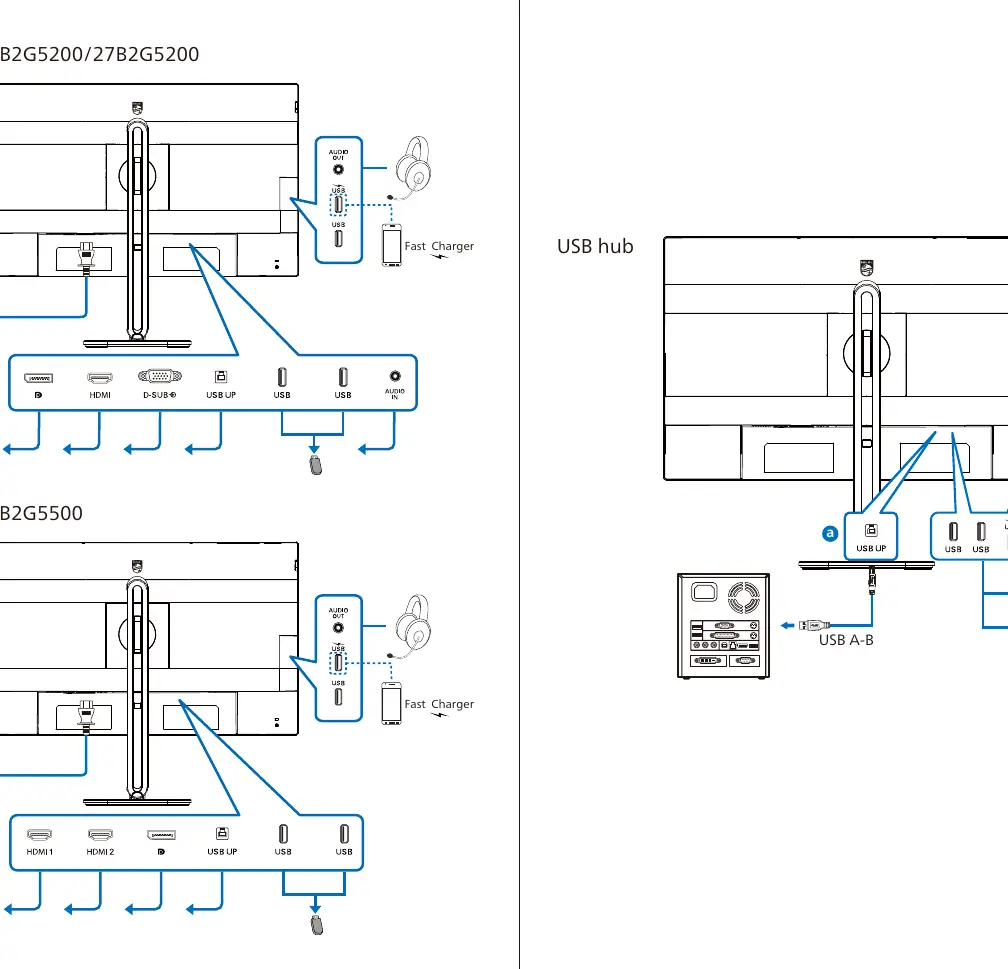
- 24B2G5200 / 27B2G5200: Features HDMI, DP, VGA, and Audio ports.
- 27B2G5500: Features HDMI, DP, and USB hub connectivity.
- Ensure the power cable is connected to the power input.
USB Hub
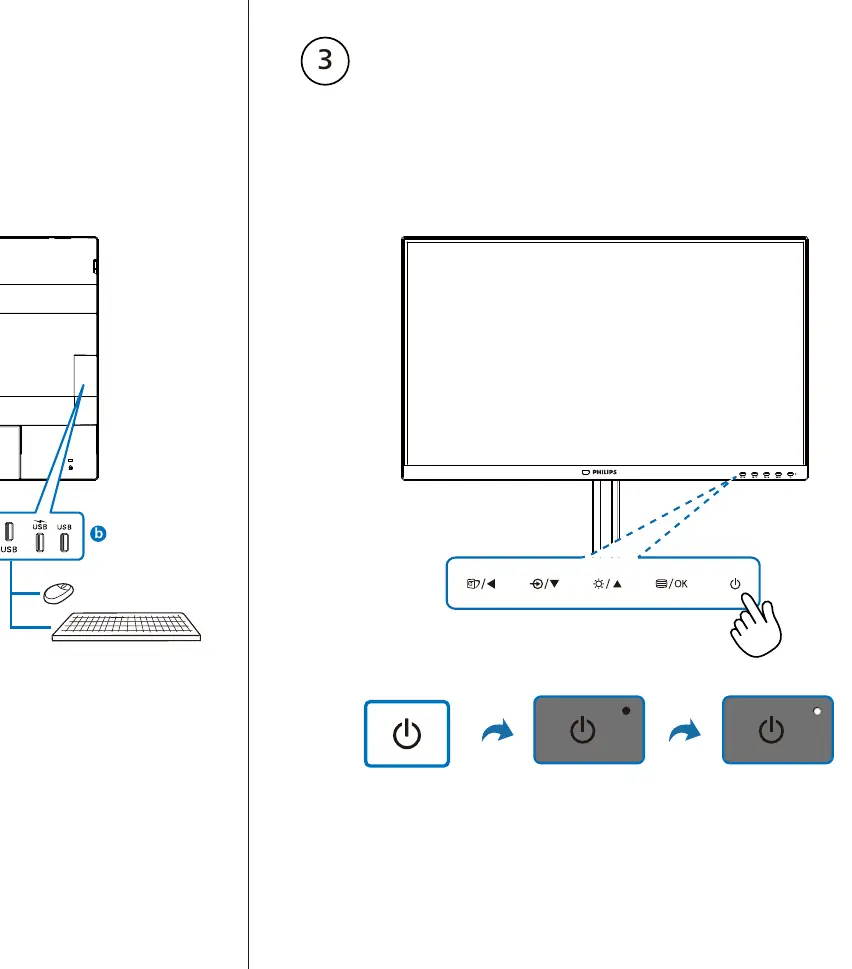
To utilize the built-in USB hub, connect the provided USB A-B cable from the monitor to your computer. This enables the USB ports on the monitor for peripheral devices.
Ergonomic Adjustments
The monitor stand supports various ergonomic adjustments to improve viewing comfort:
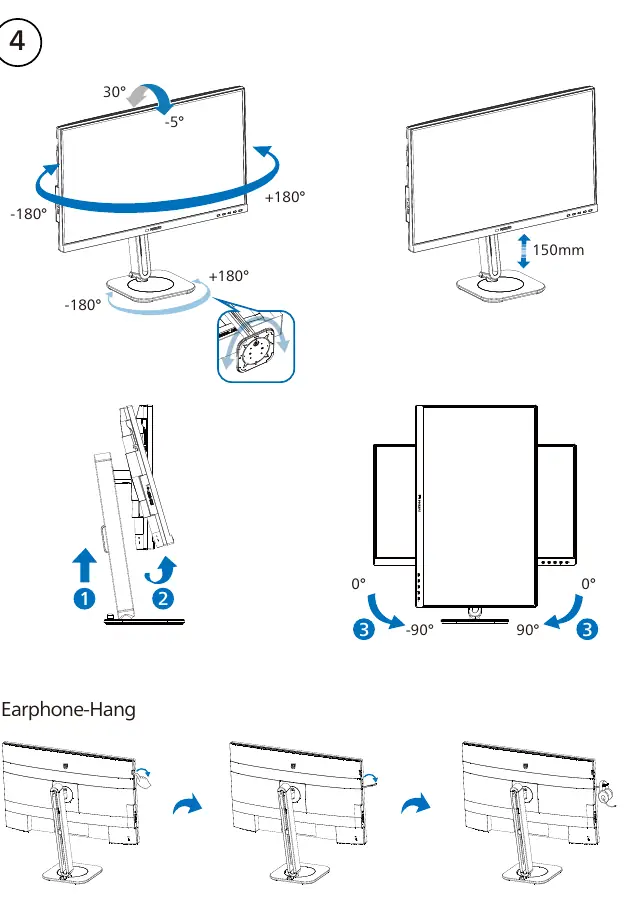
- Tilt: Adjustable from -5° to 30°.
- Height: Adjustable up to 150mm.
- Swivel: Rotates from -180° to +180°.
- Pivot: Rotates from -90° to 90°.
Package Contents
The package typically includes the monitor, stand, and the following cables (subject to region):
- Power cable
- HDMI cable
- DisplayPort (DP) cable
- USB A-B cable
- VGA cable (model dependent)
- Audio cable (model dependent)
Manufacturer information
Philips
Practical help
Common problems
Screen scratches during assembly
Always place the monitor face down on a smooth, clean surface before attaching the stand.
USB ports not working
Ensure the USB A-B cable is securely connected between the monitor and your computer.
Before use
- Prepare a smooth, flat surface for assembly.
- Verify all cables (HDMI, DP, USB, Power) are present.
- Identify your specific model (24B2G5200, 27B2G5200, or 27B2G5500) to confirm port availability.
- Ensure the monitor is placed face down before attaching the stand.
Show more Show less
Specs in practice
- Height Adjustment
- Vertical travel range of 150mm.
Images and diagrams
- Step 1: Shows the correct orientation for placing the monitor face down to attach the stand.
- Step 2: Illustrates the port layout for different models, highlighting the specific inputs available.
- Step 3: Demonstrates the connection of the USB A-B cable for hub functionality.
- Step 4: Visualizes the range of motion for tilt, height, swivel, and pivot adjustments.
Model compatibility
- VGA and Audio ports are specific to models 24B2G5200 and 27B2G5200.
- Accessories may vary by country or region.

Manual page author
Emily Carter
User documentation editor