Electronics / Networking
Ruijie RG-WALL 1600-Z3200-S Cloud Managed Firewall Hardware Installation Guide
A comprehensive hardware installation and setup guide for the Ruijie RG-WALL 1600-Z3200-S firewall. Includes instructions for physical installation, grounding, power connection, and initial web interface configuration.
Table of contents
Manual images
Click an image to enlargeQuick Start Guide
This document provides essential instructions for the hardware installation and initial commissioning of the Ruijie RG-WALL 1600-Z3200-S firewall. Before beginning, ensure you have a standard 19-inch cabinet or a clean, stable workbench, and a tool kit including a Phillips screwdriver. The default login credentials for the web interface are username admin and password firewall, accessible via https://192.168.1.200.
Product Overview
The RG-WALL 1600-Z3200-S is a next-generation firewall. The front panel features status indicators for SATA hard disks, power (PWSR), and system (SYS), as well as a reset button, console port, USB ports, and various electrical and optical network ports. The rear panel contains the power socket, power switch, expansion slot for an optional 1TB hard disk, and a grounding terminal.

Installation Requirements
Proper installation is critical for device longevity and performance:
- Environment: Install indoors in a clean, dust-free environment. Maintain a temperature between 0°C and 45°C and humidity between 10% and 90% RH.
- Ventilation: Ensure at least 15 cm of clearance around ventilation openings. Do not install against a wall.
- Grounding: The device must be properly grounded to prevent lightning damage and interference. Grounding resistance should be less than 1 ohm.
- Safety: Use an uninterrupted power supply (UPS) if possible. Do not wear loose clothing or ornaments during installation.
Hardware Installation
Follow these steps to install the device:
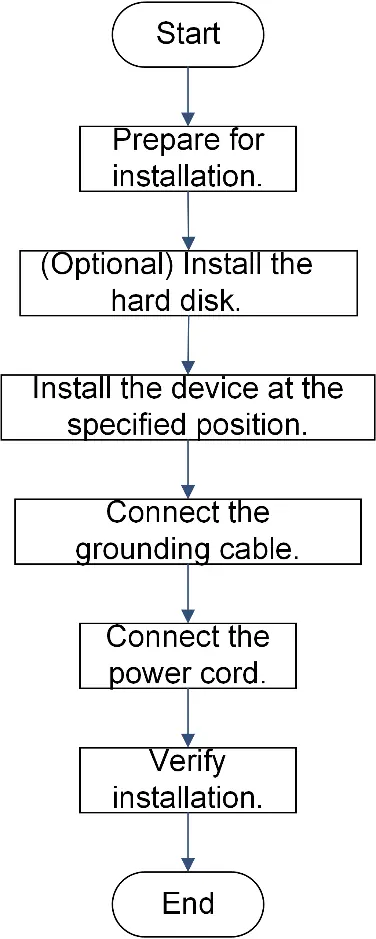
- Prepare: Check that the installation site meets all environmental and power requirements.
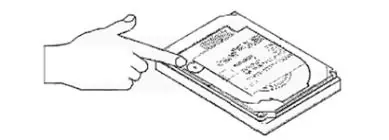
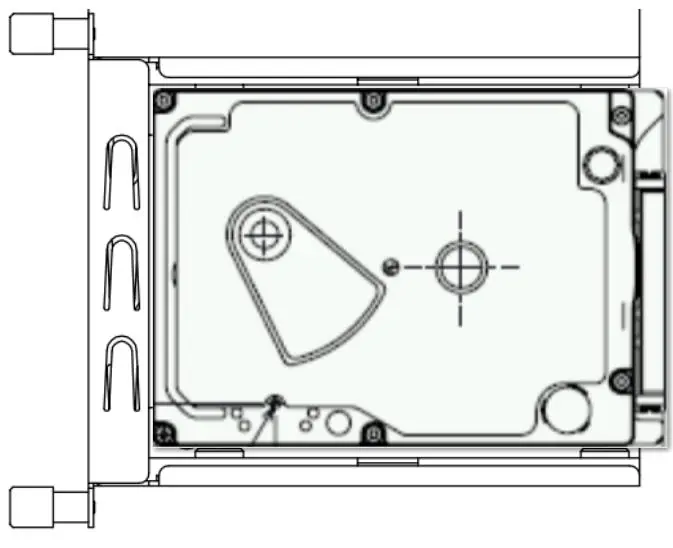
- Hard Disk (Optional): If installing the RG-NSEC-HDD-1T module, ensure the device is powered off. Loosen the fixing screws on the rear, remove the panel, insert the hard disk, and fasten the screws.
- Mounting: Install the device in a 19-inch cabinet using mounting brackets or place it on a clean workbench using the provided rubber pads.
- Grounding: Connect the grounding cable to the grounding terminal on the rear panel and secure the other end to the cabinet or workbench grounding point.
- Power: Connect the power cord to the rear socket and secure it with the retention clip. Connect the other end to an AC power source (100-240V AC).
Commissioning
To configure the firewall:
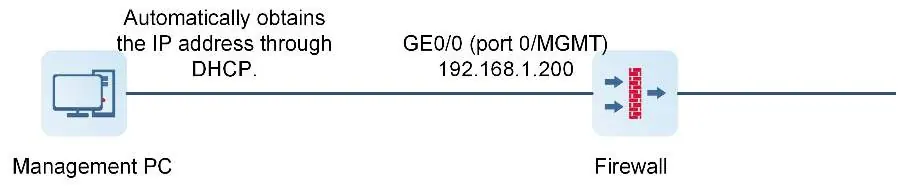
- Connect a network cable from the management PC to the port 0/MGMT on the firewall.
- The firewall acts as a DHCP server by default on this port, so the PC should automatically obtain an IP address.
- Open a web browser and navigate to https://192.168.1.200.
- Log in using the default credentials (admin/firewall).
Troubleshooting
If you encounter issues:
- Power Issues: If all indicators are off, check the power cord connection and the power source.
- Console Issues: If there is no output, verify the serial cable connection and HyperTerminal settings (baud rate).
- Optical Port Issues: If the indicator is off, check the fiber connection (ensure TX/RX are not reversed), verify wavelength compatibility, and ensure the distance does not exceed the module's limit.
Practical help
Common problems
All indicators are off and the fan does not rotate.
Check if the power cord is securely connected to both the power socket and the power supply module.
Serial console displays no information.
Verify the serial cable connection, ensure the serial port matches the HyperTerminal configuration, and check the baud rate settings.
Optical port indicator is off after connecting fiber.
Check if the receive and transmit ends are reversed, ensure wavelengths match on both ends, and verify the cable distance is within the module's specifications.
Before use
- Ensure the installation site is properly grounded.
- Verify the power supply meets 100-240V AC requirements.
- Ensure sufficient space (15cm) around ventilation openings.
- Prepare a tool kit (Phillips screwdriver, etc.).
- Check that the cabinet or workbench is stable and clean.
Specs in practice
- Power Supply
- 100-240V AC, 50-60Hz, 0.65A.
- Operating Temperature
- 0°C to 45°C (32°F to 113°F).
- Operating Humidity
- 10% to 90% RH (non-condensing).
- Default IP Address
- https://192.168.1.200 (Port 0/MGMT).
Images and diagrams
- Front Panel: Shows indicators (SATA, PWSR, SYS), Reset button, Console port, USB ports, and network ports.
- Rear Panel: Shows power socket, power switch, hard disk slot, and grounding terminal.
Model compatibility
- Hard disk: Supports RG-NSEC-HDD-1T (1 TB).
- Optical modules: Supports 1000BASE-SX/LX/ZX and 10GBASE-SR/LR/ZR.

Manual page author
David Miller
Documentation analyst
Organizes user manual content into clear summaries, with attention to model details, product context, and everyday usability.