Electronics / Networking
Eagle Eye Networks 16-Port PoE Ethernet Switch EN-SW20g-001 Quick Start Guide
Quick start guide for the Eagle Eye Networks 16-Port PoE Ethernet Switch (EN-SW20g-001). Includes installation steps, default login credentials, troubleshooting, and technical specifications.
Table of contents
Quick Start Guide
The Eagle Eye Networks 16-Port Gigabit Ethernet Switch (EN-SW20g-001) is designed for Ethernet projects and security system monitoring. It provides fast packet forwarding and high bandwidth for HD video transmission.
Getting Started
Before beginning, ensure you have the following:
- Eagle Eye 16 + 2 Gigabit RJ45 + 2 Gigabit SFP ports Gigabit PoE Ethernet Switch
- AC power cable (not included)
If you require a static IP address, you will also need a monitor and a USB keyboard.
Installing the Switch
Important: Turn off the signal power and the display device's power before installation to prevent damage to the transmission equipment.
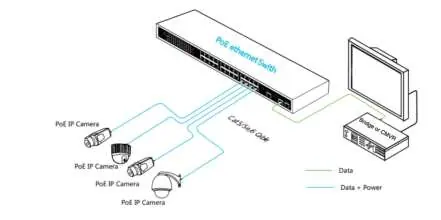
- Use a network cable to connect the PoE IP camera to one of the 16 ports on the switch.
- Use a network cable to connect equipment to the uplink port and bridge/CMVR or computer.
- Connect the switch to AC power.
- Ensure the Ethernet equipment is connected and works properly.
Login Information
The default values for the switch are:
- IP Address: 192.168.11
- Subnet Mask: 255.255.255.0
- Default Gateway: 192.168.1.254
- Username: admin
- Password: admin
Note: Transmission distance depends on the cable quality. Standard CAT5e or CAT6 network cables are recommended.
Troubleshooting
If you encounter issues with the switch, follow these steps:
- Ensure the equipment is installed according to the manufacturer’s installation guide.
- Confirm that the RJ45 cable order meets the EIA/TIA568A and 568B standards.
- Verify that the device is not connected to power over 30W, as this is the maximum power a PoE port can supply.
- If the equipment is damaged, replace it with a functioning unit.
Specifications
Power: Voltage range AC100~240 V; Consumption 250 W for 16 PoE.
Ethernet: 1–16 Port: 10/100/1000 Mbps; 17–18 Port: 10/100/1000 Mbps; 19–20 Port: 1000 Mbps SFP port.
Transmission Distance: 100 m (328 ft) for RJ-45.
Switching Capacity: 40 G.
Standards: IEEE 802.3, 802.3i, 802.3u, 802.3ab, 802.3af/at, 802.3x Flow control.
Support
For support, visit www.een.com/support/ or email [email protected]. You can also call +1-512-473-0501.
Official resources from the manual
Practical help
Common problems
Device not working or connection issues
Ensure installation follows the guide, verify RJ45 cable order meets EIA/TIA568A/568B standards, and check that PoE power does not exceed 30W per port.
PoE device not connecting
Check if the PoE indicator is on (Orange). If off, no PD is connected or power forwarding failed.
Before use
- Ensure you have an AC power cable (not included).
- If setting a static IP, have a monitor and USB keyboard ready.
- Verify your network cables meet EIA/TIA568A or 568B standards.
- Turn off signal power and display device power before installation.
Specs in practice
- Power Consumption
- 250 W for 16 PoE ports.
- Transmission Distance
- 100 m (328 ft) for RJ-45 cables.
- Switching Capacity
- 40 G total bandwidth.
Images and diagrams
- System Design: Illustrates the connection of PoE IP cameras to the switch, and the switch to a bridge/CMVR or computer.
Model compatibility
- Supports IEEE 802.3, 802.3i, 802.3u, 802.3ab, 802.3af/at, and 802.3x Flow control standards.

Manual page author
David Miller
Documentation analyst
Organizes user manual content into clear summaries, with attention to model details, product context, and everyday usability.