Tools / Power Tools
Ryobi Product Registration Guide
A step-by-step guide on how to register your Ryobi tools online via the My Ryobi portal to claim extended warranties and manage your product collection.
Table of contents
Manual images
Click an image to enlargeQuick guide to My Ryobi registration
This guide explains how to register your Ryobi tools online to access extended warranties and manage your product collection. You will need your product's serial number and a copy of your proof of purchase (receipt) to complete the process.
Account setup and login
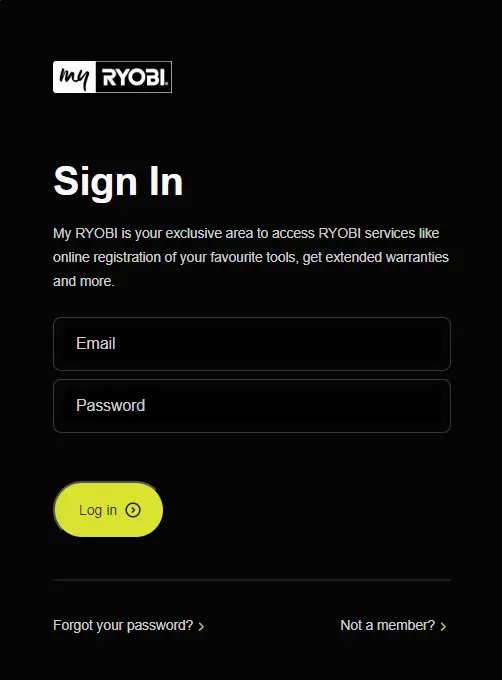
To begin, visit the My Ryobi page on the official Ryobi website. If you already have an account, enter your login details. If you have forgotten your password, use the 'Forgot your Password?' link. If you are a new user, click 'Not a Member?' to create an account by entering your personal information and agreeing to the terms.
Verifying your account
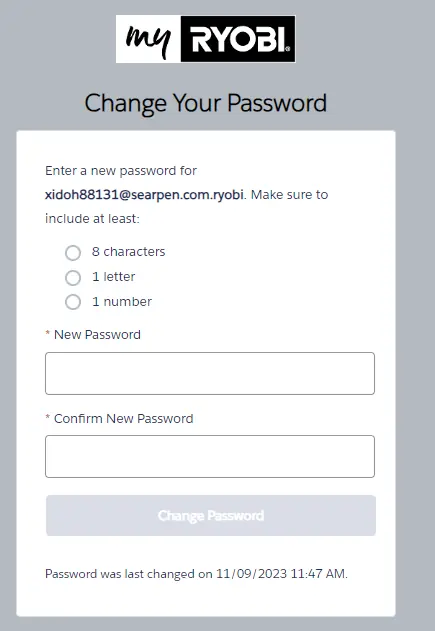
After signing up, check your email inbox for a welcome message from My Ryobi. Click the 'Setup My Password' box in the email to create your password. You will need to enter your new password twice and click 'Change Password' to finalize your account setup.
Registering your tool
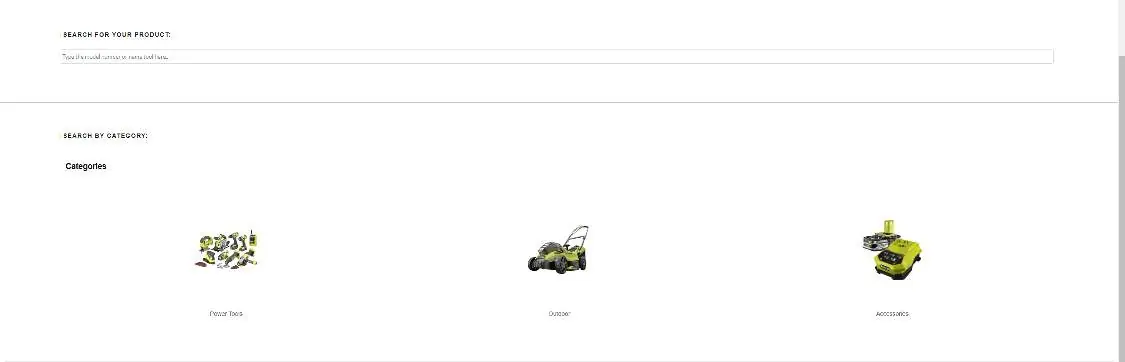
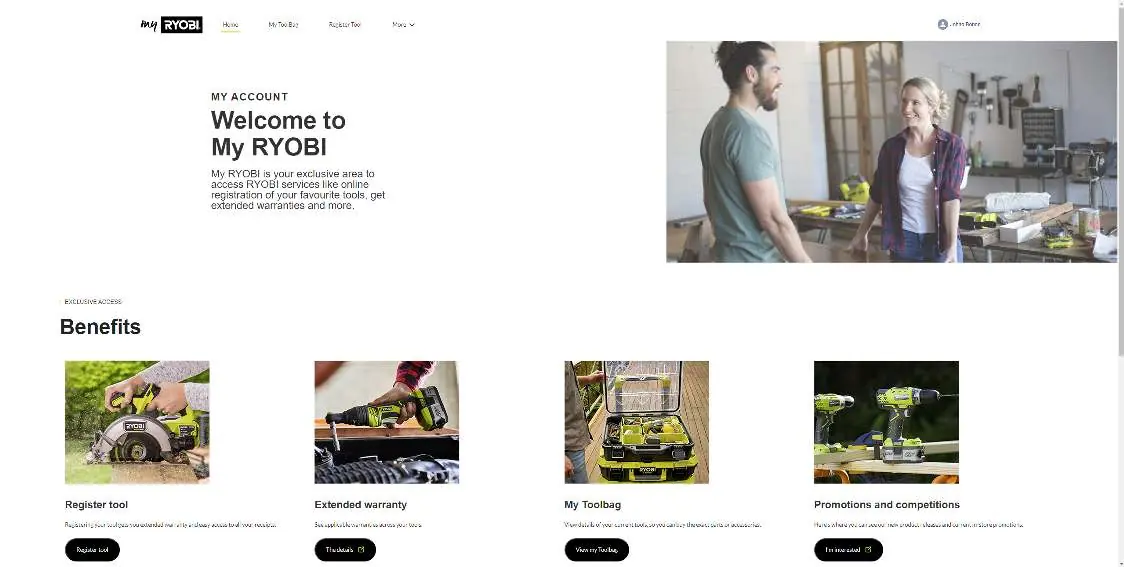
Once logged in, you will see the 'Benefits' dashboard. Select 'Register Tool' to start the process. You can search for your product in three ways:
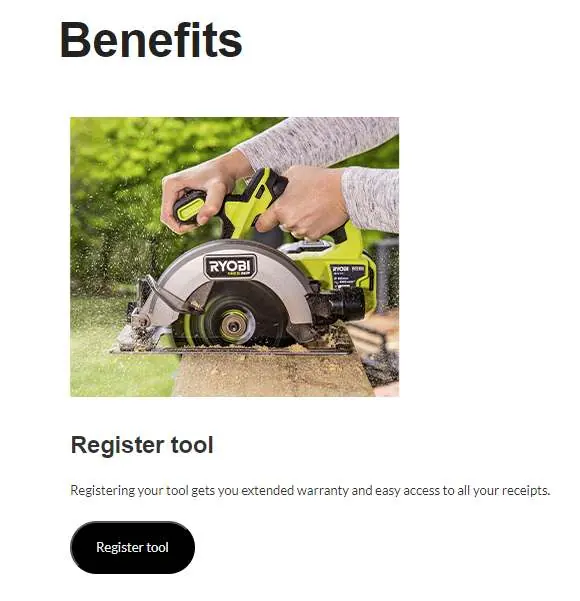
- Type the model number directly into the search bar.
- Use the drop-down menu in the search bar to select your product.
- Click the relevant category box underneath the search bar to browse and select your product.
Note: If you purchased a kit, register the kit code rather than the individual items within the kit.
Entering purchase details
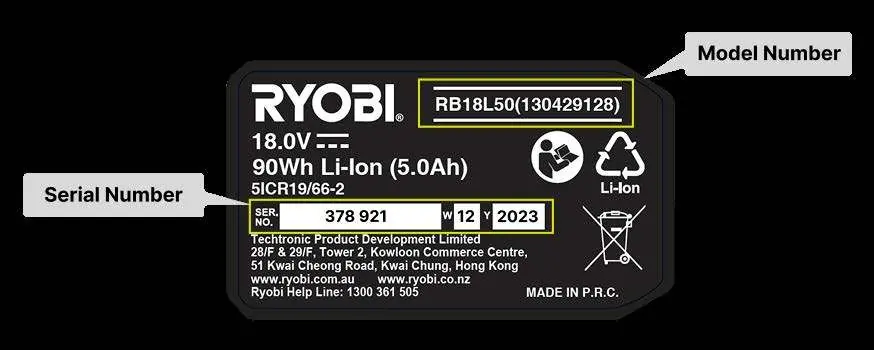
After selecting your product, you must enter your purchase details. If you are registering a redemption, use the date you received the item. You must enter the serial number found on the product label. For kits, enter the serial number for each product in the kit. Click 'Attach Receipt' to upload your proof of purchase, then click 'Register'.
Registration confirmation
Once the registration is complete, a pop-up will confirm the process. You will be informed of your warranty status, including any extended warranty periods. Click 'OK' to finish and return to your 'Toolbag' dashboard.
Manufacturer information
Ryobi
Practical help
Common problems
Forgot password
Use the 'Forgot your Password?' link on the login page to reset your credentials.
Email not received
Check your junk mail folder and ensure 'My Ryobi' is added to your safe list.
Registration error for kits
Ensure you are registering the kit code, not the individual items contained within the kit.
Before use
- Have your product serial number ready (found on the tool label).
- Have a digital copy or photo of your proof of purchase (receipt).
- Ensure you have access to your email account for verification.
- Identify if you are registering a single tool or a kit.
Images and diagrams
- Serial Number Location: Found on the product label, typically containing a mix of numbers and letters.
- Registration Dashboard: The 'Benefits' section allows access to tool registration, warranty info, and maintenance tips.
Model compatibility
- Registration is required for extended warranty benefits.
- For kits, register the kit code, not the individual items within the kit.

Manual page author
David Miller
Documentation analyst
Organizes user manual content into clear summaries, with attention to model details, product context, and everyday usability.