HVAC / Thermostats & Controls
Installation Guide for Schneider Electric XW Pro Li-ion Battery Solution
A technical installation and configuration guide for integrating Li-ion batteries with BMS communication into the Schneider Electric XW Pro inverter system. Includes wiring diagrams, BMS discovery procedures, and a compatibility list.
Quick answers from the manual
Quick answer
- This guide provides instructions for integrating Li-ion batteries with BMS communication into the XW Pro inverter system, including wiring, BMS discovery, and configuration steps. p. 2, 3
Key actions
- Wire the BMS to the 26-pin connector on the Conext Gateway. p. 6
- Configure BMS settings in the Gateway UI. p. 7, 8, 10
- Associate the BMS with the XW Pro inverter. p. 9
First start
- Follow the specific start-up sequence for your battery model (e.g., close DC disconnect on inverter, then start batteries). p. 11, 12
Show 2 more answers Show less
Technical specifications
| Parameter | Value | Meaning | Pages |
|---|---|---|---|
| CAN Bus Speed | 500 kbps | Required speed for CAN BMS communication. | p. 7 |
Where to find it in the PDF
- Safety Information p. 1, 2
- Wiring Interface p. 6
- BMS Discovery p. 7, 8
- Battery Compatibility Table p. 11, 12
Table of contents
Manual images
Click an image to enlargeQuick guide from the manual
This document provides technical instructions for integrating Li-ion batteries with an on-board Battery Management System (BMS) into the Schneider Electric XW Pro inverter system. It covers system architecture, wiring, BMS discovery, and configuration. Note that this guide is intended for qualified personnel and assumes familiarity with the primary XW Pro installation and owner's guides.
Safety Information
- Electrical Hazard: Installation must be performed by qualified and licensed installers.
- Risk of Damage: Always follow the recommended start-up sequence and minimum number of batteries to avoid excessive inrush current.
- Power Off: Ensure the BMS and Conext Gateway are powered off while performing wiring connections.
Supported Architectures
The XW Pro supports communication with third-party Li-ion BMS via Conext Gateway, InsightHome, or InsightFacility using CAN Bus or Modbus RTU. Currently, BMS communication is supported for systems with a single XW Pro inverter. Systems with multiple inverters or DC-coupled MPPTs may be installed without BMS communication, subject to battery vendor approval.
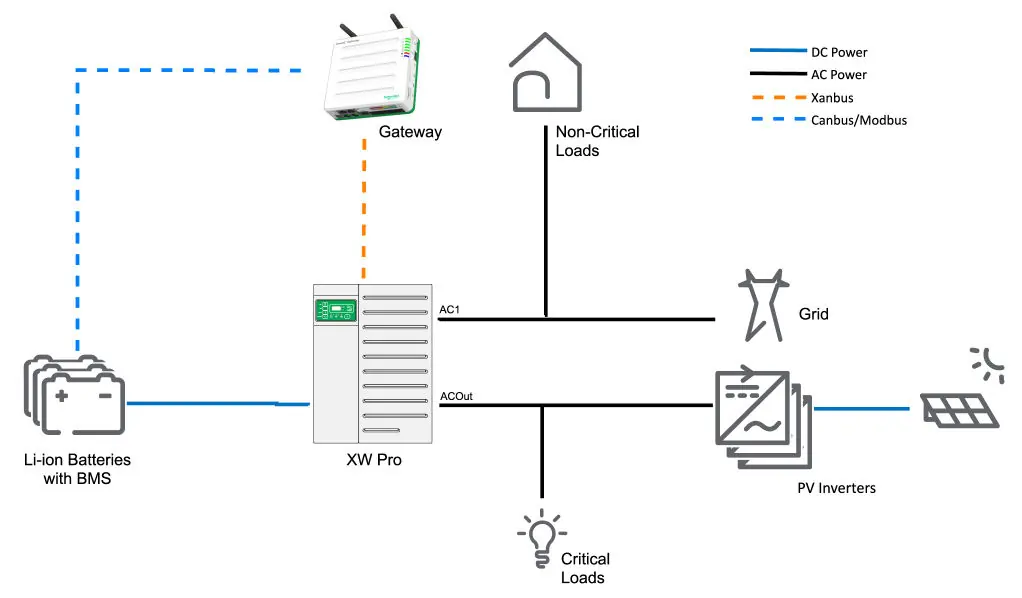
Installation and Commissioning
Inrush Current Management: The XW Pro contains internal capacitors that draw inrush current when the DC breaker is turned on. To prevent over-current faults:
- Follow the specific start-up sequence for your battery type.
- For some battery types, connect multiple battery packs simultaneously to share the inrush current.
- Close the DC disconnect or breaker at the inverter only after turning on the batteries according to the manufacturer's instructions.
Wiring Interface
The BMS communicates via CAN or RS485. Connect the interface to the 26-pin connector on the Conext Gateway.
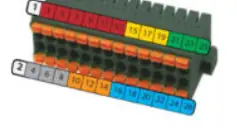
- CAN Port 1: Pins 10 (GND), 12 (CANL), 14 (CANH).
- RS485 Port 1: Pins 16 (GND), 18 (1A), 20 (1B).
- RS485 Port 2: Pins 22 (GND), 24 (2A), 26 (2B).
BMS Discovery and Association
CAN BMS Discovery: The Conext Gateway supports auto-detection for CAN BMS systems. Note that only 500 kbps speed is supported.
- Log in to the Gateway UI and click Setup.
- Navigate to Devices and click Device Overview to verify communication.
Modbus BMS Discovery:
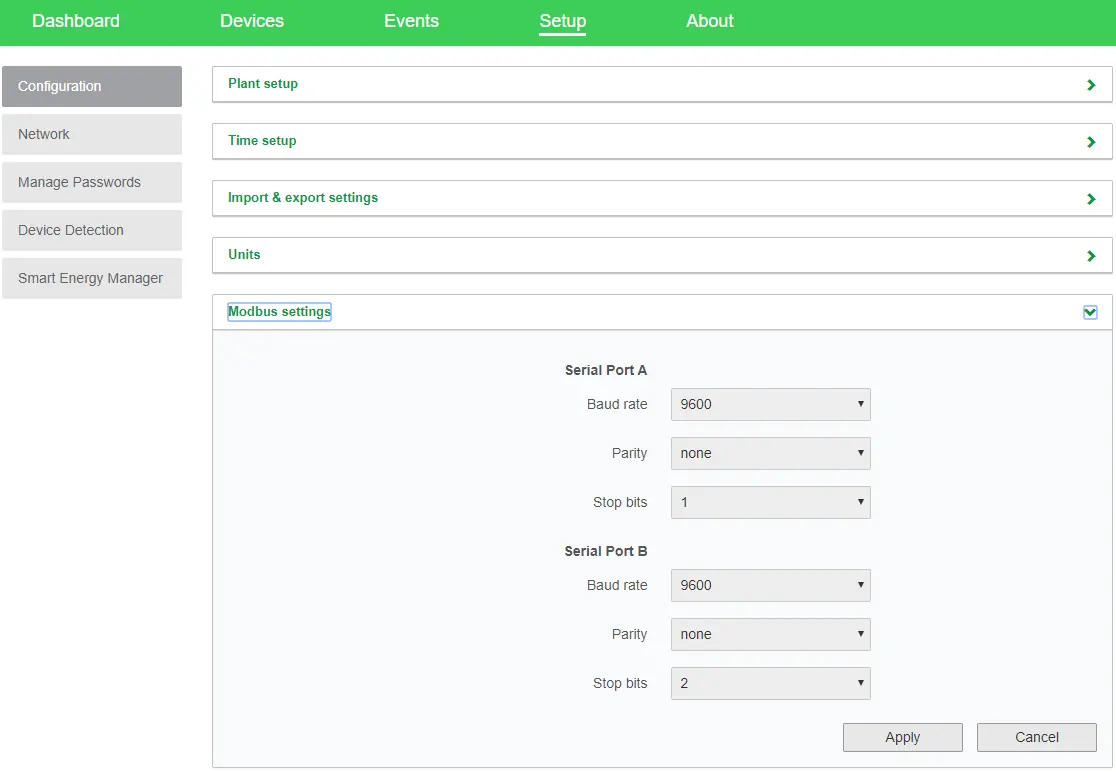
- Click Setup >Configuration >Modbus settings.
- Configure settings to match the BMS, then click Device Detection.
- Enter the address range and click Detect.
BMS Association: Once discovered, the master BMS must be associated with the XW Pro inverter:
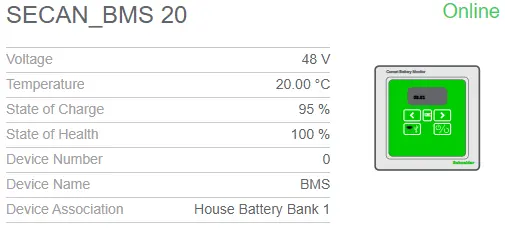
- Click the BMS device to open status information.
- Click Configuration >Device Association.
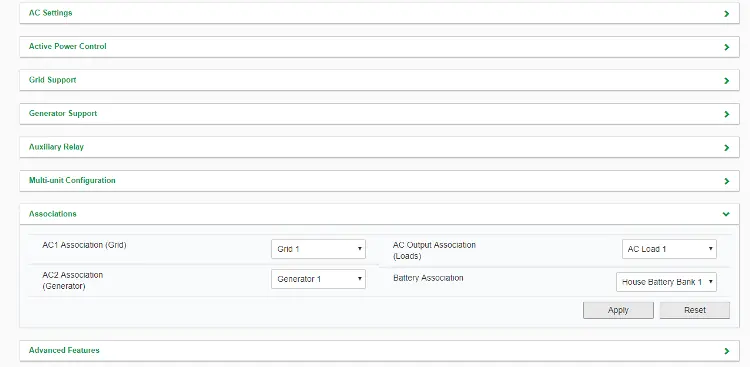
- In the Inverter/Chargers section, select the XW Pro and set the Battery Association to the same bank as the BMS.
System Configuration
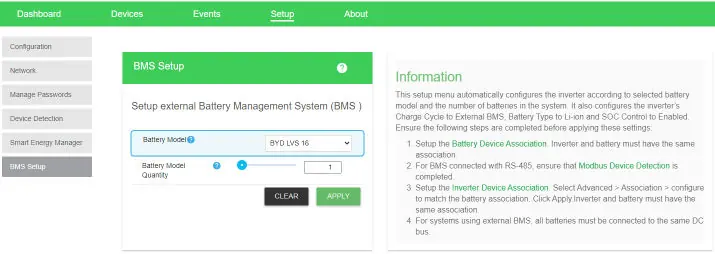
Navigate to Setup >BMS Setup in the Gateway UI. Select the installed battery model from the drop-down, enter the quantity, and click Apply. Ensure the battery model matches the actual hardware to allow the system to configure charging parameters automatically.
Compatible Batteries
The manual includes a compatibility table (Appendix A) listing supported manufacturers (BYD, Discover Battery, Pylontech) and their specific models. Always refer to this table for the recommended number of batteries in parallel and the specific start-up sequence required for your battery model.
Manufacturer information
Schneider Electric
Practical help
Common problems
BMS communication failure
Verify wiring connections, ensure the BMS is set as 'Master', and confirm CAN speed is set to 500 kbps.
Inrush current fault
Ensure the correct start-up sequence is followed (e.g., closing DC disconnect after starting batteries) and that the minimum number of batteries in parallel is met.
Before use
- Verify battery model is listed in Appendix A.
- Ensure BMS is powered off before wiring.
- Confirm CAN/RS485 wiring matches the 26-pin connector pinout.
- Ensure the BMS is configured as the Master unit.
- Check that the Conext Gateway firmware supports the battery.
Show more Show less
Specs in practice
- CAN Bus Speed
- Must be set to 500 kbps for CAN BMS communication.
- Battery Association
- The logical link between the BMS and the Inverter in the Gateway UI; must match for proper operation.
Model compatibility
- Only batteries with an on-board BMS are supported for closed-loop communication.
- Systems with multiple XW Pro inverters are not currently supported for BMS communication (future release).
- Static charge settings (open loop) are out of scope for this document.

Manual page author
Michael Turner
Technical manual editor