Computers / Storage
User Manual for Seagate Back up Now!
A comprehensive guide for backing up files to Seagate storage devices on Windows and Mac. Includes step-by-step instructions for drag-and-drop, copy-paste, and formatting drives for macOS compatibility.
Quick answers from the manual
Quick answer
- This manual guides users on how to back up files to Seagate storage devices using drag-and-drop or copy-paste methods on Windows and Mac, including necessary formatting steps for macOS. p. 1, 3, 7
Key actions
- Format drive for Mac p. 7, 8
- Back up files (Drag and Drop) p. 3, 9
First start
- Connect the drive to your computer. p. 3, 8
Problems and fixes
Mac cannot write to the drive
Format the drive to OS X Extended (Journaled) using Disk Utility.
p. 7Where to find it in the PDF
- Windows Backup p. 3, 4, 5, 6
- Mac Backup and Formatting p. 7, 8, 9, 10
Table of contents
Manual images
Click an image to enlargeQuick guide from the manual
This manual provides instructions for backing up files to your Seagate storage device. The primary methods for backing up data are manual drag-and-drop or copy-and-paste operations. For Mac users, the drive may require formatting to enable full read/write access.
Backing up on Windows
To back up files on a Windows computer:
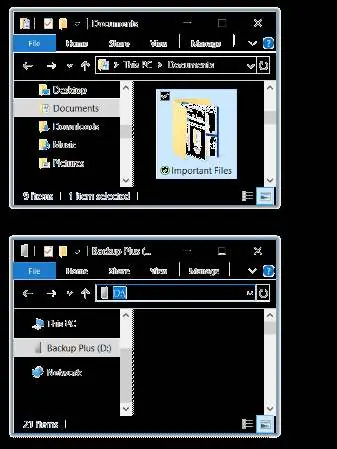
- Connect your Seagate storage device to the computer.
- Open a File Explorer window and click on your drive.
- Open a second File Explorer window and select the folders or files you wish to back up.
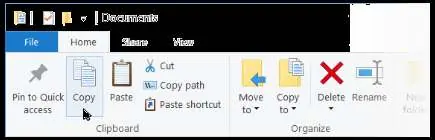
- Drag the selected items to your drive window, or use the Copy and Paste commands from the Home menu.
- Alternatively, you can use the Ctrl+C and Ctrl+V keyboard shortcuts to copy and paste files.
Formatting for macOS
External drives are often pre-formatted as NTFS, which is read-only on macOS. To gain full read/write access, you must format the drive:
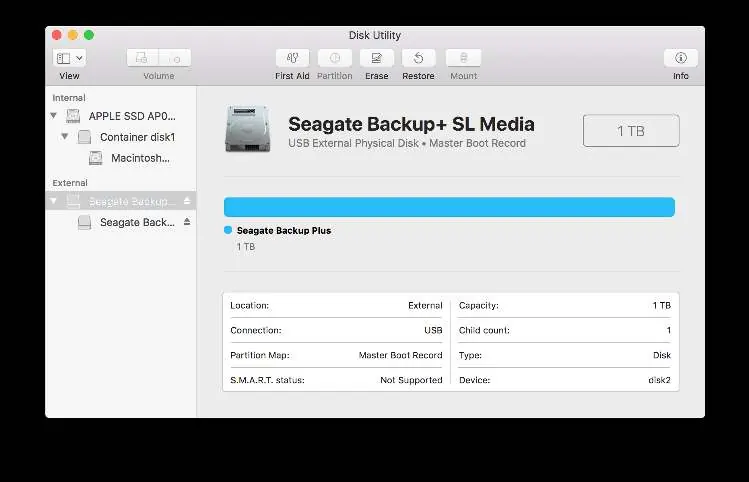
- Open Finder and navigate to Applications > Utilities > Disk Utility.
- Select your storage device in the sidebar. If you do not see the drive, change the view to Show All Devices.
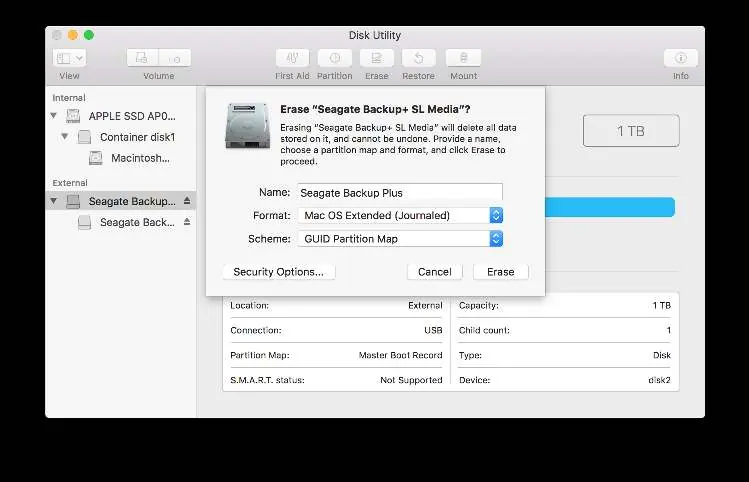
- Click Erase.
- Enter a name for the drive.
- Select OS X Extended (Journaled) for the Format.
- Select GUID Partition Map for the Scheme.
- Click Erase to complete the process.
Warning: Formatting erases all data currently stored on the drive. Ensure you have backed up any important files before proceeding.
Backing up on Mac
Once the drive is formatted for macOS:
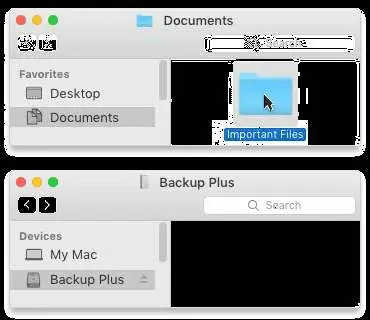
- Connect the drive to your Mac.
- Open a Finder window and click on your drive.
- Open another Finder window and select the files or folders to back up.
- Drag the items to your drive, or use the Edit menu to Copy and Paste the items.
- You can also use the Command+C and Command+V keyboard shortcuts.
Manufacturer information
Seagate Technology LLC
Practical help
Common problems
Mac cannot write to the drive or delete files
The drive is likely formatted as NTFS. Use Disk Utility to reformat the drive to OS X Extended (Journaled).
Drive not visible in Disk Utility on Mac
Change the view in Disk Utility to 'Show All Devices' to see both the drive and the volume.
Before use
- Connect the Seagate storage device to your computer.
- For Mac users: Verify if the drive is formatted for macOS (OS X Extended).
- Ensure you have selected the correct files for backup.
Specs in practice
- OS X Extended (Journaled)
- Native Mac file format required for full read/write access.
- GUID Partition Map
- Recommended partition scheme for Mac drives.
Model compatibility
- Windows: Supports drag and drop and native backup solutions.
- Mac: Requires reformatting for full read/write access.

Manual page author
Emily Carter
User documentation editor
Prepares concise manual descriptions and highlights the most useful setup, operation, and maintenance information for readers.