Computers / Storage
User Manual for Seagate Expansion Portable
A comprehensive user guide for the Seagate Expansion Portable hard drive. Includes setup instructions, connection steps, file system formatting advice for Windows and Mac, safe removal procedures, and troubleshooting tips for common issues.
Quick answers from the manual
Quick answer
- The Seagate Expansion Portable is a plug-and-play external hard drive. Connect it to your computer using the included USB 3.0 cable. It is preformatted in exFAT, making it compatible with both Windows and Mac out of the box. p. 4, 5, 6
Key actions
- Connect the drive p. 5
- Safely remove the drive p. 8
First start
- Connect the USB cable to the drive and your computer's USB-A port. p. 5
Problems and fixes
Slow file transfers
Connect to a USB 3.0 port and ensure the cable is firmly seated.
p. 10
Drive not appearing on computer
Check Device Manager (Windows) or Disk Utility (Mac) to verify the drive is mounted.
p. 12Where to find it in the PDF
- Getting Started p. 5
- Formatting p. 6, 7
- Safely Remove p. 8
Table of contents
Manual images
Click an image to enlargeQuick guide from the manual
The Seagate Expansion Portable is a plug-and-play external hard drive. It comes preformatted in exFAT for compatibility with both Windows and macOS. To get started, connect the drive to your computer using the provided USB 3.0 cable. For optimal performance, ensure you are using a USB 3.0 or higher port on your computer.
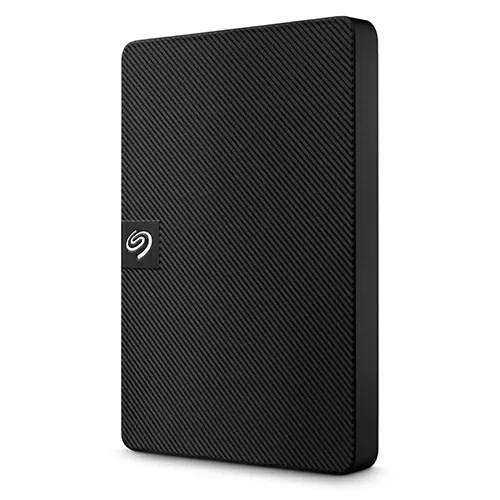
Connecting the drive
Follow these steps to connect your drive:
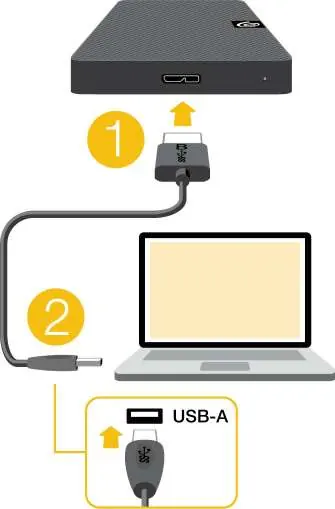
- Connect the USB micro-B end of the cable to the port on the Expansion Portable drive.
- Connect the USB-A end of the cable to your computer's USB-A port.
Note: You can connect to a USB-C port if you have a compatible adapter or cable (not included), provided the port supports USB 3.0 or higher.
Formatting and partitioning
Your drive is preformatted in exFAT. Consider the following when choosing a file system:
- exFAT: Best for cross-platform compatibility (Windows and Mac). Note that it is not recommended for built-in backup utilities like File History or Time Machine.
- NTFS: Optimized for Windows. macOS can read but not natively write to NTFS.
- APFS/HFS+: Optimized for macOS. Windows cannot natively read or write to these formats.
Safely removing the device
Always eject the drive before disconnecting to prevent data corruption.
- Windows: Use the "Safely Remove Hardware" icon in the system tray to eject the device before unplugging.
- Mac: Eject by dragging the drive icon to the Trash or by clicking the eject symbol next to the drive name in the Finder sidebar.
Troubleshooting
If you encounter issues, check the following:
- Slow transfers: Ensure the drive is connected to a USB 3.0 port and that the cable is firmly seated. Avoid using unpowered USB hubs.
- Drive not appearing: On Windows, check Device Manager. On Mac, check Disk Utility to see if the drive is mounted.
- Error messages: If you receive an "Error -50" when copying to a FAT32 volume, check file names for incompatible characters like ? < > / \ :.
Manufacturer information
Seagate Technology LLC
Practical help
Common problems
File transfers are too slow
Ensure the drive is connected to a USB 3.0 port, check cable connections, and disconnect other USB devices from the same hub.
Hard drive icon does not appear
Check Device Manager (Windows) or Disk Utility (Mac) to verify the drive is detected and mounted.
Error -50 during file transfer
Check file and folder names for incompatible characters such as ? / \ :.
Drive disconnected after sleep mode
This is often normal behavior as the drive spins down to conserve power; it should remount automatically.
Before use
- Verify box contents include the drive and USB 3.0 cable.
- Identify a USB 3.0 or higher port on your computer for best performance.
- Determine if you need to reformat the drive for specific backup utilities (e.g., Time Machine or File History).
- Ensure you have the correct cable if connecting to a USB-C port.
Images and diagrams
- The connection diagram illustrates plugging the micro-B connector into the hard drive and the USB-A connector into the computer.
Model compatibility
- The drive is preformatted as exFAT.
- USB 2.0 ports will limit transfer speeds.
- USB-C connections require a compatible cable or adapter (not included).

Manual page author
Michael Turner
Technical manual editor
Reviews PDF manuals for structure, safety notes, and practical product details so readers can find the right information quickly.