Computers / Storage
User Guide for StarTech.com USB-C/USB-A 2-in-1 M.2 NVMe Adapter
Quick start guide for the StarTech.com 2-in-1 M.2 NVMe adapter. Learn how to install your M.2 drive, connect to USB-C or USB-A ports, and safely operate the device.
Quick answers from the manual
Quick answer
- This adapter allows you to connect an M.2 NVMe drive to a computer via USB-C or USB-A. Insert the drive vertically and connect the cable to your host computer. p. 1
Key actions
- Insert M.2 NVMe drive vertically into the slot. p. 1
- Connect to host via USB-C or attach the USB-A adapter for USB-A ports. p. 1
First start
- Insert the M.2 NVMe drive into the slot, then connect the adapter to your computer's USB port. p. 1
Problems and fixes
Device overheating
Let the drive cool down before removing or handling.
p. 1Technical specifications
| Parameter | Value | Meaning | Pages |
|---|---|---|---|
| Data Transfer Speed | 10Gbps | Maximum throughput | p. 1 |
Where to find it in the PDF
- Quick Start Guide p. 1
Table of contents
Quick Guide
This adapter allows you to connect an M.2 NVMe drive to a computer using either a USB-C or USB-A port. The device features a toaster-style design for heat dissipation. Always ensure you eject the drive safely via your operating system before disconnecting to prevent data loss.
Product Overview
The adapter consists of the following components:
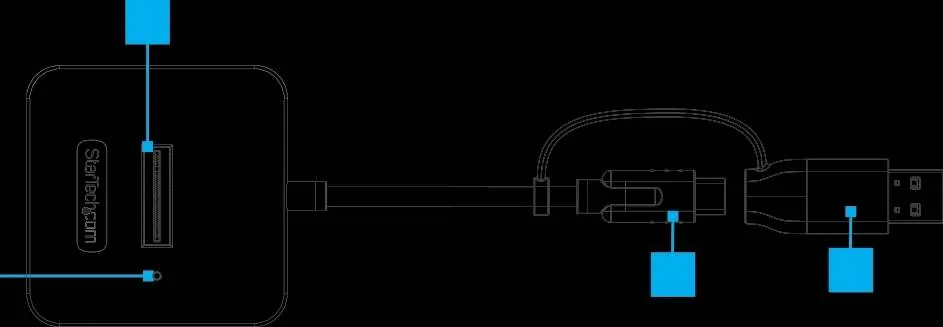
- M.2 NVMe Slot: Vertical slot for inserting the M.2 drive.
- LED Indicator: Solid light indicates the drive is detected; flashing light indicates read/write activity.
- USB-C Connector: Integrated cable for connection to a USB-C host port.
- USB-A Adapter: Detachable adapter that attaches to the USB-C cable for connection to a USB-A host port.
Installation and Operation
- Insert Drive: Insert the M.2 NVMe drive vertically into the adapter slot.
- Connect to Host: Connect the adapter to an available USB-C or USB-A port on your host computer.
- Using USB-A: If your computer only has USB-A ports, attach the included USB-C to USB-A adapter to the integrated USB-C cable.
Safety Warnings
- Heat Warning: M.2 drives can become hot during prolonged data transfer sessions. Avoid touching the drive immediately after use to prevent burns. Allow the drive to cool down before removing or handling it.
- Safe Ejection: Always eject the drive safely via the operating system before disconnecting the device to avoid data loss or hardware damage.
Practical help
Common problems
Drive overheating
Avoid touching the drive immediately after use. Allow it to cool down before removing or handling.
Data loss or device damage
Always eject the drive safely via the operating system before disconnecting the adapter.
Before use
- Ensure you have an M.2 NVMe drive.
- Ensure your computer has an available USB-C or USB-A port.
Images and diagrams
- The diagram illustrates the M.2 slot, LED indicator, USB-C connector, and the detachable USB-A adapter.
Model compatibility
- Compatible with M.2 NVMe drives.
- Requires a host computer with an available USB-C or USB-A port.

Manual page author
David Miller
Documentation analyst
Organizes user manual content into clear summaries, with attention to model details, product context, and everyday usability.