Computers / Storage
Seagate One Touch with Password External Hard Drive User Guide
Quick start guide and setup instructions for the Seagate One Touch with Password external hard drive. Learn how to connect, install Toolkit, set a password, and format for Mac.
Quick answers from the manual
Quick answer
- To set up your Seagate One Touch with Password, connect the drive using a micro-B to USB-C cable, download and install the Toolkit software, and follow the prompts to create a password. p. 1
Key actions
- Connect the drive p. 1
- Install Toolkit p. 1
- Create a password p. 1
First start
- Connect the drive, install Toolkit, and set a password. p. 1
Show 2 more answers Show less
Maintenance and reset
- Always use the operating system's safe removal procedure before disconnecting. p. 1
Where to find it in the PDF
- Quick Start Guide p. 1
- Regulatory and Safety Information p. 1, 2
Table of contents
Quick Start Guide
Follow these steps to set up your Seagate One Touch with Password external hard drive:
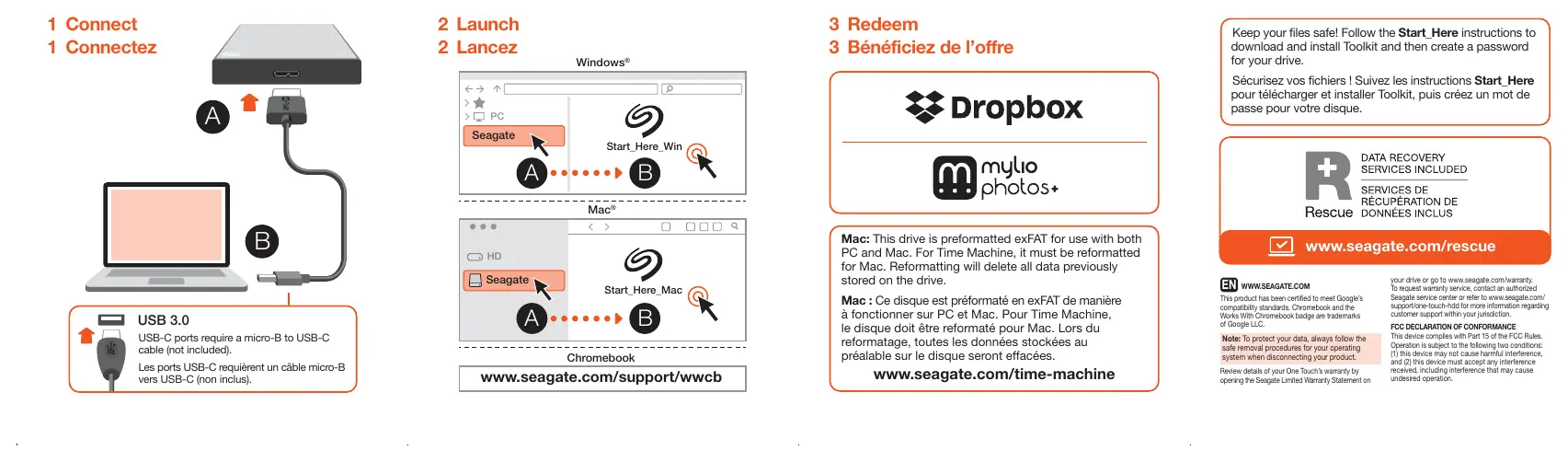
- Connect: Use a micro-B to USB-C cable to connect the drive to your PC, Mac, or Chromebook.
- Launch: Download and install the Toolkit software from the Seagate website.
- Redeem: Follow the on-screen instructions in Toolkit to create a password and secure your drive.
Mac Compatibility and Formatting
The drive is preformatted in exFAT, which allows it to work with both PC and Mac computers out of the box. However, if you intend to use the drive with Apple Time Machine, you must reformat it for Mac.
Warning: Reformatting the drive will delete all data currently stored on it. Ensure you have backed up any important files before proceeding.
Safe Removal
To protect your data and prevent corruption, always follow the safe removal procedures for your specific operating system before disconnecting the drive from your computer.
Safety and Compliance
This product is certified to meet Google compatibility standards. The device complies with Part 15 of the FCC Rules. Users should avoid disposing of the product with household waste and instead use designated collection points for recycling electrical and electronic equipment.
Manufacturer information
Seagate Technology LLC
Practical help
Common problems
Drive not recognized on Mac for Time Machine
The drive must be reformatted for Mac to work with Time Machine. Note that this will erase all existing data.
Data loss during setup
Reformatting the drive for specific operating systems like Time Machine will delete all previously stored data.
Before use
- Ensure you have a micro-B to USB-C cable (not included).
- Visit the Seagate website to download the Toolkit software.
- Back up any existing data if you plan to reformat the drive.
- Check your operating system's safe removal procedure.
Show more Show less
Images and diagrams
- The connection diagram illustrates the physical connection between the hard drive and various computer types (PC, Mac, Chromebook) using the required cable.
Model compatibility
- Compatible with PC and Mac (exFAT).
- Certified for use with Chromebooks.

Manual page author
Michael Turner
Technical manual editor